On this page
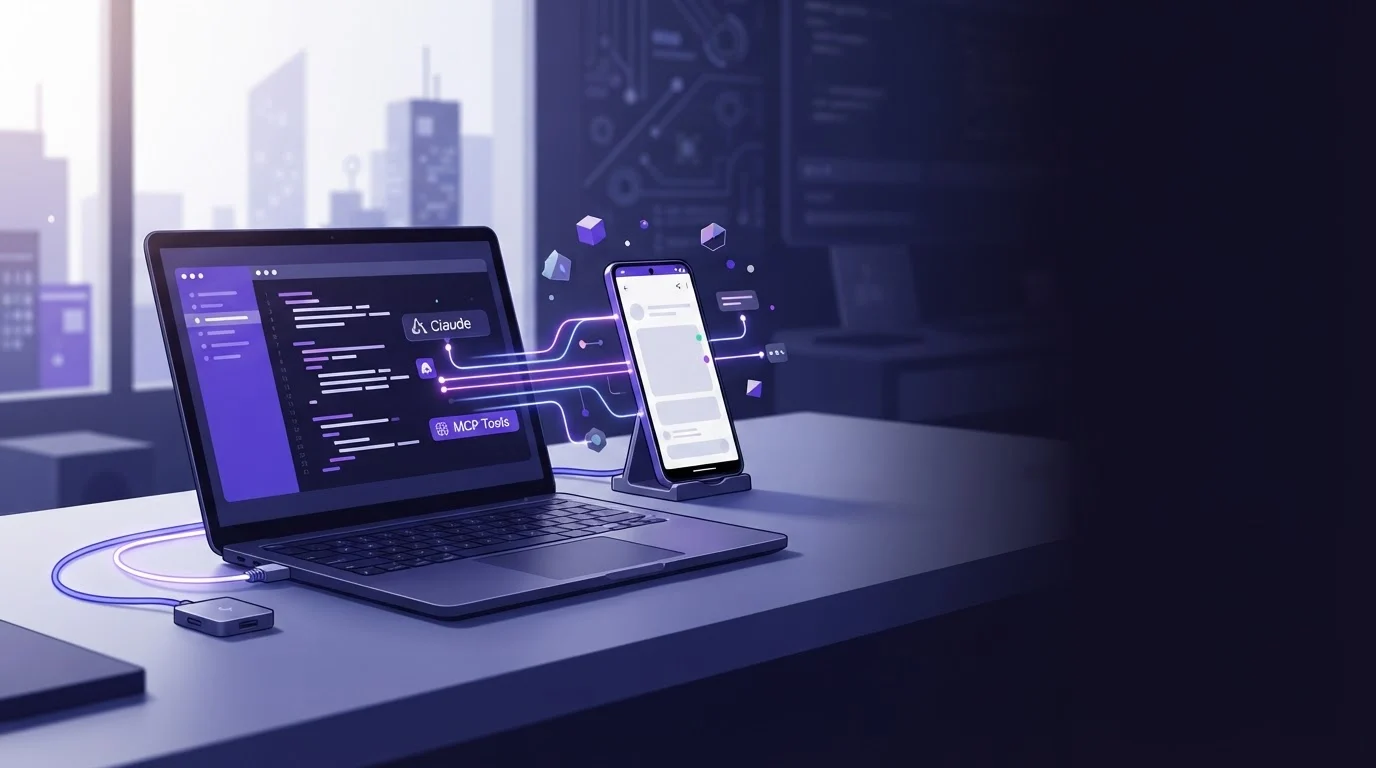
Yes, you can use Claude Code for Android app testing on a real device by connecting it to ScreenSync MCP, which provides 29 phone and desktop tools over a local stdio connection. Our setup lets the agent view real-time screens, inspect Android UI trees, and execute gestures on physical hardware running Android 7.0 or later.
Key Takeaways
- Claude Code connects to our local Node.js hub via the Model Context Protocol (MCP) using a standard stdio command.
- Screen capture uses Android's native MediaProjection API without requiring root or ADB access.
- Device control actions like taps, swipes, and text entry execute through ADB over either USB or wireless debugging.
- Our hub exposes 226 total MCP tools (29 phone and desktop tools plus 197 browser tools), 17 prompts, and 3 resources.
- All video frames stay on your local network between the phone and your hub, while explicit screenshots requested by the agent go to its model provider.
What It Is and Why It Matters
What It Is and Why It Matters
The Shift to Agentic Mobile QA
Automating mobile tests traditionally meant writing brittle test scripts in Appium or Espresso that break whenever an element ID shifts. Using Claude Code for Android app testing on a real device allows an autonomous coding agent to read test failures, open the app, inspect the current state, and tap buttons directly. What this means for you is faster debugging cycles where Claude Code can reproduce, diagnose, and patch mobile bugs in the same terminal session.
Real Device Verification vs Emulators
Emulators often miss hardware-specific quirks, realistic thermal throttling, camera permissions, and real-world network fluctuations. Real devices provide grounded truth. Our Android app runs on physical devices with Android 7.0 or later, capturing real UI states via MediaProjection while Claude drives inputs.
Where Other MCP Mobile Tools Fit
Developers often evaluate alternatives like mobile-mcp, Android-MCP, scrcpy-mcp, or ScreenMCP. Many of these rely purely on raw terminal ADB commands without structured toolsets, or lack paired browser automation. ScreenSync MCP gives you a coordinated architecture that bridges your phone and local browser under one interface.
| Tool Option | Target Environment | Primary Mechanism |
|---|---|---|
| ScreenSync MCP | Real Android & Browser | MediaProjection + ADB + MV3 |
| scrcpy-mcp | Desktop Mirror | Video stream capture |
| Android-MCP | Emulators / ADB | Direct CLI wrapper |
| mobile-mcp | Mobile Devices | Appium or ADB bridge |
How It Works
MediaProjection Screen Streaming
Our Android app captures device frames using Android's MediaProjection API after you grant permission at the start of each session. This capture pathway requires no root access and no ADB configuration. The phone streams visual frames directly across your local network to our Node.js hub on port 3000, achieving about 94 ms median latency on a LAN in our tests.
ADB Execution for Device Inputs
While capture runs without ADB, control tools require an active ADB connection over USB or wireless debugging. When Claude Code executes an action like tapping or typing, the hub translates that request into ADB input commands. If you prefer a cable-free workstation, read our guide on how to pair Android wireless debugging to MCP without USB.
The Local Node.js Hub Bridge
The ScreenSync MCP hub requires Node.js 18+ and runs on Windows, macOS, or Linux using start-hub.bat or start-hub.sh. It speaks stdio to Claude Code and HTTP to the mobile device. The hub presents 226 MCP tools: 29 phone/desktop tools (including 12 control_*, 3 os_*, and 14 capture/hub tools), alongside 197 web_* browser tools.
Step-by-Step Walkthrough
Step 1: Install the Android App and Start the Hub
First, install the ScreenSync MCP Android app (version 2.5.7) from Google Play (com.screensync.mcp). Next, download and unpack the hub (version 1.14.4) on your machine. Launch it with the platform script:
bash
./start-hub.sh
The hub spins up on HTTP port 3000.
Step 2: Pair Device and Hub
Open the Android app on your phone. Ensure both devices are on the same Wi-Fi network. You can pair by scanning the QR code displayed by the hub or relying on automatic mDNS discovery on the local network. Communication uses a secure bearer token (SCREEN_SYNC_TOKEN).
Step 3: Register ScreenSync with Claude Code
Add the hub directly to Claude Code's MCP client using the CLI command below, replacing the path with the exact folder where you unpacked the hub zip file:
bash
claude mcp add screensync node "/path/to/hub/screensync-hub.js"
For Claude Desktop users, configure mcpServers.screensync with command node, args ["/path/to/hub/screensync-hub.js"], and env containing SCREEN_SYNC_TOKEN inside claude_desktop_config.json via Settings > Developer. Cursor and VS Code can be configured according to their respective MCP documentation. Note that ChatGPT's web app requires remote HTTPS MCP and is not supported.
| ScreenSync Component | Pricing | Delivery Method |
|---|---|---|
| Android App | Free on Google Play | com.screensync.mcp |
| Node.js Hub | Free download | start-hub script |
| Browser Extension | Free download | Chrome / Edge MV3 |
Example Prompts and Tool Calls
Inspecting Hierarchy and Visual State
Instead of making Claude guess pixel coordinates, it can retrieve exact layout nodes. To learn more about this approach, see our article on how AI agents use Android UI trees not screenshots. Claude Code can call:
get_ui_hierarchyto locate buttons, form fields, and view IDs.get_latest_screenshotto confirm the rendering state visually.
Example prompt: "Inspect the login screen on the attached Android device and confirm that the submit button is visible."
Driving Interactions via ADB
Once elements are identified, Claude Code triggers control tools over ADB:
control_tapwith target coordinates.control_typeto fill form fields.control_swipeto scroll through long lists.
Example prompt: "Type '[email protected]' into the email input, tap the submit button, and let me know if an error dialog appears."
Capturing Logs and Recording Video
When testing app crashes or performance hiccups, Claude Code monitors runtime outputs directly from the hub using:
get_logcatto pull system logs and stack traces.record_screento capture motion or video during reproduction.
Example prompt: "Launch our staging build, tap through the checkout flow, and run get_logcat to see if any fatal exceptions fire."
Common Mistakes and Troubleshooting
Missing ADB Authorization
A frequent issue is forgetting that control tools require ADB. While capture works immediately through MediaProjection without ADB or root, running control_tap or control_type will fail if your device does not have USB debugging or wireless debugging enabled and authorized on your host machine.
Hub Path Configuration Errors
When running claude mcp add screensync node "/path/to/hub/screensync-hub.js", you must point directly to the unpacked file path on your machine. Using an incorrect relative path or running an unsupported Node.js version (below Node.js 18) will cause the stdio transport to fail silently upon agent startup.
Network Discovery and Firewall Blocks
If pairing fails, confirm that your computer's firewall allows local traffic on port 3000. If mDNS discovery does not detect the hub, open the mobile app and scan the QR code generated in the hub terminal to establish the link instantly.
Privacy and Safety Notes
Local Network Data Flow
Your screen frames stream directly from the phone to your local hub over your local network. They are never transmitted to EpsolDev servers. A Google Drive fallback is available as an optional setting, but is never required.
External Model Provider Transmission
Be aware of how model providers handle visual data: whenever an AI agent calls get_latest_screenshot, that image data is transmitted to that specific agent's model provider for processing. Avoid displaying sensitive production user credentials on screen during automated runs.
Human Approval for Sensitive Actions
For hybrid mobile and web testing workflows, our Chrome and Edge extension (built on Manifest V3) lets Claude Code drive your real browser tab alongside your mobile session. It includes a human approval prompt before executing sensitive browser interactions.
Pre-Testing Checklist
- Ensure the phone runs Android 7.0 or later.
- Verify Node.js 18+ is installed on the host computer.
- Connect the phone via USB or enable wireless debugging for ADB control.
- Launch the hub via
start-hub.batorstart-hub.shon port 3000. - Grant the Android MediaProjection prompt on the device screen.
- Register the stdio server path in Claude Code.
Conclusion
Claude Code can reliably test Android apps on real mobile devices when paired with ScreenSync MCP. It suits developers and QA teams who need an autonomous agent to inspect UI elements, trigger ADB controls, and pull system logs on physical hardware.
ScreenSync MCP provides the ScreenSync MCP Android app, ScreenSync MCP hub, and ScreenSync MCP browser extension to users worldwide. For technical support, contact [email protected] or visit https://www.screensyncmcp.tech. You can Get it on Google Play to start testing today.
Questions, answered
Does Claude Code require root access to test an Android phone?
No, ScreenSync MCP requires no root access. Screen capture uses Android's native MediaProjection API, and input control runs through standard ADB over USB or wireless debugging.
Which versions of Android are supported for testing?
The ScreenSync MCP Android app supports physical devices running Android 7.0 or later.
How does Claude Code send taps and keystrokes to the device?
Claude Code executes input tools like control_tap, control_swipe, and control_type via the local Node.js hub, which translates them into ADB commands sent across your USB or wireless debugging connection.
Can Claude Code test across both mobile apps and desktop browsers?
Yes, the ScreenSync MCP hub provides 226 tools total, including 29 phone and desktop tools plus 197 browser tools powered by our Chrome/Edge extension, letting Claude Code interact with both surfaces.
Are my mobile screen recordings sent to ScreenSync MCP servers?
No, your video frames stream locally from your phone to the hub on your own network and are never sent to EpsolDev servers. However, screenshots requested by your AI agent are sent to that agent's model provider.