On this page
ScreenSync MCP connects AI agents directly to real physical mobile devices using standard Model Context Protocol (MCP) primitives: tools execute device actions, resources expose live phone state, and prompts define repeatable multi-step agent workflows. In our architecture, the ScreenSync MCP hub exposes 226 MCP tools, 17 prompts, and 3 resources over stdio so clients like Claude Desktop and Claude Code can interact with a physical device. Here is the architecture of MCP tools, prompts and resources explained with a real Android example.
Key Takeaways
- Three Distinct Primitives: The Model Context Protocol (MCP) organizes capabilities into tools (active execution), resources (contextual data retrieval), and prompts (reusable workflow templates).
- Tool Architecture: ScreenSync MCP delivers 226 MCP tools, divided into 29 phone/desktop tools (12
control_*, 3os_*, 14 capture/hub tools) and 197web_*browser tools. - Permission Model: Screen capture operates via Android's native MediaProjection API without needing root or ADB, whereas device control operations require ADB over USB or wireless debugging.
- Local Privacy: Frame streaming occurs entirely over your local network between the mobile device and the desktop hub without passing through EpsolDev servers.
- Client Compatibility: The system connects to stdio-based local MCP clients such as Claude Desktop, Claude Code, Cursor, and VS Code, while remote HTTPS clients like ChatGPT web are not supported.
What It Is and Why It Matters
MCP primitives provide an open, standardized framework that replaces custom, fragile scripts with structured models for AI interaction. When an AI agent needs to drive a phone, it requires deterministic ways to see the screen, inspect the view tree, touch UI elements, and execute complex workflows without hallucinating arbitrary commands.
What It Is and Why It Matters
Tools for Active Intervention
MCP tools allow an LLM to take actions that alter the outside world or query external systems dynamically. In an Android context, tools handle user input synthesis, ADB interaction, and hardware sensor queries. When Claude decides to tap a button, it invokes a specific tool call with explicit arguments rather than outputting raw bash commands.
Resources for Passive Context
Resources act like read-only GET endpoints or files that provide background context to the model. Instead of prompting the model to invoke an action, an MCP client can attach resources directly to provide ambient awareness. In our mobile implementation, resources expose dynamic device states, application hierarchies, or ongoing system log streams.
Prompts for Structured Agent Workflows
MCP prompts are parameterized templates served by the server to guide how an agent approaches a specific task. Rather than typing out repetitive instructions for testing an authentication flow, a developer can trigger a predefined prompt that instructs the LLM on which tools to call, what edge cases to monitor, and how to verify UI outcomes.
Why Unified Standards Matter for Mobile
Fragmented mobile testing setups often combine distinct frameworks for tapping, log pulling, and video capture. Using MCP standardizes these operations across desktop models. What this means for you is that Claude can analyze your local code, pull the latest mobile screenshot, and execute an input gesture in a single, coherent reasoning loop.
| Option | Who It Suits | What Makes It Different |
|---|---|---|
| ScreenSync MCP | QA engineers, mobile devs | Real-device screen streaming and browser extension |
| scrcpy-mcp | CLI enthusiasts | Focuses purely on scrcpy desktop forwarding |
| Android-MCP | Backend testers | Relies entirely on command-line ADB shells |
| mobile-mcp | Emulator workflows | Tailored mostly to virtual devices |
| ScreenMCP | General tinkerers | Alternative experimental toolsets |
How It Works
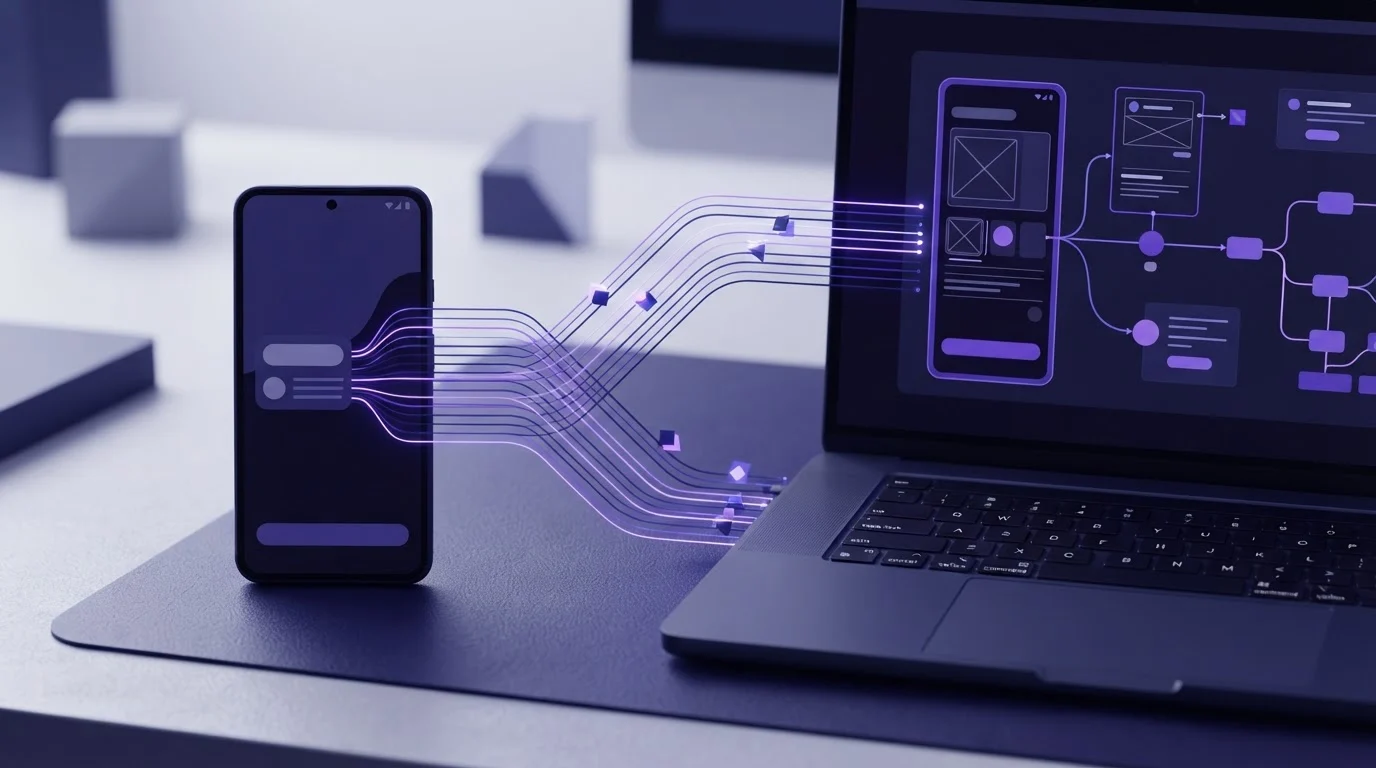
ScreenSync MCP splits operational responsibility between an on-device application, a local desktop hub, and your MCP client. This division of labor keeps resource-intensive processing on your computer while leaving the phone lightweight and responsive.
+-----------------------+ stdio +-------------------------+
| Local MCP Client | <---------------> | ScreenSync MCP Hub |
| (Claude Desktop/Code) | | (Node.js on :3000) |
+-----------------------+ +-------------------------+
^ |
MediaProjection Frame | | ADB Commands
(LAN / No ADB) | | (USB/Wi-Fi)
| v
+-------------------------+
| Real Android Device |
| (Android 7.0+) |
+-------------------------+
Capture Pipeline Without Root
Capturing the physical display uses Android's native MediaProjection API, available on Android 7.0 or later. The user grants capture consent directly on the device at the start of each session. Because this runs through standard Android APIs, video streaming requires no root privileges and no ADB connection, achieving a live mirror latency of about 94 ms median on a local network in our tests.
Control Execution via ADB
While visual capture operates independently, control tools like control_tap, control_swipe, and control_type execute via ADB. The desktop hub runs these commands over a standard USB cable or wireless debugging. Separating display capture from input injection ensures the capture pipeline remains stable even if an ADB connection drops.
The Node.js Stdio Bridge
The ScreenSync MCP hub requires Node.js 18+ on Windows, macOS, or Linux. It runs an HTTP service on port 3000 to coordinate local network traffic and communicates with your AI client over standard input/output (stdio). For a deeper look at transport design, read our article on should Screen MCP use stdio or HTTP SSE for Claude.
Browser Extension Integration
Beyond mobile control, the hub supports an MV3 browser extension for Chrome and Edge. This exposes 197 web_* tools that allow the model to interact with live desktop browser tabs. The agent can switch between verifying an administrative dashboard in Chrome and testing a mobile app on Android within the same context session.
Step-by-Step Walkthrough
Setting up an end-to-end MCP development environment takes only a few minutes when following the standard pairing and configuration sequence.
Step 1: Install the Android Application
Install the ScreenSync MCP Android app on any physical device running Android 7.0 or higher. You can install the package directly from Google Play (com.screensync.mcp). When launched, the application requests MediaProjection permissions to begin frame streaming.
Step 2: Start the Desktop Hub
Download the ScreenSync MCP hub package to your computer and extract the zip archive. Ensure you have Node.js 18+ installed on your system. Launch the hub using the platform-specific starter script:
- On Windows: run
start-hub.bat - On macOS or Linux: run
start-hub.sh
The hub will initialize its local HTTP server on port 3000 and display a pairing QR code in the terminal alongside an authentication token.
Step 3: Pair the Device
Connect your Android phone to the same local area network as your computer. In the ScreenSync MCP Android app, scan the pairing QR code generated by the hub, or let mDNS auto-discovery find the local hub automatically. Requests use a bearer token (SCREEN_SYNC_TOKEN) to authenticate incoming socket traffic.
Step 4: Configure the MCP Client
Add the hub to your local MCP client configuration. If you are using Claude Code, register the tool via the command line:
bash
claude mcp add screensync node "/path/to/hub/screensync-hub.js"
If you are using Claude Desktop, open your settings and navigate to Developer options to edit claude_desktop_config.json:
{
"mcpServers": {
"screensync": {
"command": "node",
"args": ["/path/to/hub/screensync-hub.js"],
"env": {
"SCREEN_SYNC_TOKEN": "your_token_here"
}
}
}
}
For troubleshooting network handshakes during this step, refer to our troubleshooting guide on MCP server not connecting to Android: fix pairing and mDNS.
| Product / Component | License / Cost | What Is Included |
|---|---|---|
| ScreenSync MCP Android app | Free on Google Play | MediaProjection streaming, mDNS, QR pairing |
| ScreenSync MCP hub | Free download | 29 phone tools, 17 prompts, 3 resources |
| ScreenSync MCP browser extension | Free download | 197 browser tools, human-in-the-loop approvals |
Example Prompts and Tool Calls
Understanding how MCP operates in practice requires examining how models use the 29 phone and desktop tools alongside prompts and resources.
Calling Capture and Analysis Tools
When Claude Desktop needs to evaluate the mobile screen, it invokes get_latest_screenshot to retrieve a visual frame, or get_ui_hierarchy to inspect structural accessibility nodes:
{
"name": "get_latest_screenshot",
"arguments": {}
}
If the interface elements lack clear visual labels, the agent calls get_ui_hierarchy to pull view bounds, resource IDs, and text fields:
{
"name": "get_ui_hierarchy",
"arguments": {}
}
Executing Physical Inputs via Control Tools
After analyzing the coordinates of an element, the model triggers an ADB input action using one of the 12 control_* tools. To tap a submit button at coordinates X: 540, Y: 1120, it issues:
{
"name": "control_tap",
"arguments": {
"x": 540,
"y": 1120
}
}
For scrolling feeds or dismissing notifications, the model invokes control_swipe with directional coordinates:
{
"name": "control_swipe",
"arguments": {
"startX": 500,
"startY": 1500,
"endX": 500,
"endY": 400,
"duration": 300
}
}
When text input is required, the agent triggers control_type to inject characters through the active ADB keyboard session:
{
"name": "control_type",
"arguments": {
"text": "[email protected]"
}
}
Leveraging Diagnostic Prompts and Resources
ScreenSync MCP provides 3 resources, such as live system log access via get_logcat. Instead of manually parsing device logs, an engineer can invoke one of our 17 built-in prompts to automate triage. For instance, a mobile bug report prompt directs the model to read get_logcat, call get_latest_screenshot, and use record_screen to capture transient rendering artifacts before summarizing the issue.
Common Mistakes and Troubleshooting
Integrating AI with real hardware introduces variables not present in mock software environments. Here are common friction points and how to fix them.
Mistake 1: Expecting Control Tools to Work Without ADB
MediaProjection enables the hub to display the device screen without root or developer modes enabled. However, developers sometimes wonder why control_tap or control_swipe fail while video works. Control tools require ADB over USB or wireless debugging to be active and authorized on the host.
Mistake 2: Stale Node.js Versions
The ScreenSync MCP hub relies on modern runtime features found in Node.js 18 or later. Running the hub on legacy versions like Node.js 16 will cause syntax or module loading errors during startup. Always verify your environment by running node -v.
Mistake 3: Network Isolation on Guest Wi-Fi
Both mDNS discovery and local frame streaming rely on peer-to-peer LAN communication. If your phone is connected to a corporate guest Wi-Fi network with client isolation enabled, it cannot discover the hub on port 3000. Ensure both the computer and mobile device share an unisolated subnet.
Mistake 4: Attempting to Use Web-Based MCP Clients
Some developers attempt to configure ScreenSync MCP directly inside cloud-only interfaces like ChatGPT's web app. ChatGPT's web interface requires remote HTTPS MCP endpoints. ScreenSync MCP operates locally over stdio for security and low latency, making it compatible with Claude Desktop, Claude Code, Cursor, and VS Code, but not remote web chat tools.
Privacy and Safety Notes
Bridging an autonomous AI model to a physical mobile phone requires strict operational boundaries to protect private device data.
Local Network Frame Security
Video frames captured by the ScreenSync MCP Android app travel directly over your local Wi-Fi or USB network to your desktop hub. They are never transmitted to EpsolDev servers. A Google Drive fallback mode exists purely as an optional user-configured backup.
Model Provider Transmission
While our software does not process your video frames externally, you must be aware of your model provider's data handling. When an agent invokes get_latest_screenshot, that image is sent directly to the agent's LLM provider (such as Anthropic) for vision processing according to that provider's privacy terms.
Browser Safety Approvals
When the agent utilizes the ScreenSync MCP browser extension (MV3) to control desktop tabs, destructive or risky actions trigger a mandatory human approval prompt. This keeps an automated session from submitting payments or altering critical account settings without explicit consent.
Pre-Deployment Checklist
- Verify the Android phone runs Android 7.0 or higher.
- Confirm Node.js 18+ is installed on the host computer.
- Grant MediaProjection capture permission on the mobile device.
- Enable USB or wireless debugging if input control tools are needed.
- Ensure both devices are on the same local subnet without client isolation.
- Set the
SCREEN_SYNC_TOKENin your MCP client configuration.
Conclusion
Connecting an AI agent to Android requires combining tools for active inputs, resources for state inspection, and prompts for multi-step guidance. Using the free ScreenSync MCP hub alongside the Android app provides developers and QA teams with a local, responsive test setup without proprietary cloud lock-in.
ScreenSync MCP provides developer tools for AI agents and the Model Context Protocol (MCP), offering the ScreenSync MCP Android app, ScreenSync MCP hub, and ScreenSync MCP browser extension worldwide. Get it on Google Play or visit our website at https://www.screensyncmcp.tech, and contact us by email at [email protected].
Questions, answered
What is the difference between an MCP tool and an MCP resource on Android?
An MCP tool executes an active operation on the phone, such as tapping coordinates or typing text, whereas an MCP resource provides passive, read-only contextual information like system logs or UI accessibility trees.
Do I need root access to capture my Android phone screen with ScreenSync MCP?
No, screen capture uses Android's native MediaProjection API and requires no root access and no ADB configuration.
Why do control tools like tap and swipe require ADB?
Android's security architecture restricts synthetic touch and keyboard events from standard third-party apps, meaning control commands must be executed through ADB over USB or wireless debugging.
Can I use ScreenSync MCP with the ChatGPT web app?
No, the ChatGPT web app requires remote HTTPS MCP endpoints, whereas ScreenSync MCP uses local stdio communication compatible with desktop clients like Claude Desktop, Claude Code, Cursor, and VS Code.
Are my phone screen frames sent to EpsolDev cloud servers?
No, video frames stream directly across your local network from the phone to the desktop hub, and are never routed through EpsolDev servers.