On this page
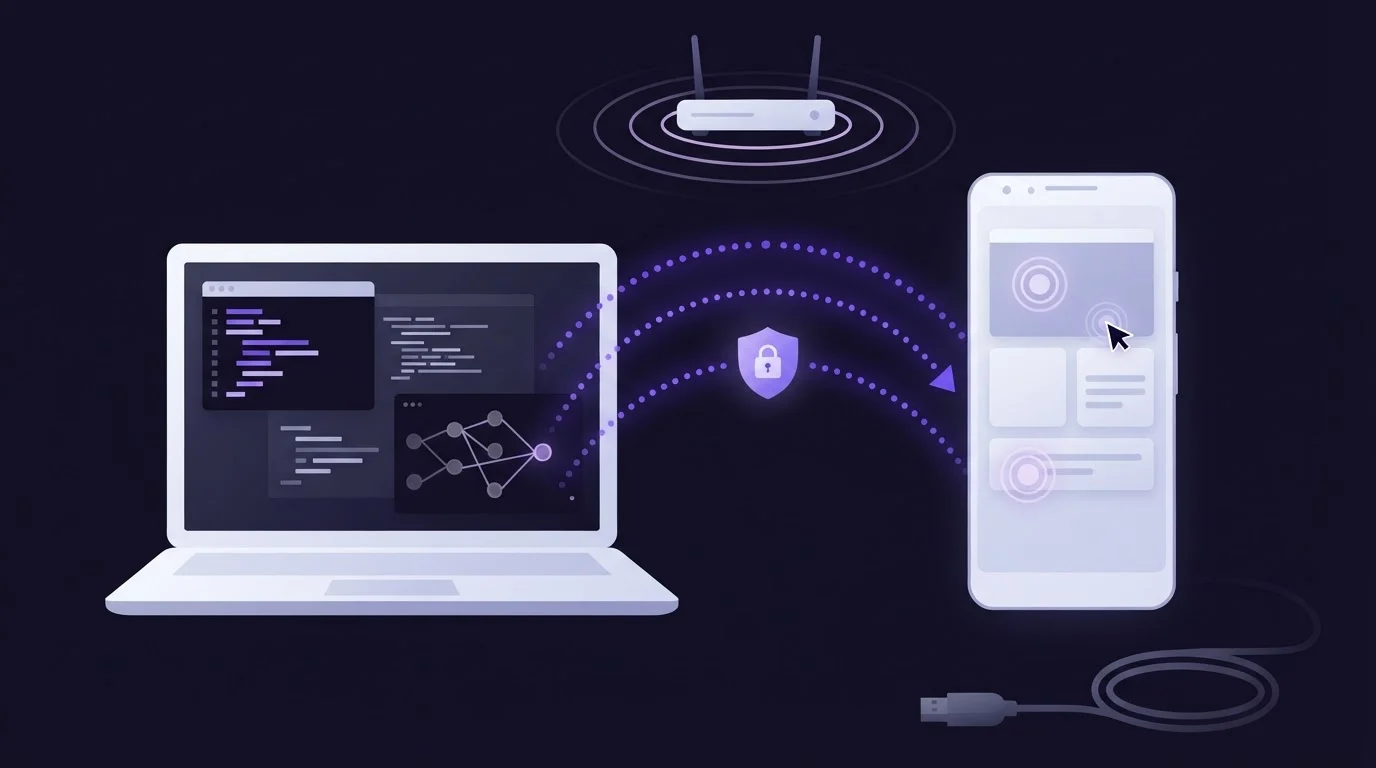
Android wireless debugging lets a Model Context Protocol (MCP) server control your phone over Wi-Fi, so the USB cable can stay in the drawer. On Android 11 or later you pair the phone once with adb pair, confirm it appears in adb devices, and the ScreenSync MCP hub sends taps, swipes and text over that wireless ADB link. Screen capture already travels over your network, so the whole see-and-act loop runs without a cable.
How wireless debugging fits into an MCP setup
ScreenSync MCP, a free Android MCP server from EpsolDev, uses two separate links between the phone and your computer. Only one of them needs ADB.
| Link | What travels | What it needs |
|---|---|---|
| App to hub | Screen frames over HTTP | Same network, capture consent |
| Hub to phone | Taps, swipes, text, UI dumps | ADB over USB or Wi-Fi |
The app captures the screen with Android's MediaProjection API after you grant consent each session, then pushes frames to the hub on port 3000. That is what get_latest_screenshot reads, and it needs no developer settings. The control side is different: the 12 control_* tools, plus get_ui_hierarchy, get_logcat, record_screen and compare_frames, run ADB commands from the hub. Wireless debugging replaces the cable on that second link only. For the full picture of capture versus control, see what a screen MCP server is.
Before you start, you need:
- An Android phone with the ScreenSync MCP app from Google Play (Android 7.0 or later). Pairing-code wireless debugging needs Android 11 or later.
- The hub running on Windows, macOS or Linux with Node.js 18+, registered in Claude Code, Claude Desktop or another stdio MCP client. The ScreenSync MCP setup guide covers this part, and this post matches app 2.5.7 and hub 1.14.4.
- ADB from a current Android SDK Platform-Tools release on the same computer. Old builds do not have
adb pair. - Phone and computer on the same Wi-Fi network, and not a guest network that isolates devices from each other.
Pair the phone over Wi-Fi (Android 11 and later)
- Unlock developer options: open Settings > About phone and tap Build number seven times. The exact path varies by manufacturer.
- In Developer options, turn on Wireless debugging and allow it on the current network.
- Tap Pair device with pairing code. Keep that dialog open: it shows an IP address, a pairing port and a six-digit code.
- On the computer, run
adb pairwith the address from the dialog and type the code when prompted. - Back on the main Wireless debugging screen, note the IP address & Port line. That is the connect port, and it is not the same as the pairing port.
- Run
adb devices. ADB normally finds a paired phone through mDNS and connects on its own. If the phone is missing, for example on a network that blocks mDNS, connect by hand.
# Pairing port and code: from the "Pair device with pairing code" dialog
adb pair 192.168.1.42:37105
# Connect port: from the main Wireless debugging screen
adb connect 192.168.1.42:41235
adb devices
You pair once per computer, and the phone stays paired until you tap Forget under Wireless debugging > Paired devices or revoke debugging authorizations. The connect port is less stable: it usually changes when wireless debugging restarts, for example after a reboot or when the phone moves to another network. On Android 17 with adb 37.0.0 or later, which Google calls adb Wi-Fi 2.0, the phone also reconnects by itself when it joins a network you marked Always allow on this network. Android's guide to connecting a device over Wi-Fi shows the same screens in more detail.
Android 7 to 10: the adb tcpip fallback
Phones on Android 10 or older have no pairing screen, but ADB can still move to Wi-Fi after one cabled session:
adb tcpip 5555            # phone connected by USB
# unplug the cable, then:
adb connect 192.168.1.42:5555
adb devices
On many phones the IP address is under Settings > About phone > Status, though the path varies by manufacturer. This mode lasts until the phone reboots. It listens on port 5555 without a pairing code, protected only by the standard debugging authorization, so run adb usb to switch back when you finish and only use it on a network you control.
Point the ScreenSync MCP hub at the wireless device
With exactly one phone listed in adb devices, there is nothing to configure: the hub calls adb and finds it. Two situations need attention.
The same phone appears twice. Wireless ADB often registers one phone under two names, an ip:port serial and an mDNS alias:
List of devices attached
192.168.1.42:41235                           device
adb-XXXXXXXX-abc123._adb-tls-connect._tcp    device
A plain adb command then fails with "more than one device/emulator", even though the list looks healthy. The hub handles this: when control_status sees several devices and no target is pinned, it picks the ip:port serial and uses it for later calls. That is one reason the tool's own description says to call control_status before any other control_* action.
Two real devices, or ADB missing from PATH. The control tools run ADB inside the process your MCP client starts, so set these variables in that server's env block:
{
  "mcpServers": {
    "screensync": {
      "command": "node",
      "args": ["<HUB_DIR>/screensync-hub.js"],
      "env": {
        "SCREEN_SYNC_TOKEN": "<TOKEN>",
        "SCREEN_SYNC_ADB_TARGET": "192.168.1.42:41235",
        "SCREEN_SYNC_ADB_BIN": "<PLATFORM_TOOLS_DIR>/adb"
      }
    }
  }
}
SCREEN_SYNC_ADB_TARGET takes a device serial or a numeric transport ID. SCREEN_SYNC_ADB_BIN is the full path to the adb binary (adb.exe on Windows), which helps when a desktop app does not inherit the PATH your terminal uses. Since the wireless port changes, a pinned ip:port must be updated after every reconnect, so pin only when you have to. Restart the MCP server after you edit the config.
Run a first control loop from your AI client
Ask the agent to check the link before it acts:
Call control_status, then take a control_screenshot and tell me which app is open.
control_status reports whether an ADB device is reachable, plus the model, Android version and screen size. If it returns available: true, try a short task:
control_launch_appwithpackageset tocom.android.settings.control_swipe_untilwithqueryset toAbout phone, which scrolls until that label is visible.control_tap_textwith the samequery, so the tap lands on the element instead of on guessed coordinates.get_ui_hierarchyshows what text is on screen if the label differs on your phone.control_screenshotto confirm the About phone screen opened, thencontrol_keywithkeyset toback.
Most ADB calls from the hub time out after 15 seconds, so if the phone drops off Wi-Fi mid-task, a tool returns an error instead of hanging. When only the ADB link fails, for example because wireless debugging switched off, the app keeps sending frames while capture is running, so get_latest_screenshot still works. That makes it easy to tell a broken control link from a broken capture link. Over Wi-Fi, each control_screenshot pulls a full PNG, so prefer get_ui_hierarchy when you only need element positions. For longer runs, the autonomous_ui_test and reproduce_bug prompts build on these same tools.
Troubleshooting wireless ADB for MCP
| Symptom | Likely cause | Fix |
|---|---|---|
adb pair fails |
Connect port used, or dialog closed | Reopen the dialog; use its port and code |
Paired, but adb devices is empty |
No automatic connect | adb connect with the main-screen port |
| "more than one device/emulator" | Phone listed twice | Call control_status first, or pin a target |
| "No ADB device is online." | Wireless debugging off after a reboot or network change | Turn it on again and reconnect |
| Works in a terminal, not in Claude | Client cannot find adb |
Set SCREEN_SYNC_ADB_BIN |
| Taps fail on a Xiaomi phone | MIUI blocks input injection | Enable USB debugging (Security settings) |
If nothing connects at all, check the network before ADB. Guest Wi-Fi, client isolation and some VPNs block device-to-device traffic, which breaks both wireless ADB and the app's link to the hub. If the phone app also cannot see the hub, follow fixing pairing and mDNS discovery. When ADB itself is stuck, adb kill-server followed by adb start-server resets it. If control tools still fail after the port changed, call control_status again, and restart the MCP server if that does not clear it.
Keep the wireless link locked down
Wireless debugging gives every paired computer on the same network the same reach as a USB cable, so treat it as a per-session switch:
- Turn it off when you finish. The Wireless debugging tile under Developer options > Quick settings developer tiles makes that one tap.
- Do not enable it on public or shared Wi-Fi, and leave Always allow on this network unchecked anywhere you do not control.
- Change
SCREEN_SYNC_TOKENfrom the defaultscreensync-local-devbefore using the hub on a shared network, and use the same value in the app and your MCP config. - Remove old computers under Paired devices.
The hub keeps the control surface narrow: control_type strips shell metacharacters, control_key accepts only an allow-listed set of keys, and control_launch_app validates the package name. It is still real input on a real phone, so close banking and other sensitive apps before an agent session. Frames go from phone to hub over your own network and never to EpsolDev servers, but screenshots your agent requests are sent to that agent's model provider. The ScreenSync data policy lists where everything is stored, and the MCP security checklist covers the wider risks.
Next steps
- Pair once with wireless debugging and confirm the phone in
adb devices. - Ask your agent to run
control_statusandcontrol_screenshot, and keep the cable for charging. - If you are still choosing tools, compare Android MCP servers on capture method, control path and privacy.
Next steps
Questions, answered
Can I use wireless debugging with ScreenSync MCP on Android 10 or older?
Yes, with one cabled step. Pairing codes arrived in Android 11, so an older phone needs a USB session first: run adb tcpip 5555, unplug, then adb connect to the phone's IP on port 5555. The ScreenSync MCP app itself supports Android 7.0 and later. That legacy mode has no pairing code and resets on reboot, so switch back with adb usb when you are done.
Do I need wireless debugging just to let the agent see my screen?
No. Seeing and controlling are separate links. The ScreenSync MCP app captures with MediaProjection after you consent and sends frames to the hub over your own network, so get_latest_screenshot works with developer options untouched. USB or wireless debugging is only needed when you want the agent to tap, swipe, type, launch apps, read the UI hierarchy or pull logcat.
Why does adb devices list my phone twice over Wi-Fi?
Wireless ADB can register one phone under two serials: its IP and port, and an mDNS service name ending in _adb-tls-connect._tcp. Both point at the same device, but plain adb commands refuse to guess and report more than one device. ScreenSync's control_status prefers the IP:port entry automatically, or you can pin one with SCREEN_SYNC_ADB_TARGET in your MCP config.
Do I have to pair the phone again every day?
Usually not. Pairing is remembered per computer until you forget it under Paired devices or revoke debugging authorizations. What tends to change is the connect port, which usually moves when wireless debugging restarts after a reboot or a network switch. Turn it back on, reconnect with adb connect if the phone does not reappear by itself, and run control_status again.
Is it safe to leave wireless debugging switched on?
Treat it as an on-demand switch instead. While it is on, any computer you have paired can send input over the network. Turn it off after each session, avoid public Wi-Fi, replace the default hub token, and close sensitive apps first, because screenshots your agent requests are sent to its model provider even though frames never reach EpsolDev servers.