On this page
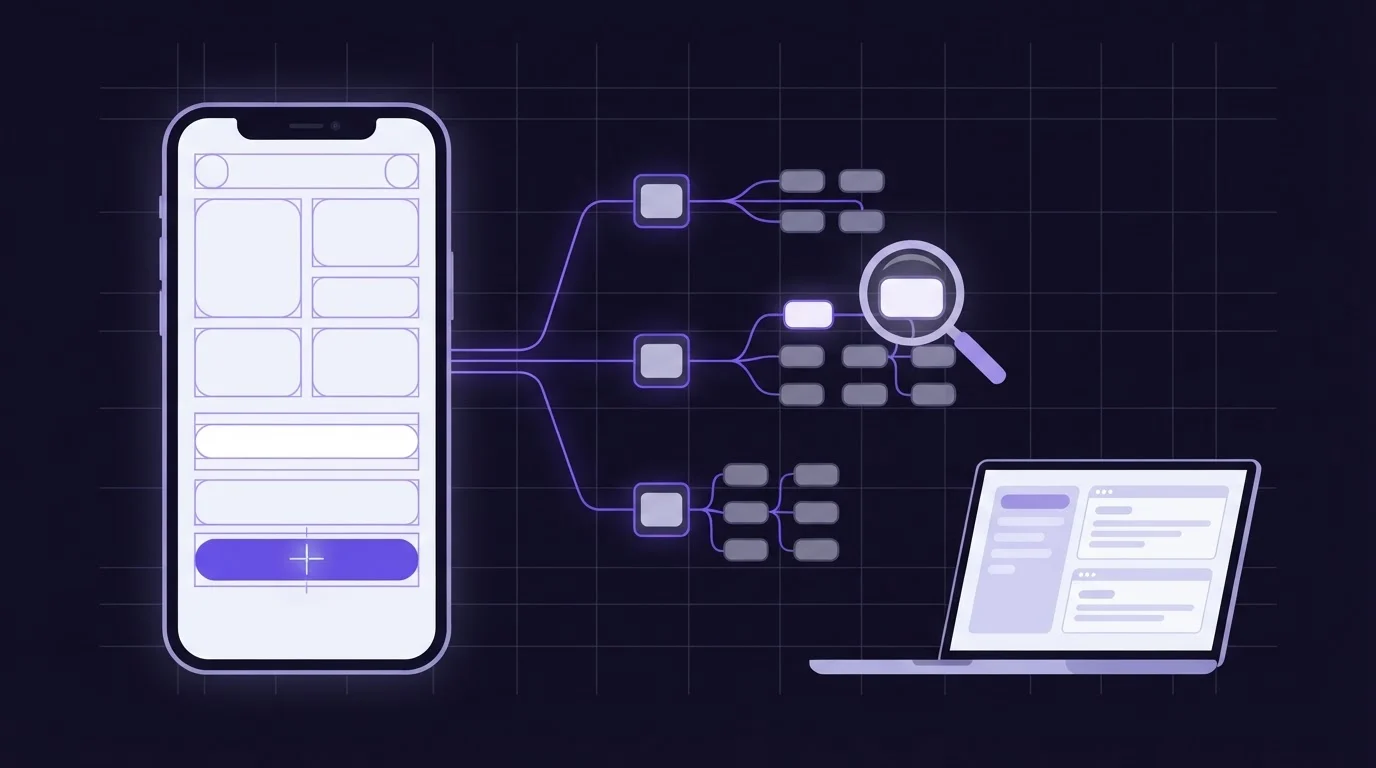
A screenshot shows an AI agent what an Android screen looks like, but not what it is made of. The Android UI hierarchy gives the agent each element's text, content description, resource ID, class, clickable flag and exact pixel bounds, so it can tap "Sign in" by name instead of estimating coordinates from an image. An agent that uses both gets visual evidence from the pixels and precision from the tree.
This post covers what the hierarchy contains, how ScreenSync exposes it to Claude, Cursor or VS Code through the Model Context Protocol (MCP), and where it falls short.
What a screenshot can't tell an agent
Vision models read screens well. They spot clipped text, overlapping widgets, broken images and weak contrast. They are less reliable on the questions an agent has to answer before it acts:
- Where exactly is the target? The model estimates coordinates from a scaled image. A small miss on a dense list lands on the neighboring row.
- Is it interactive? A styled label and a real button can look identical.
- Which of two similar elements is it? Two pencil icons look the same in an image. Their exact bounds, and often their resource IDs, tell them apart.
- What will a screen reader announce? An icon with no content description looks fine and says nothing to TalkBack users. No screenshot shows that.
- Is it on screen at all? The control you want may be three scrolls down.
Each gap produces the same failure: a tap that misses, a retry, another screenshot and another round trip to the model.
What the Android UI hierarchy contains
Android keeps a tree of accessibility nodes for every window. It is the same structure TalkBack reads and UI Automator queries. The uiautomator dump command writes it out as XML, one <node> per element, with attributes for text, content description, resource ID, class, state flags and bounds.
ScreenSync's get_ui_hierarchy tool runs that dump on the phone through ADB, parses the XML on the hub and returns a flat list of meaningful nodes. It drops nodes that have no text, no content description and aren't clickable, which removes most layout containers and keeps the response short. Each node carries seven fields:
| Field | What the agent learns | Typical use |
|---|---|---|
text |
Visible label | Tap "Continue" by name |
desc |
Content description | Find icon buttons, spot missing labels |
resourceId |
Developer ID | Target a known control |
className |
Widget type | Find input fields |
clickable |
Accepts taps | Skip decorative text |
bounds, center |
Pixel box and midpoint | Tap precisely, measure size |
The tool takes two optional arguments: onlyClickable (a boolean that keeps only tappable nodes) and filter (a case-insensitive substring matched against text and content description). A login screen might come back like this (illustrative values):
{
  "success": true,
  "count": 2,
  "nodes": [
    {
      "text": "Email address",
      "desc": "",
      "resourceId": "com.example.shop:id/email",
      "className": "android.widget.EditText",
      "clickable": true,
      "bounds": { "x1": 64, "y1": 820, "x2": 1016, "y2": 964 },
      "center": { "x": 540, "y": 892 }
    },
    {
      "text": "Sign in",
      "desc": "",
      "resourceId": "com.example.shop:id/sign_in",
      "className": "android.widget.Button",
      "clickable": true,
      "bounds": { "x1": 64, "y1": 1180, "x2": 1016, "y2": 1324 },
      "center": { "x": 540, "y": 1252 }
    }
  ]
}
The model reads this as plain text, and the numbers come from the layout rather than from an estimate.
Screenshot or hierarchy: which answers what
| Question | Screenshot | UI hierarchy |
|---|---|---|
| Where is "Sign in"? | Estimated from pixels | Exact bounds and center |
| Can I tap it? | Guessed from styling | clickable flag |
| Does the icon have a label? | Can't tell | desc empty or not |
| Is text clipped or low contrast? | Yes | No |
| Custom-drawn canvas or game? | Yes | Little or nothing |
Neither replaces the other. The screenshot is your evidence for anything visual; the hierarchy is your map for anything you act on.
ScreenSync gives the agent both sources. Screenshots come from the Android app's MediaProjection capture (get_latest_screenshot) or from ADB on demand (control_screenshot), and the tree comes from ADB on the hub. For the capture side in detail, see what a screen MCP server is.
How ScreenSync turns the tree into reliable taps
Three control tools use the hierarchy so the agent never has to work out coordinates itself:
control_tap_text { query, exact }dumps the hierarchy, finds nodes whose text or content description containsquery(or equals it, withexact: true), prefers clickable matches, then the smallest one, and taps its center. The result names the node it hit. If nothing matches, the error tells the agent to callget_ui_hierarchyand check what is visible. Matching ignores case and, by default, accepts substrings, so "Sign in" also matches "Sign in with Google". Passexact: truewhen labels overlap.control_swipe_until { query, direction, maxSwipes }scrolls (down by default) until a matching element appears, up tomaxSwipes(default 8, maximum 20). It returns whether the element was found, after how many swipes, and the matched node.control_tap { x, y }stays as the fallback for anything with no node. It accepts absolute pixels or normalized 0 to 1 coordinates.
The smallest-match rule matters: in Compose and Flutter apps a clickable list row often carries its children's merged labels, so the row and its "Delete" button can both match. The smaller box is usually the one you meant.
One requirement to know up front: the hierarchy, like the control tools, comes through ADB, so the phone needs USB debugging or wireless debugging turned on. Screenshots from the app's MediaProjection capture work without it. To skip the cable, set up Android wireless debugging for an MCP server.
A practical loop: observe, act by label, verify
Add the hub to Claude Code once:
claude mcp add screensync node "<path>/screensync-hub.js"A single test step then looks like this:
control_statusconfirms an ADB device is reachable and reports its model, Android version and screen size. Call it first: wireless debugging can list the same phone twice, and this call picks one serial for later tools.control_launch_app { "package": "com.example.shop" }opens the app.get_ui_hierarchy { "onlyClickable": true }lists what can be tapped.control_tap_text { "query": "Sign in", "exact": true }acts on the button by name.get_ui_hierarchy { "filter": "Welcome" }checks that the next screen loaded. A count above zero means the step passed, with no image needed. Takecontrol_screenshotwhen you also want to see the layout.control_swipe_until { "query": "Order history" }brings an off-screen target into view.- If nothing changed,
get_logcat { "pkg": "com.example.shop", "grep": "exception" }looks for the reason.
Or describe the task and let the agent pick the tools:
Open com.example.shop on my phone, go to Order history, and list
every clickable element that has no text and no content description.
Use the UI hierarchy to find elements. Take a screenshot only when
you need to check the layout.
ScreenSync also ships an autonomous_ui_test prompt whose loop tells the agent to navigate with control_tap_text and control_swipe_until instead of guessing coordinates, and to confirm each action with compare_frames.
Where the hierarchy falls short
The tree is only as good as what the app exposes, and it describes a single moment.
- Flutter draws its own pixels. Android sees one Flutter view; the nodes inside come from Flutter's semantics tree. Widgets without semantics, such as a custom-painted chart, don't appear, and merged semantics can fold a whole card into one clickable node whose content description joins every label on it. Clear
Semanticslabels fix this and help screen-reader users too. More in debugging Flutter apps with an AI agent. - Jetpack Compose hides test tags by default.
Modifier.testTagshows up as a resource ID only when thetestTagsAsResourceIdsemantics property is enabled for that subtree, as the Compose testing interoperability docs explain. - Games, maps and canvas views expose little or nothing. Use screenshots and
control_tapthere. - Busy screens can stall the dump.
uiautomator dumpwaits for the UI to settle, so a looping animation or a playing video can make it slow or fail. Each dump overwrites one file on the phone, so a failed dump can return the previous screen's tree. Pause the media, and check a screenshot when the result looks wrong. - It is a snapshot. The screen can change between the dump and the tap. That is why
control_tap_textdumps fresh on every call, and why you verify after every action. - It is flat and filtered. ScreenSync returns a list, not a nested tree, so parent and child relationships are not in the response.
- It contains on-screen text. Names, messages and order details in the hierarchy go to your model provider when the agent reads them, just as a screenshot does. The data policy explains what stays on your own network.
Use the same data for accessibility checks
The fields that make taps reliable also expose accessibility bugs. Android recommends touch targets of at least 48 x 48 dp and a content description for elements whose purpose isn't given by visible text, per its accessibility guidance for apps. Both are checkable from the hierarchy:
- A clickable node with an empty
textand an emptydescis a control TalkBack can't name. - Width and height come from
boundsin pixels. Convert to dp with the screen density:
adb shell wm density
# Physical density: 420
# dp = px * 160 / 420, so a 110 px wide button is about 42 dp: too small
The accessibility_audit prompt runs this pass on the current screen. It takes a screenshot for contrast, reads the hierarchy for sizes and labels, flags small targets and unlabeled controls, and can overlay the regions on the phone with publish_inspection.
Next steps
- Install the app and the hub with the ScreenSync MCP setup guide, then turn on USB or wireless debugging so
get_ui_hierarchyand the control tools can reach the phone. - Run
get_ui_hierarchy { "onlyClickable": true }on one screen of your own app and read what comes back. Unlabeled icon buttons and vague labels show up at once. - Testing web apps as well? The ScreenSync browser extension applies the same idea to your real Chrome or Edge tab:
web_hierarchyreturns the page text and a list of interactive elements with indexes thatweb_clickandweb_typeaccept.
Next steps
Questions, answered
Does get_ui_hierarchy need root or ADB?
It needs ADB, not root. The hub runs uiautomator dump on the phone over USB debugging or wireless debugging, so the device has to appear in adb devices first. The app's MediaProjection screenshots don't depend on ADB, which means the agent can still see the screen while you fix the debugging connection.
Why does my Flutter app show only one node in the hierarchy?
Because Android only sees what Flutter's semantics tree reports. Flutter paints its own pixels, so widgets without semantics are invisible to uiautomator, and a parent that merges its children's semantics can collapse a whole card into one node with a long content description. Give key widgets explicit Semantics labels and avoid merging interactive children.
Can the agent tap an element that is off screen?
Not in one step, because the hierarchy lists only what is currently on screen. Call control_swipe_until with the label you need. It scrolls in the chosen direction, re-reads the hierarchy after each swipe, and stops when a match appears or after maxSwipes, which defaults to 8 and accepts up to 20. Then tap it with control_tap_text.
Does the UI hierarchy work with Jetpack Compose apps?
Yes. Compose reports visible text and content descriptions to UI Automator, so tapping by label works without changes. Test tags are the exception: a Modifier.testTag value appears as a resource ID only after you enable the testTagsAsResourceId semantics property on that part of the tree, for example on the root Scaffold.
Where does the UI hierarchy data go?
From the phone to the hub on your own computer, over USB or your local network; nothing goes to EpsolDev servers. Once the agent reads it, though, the text inside, such as names, messages or order numbers, becomes part of the conversation and reaches that agent's model provider, exactly like a screenshot. Close sensitive apps before a session.