On this page
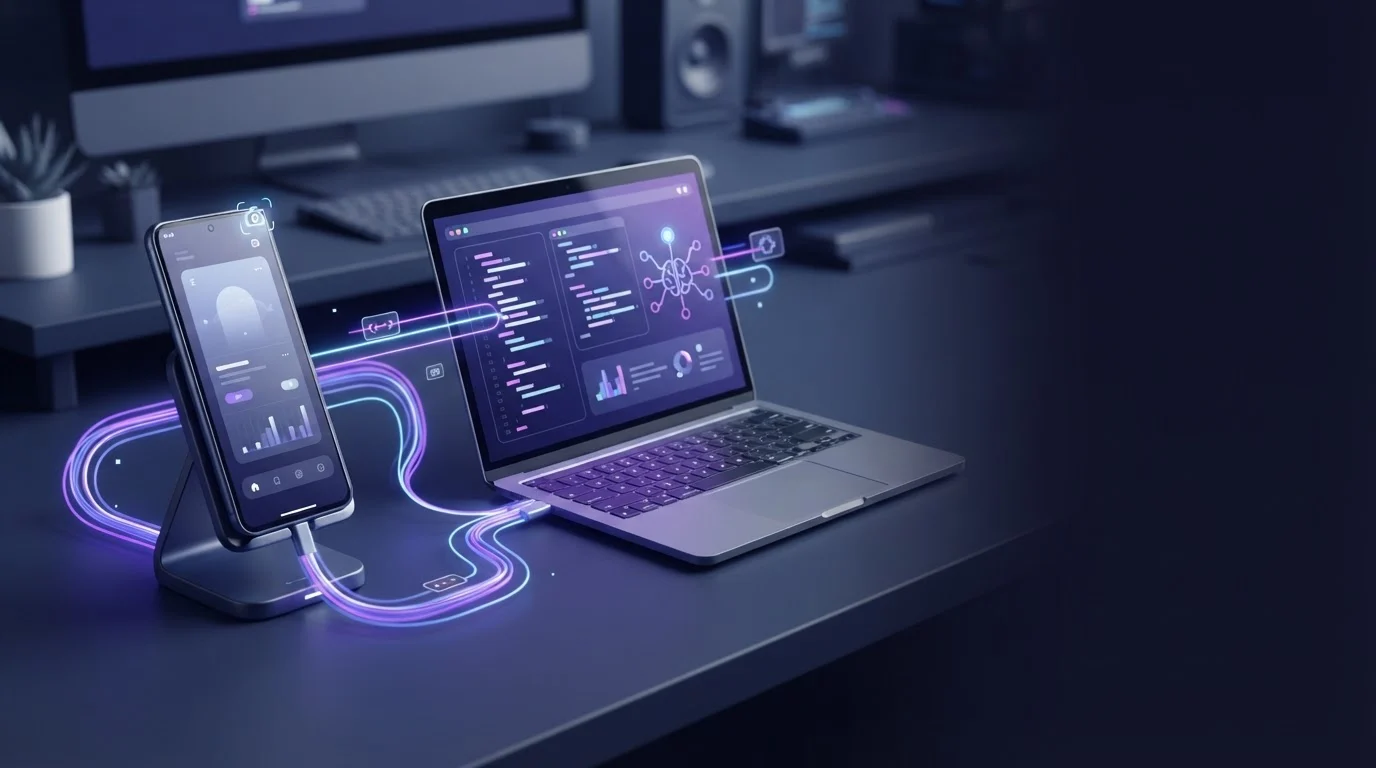
Yes, an AI agent can control an Android phone without root by combining Android's native MediaProjection API for visual feedback with Android Debug Bridge (ADB) for input control. Our team at ScreenSync MCP developed this split architecture to give local AI models like Claude full device access across 226 MCP tools without compromising operating system integrity or tripping security tripwires.
Key Takeaways
- No root required: You do not need to root your phone or unlock your bootloader to grant an AI agent full view and control capabilities.
- Split architecture: Screen capture runs through Android's standard MediaProjection API without ADB, while active inputs (tap, swipe, type) execute via standard ADB over USB or wireless debugging.
- Local protocol control: The desktop hub exposes 226 MCP tools over stdio to local clients such as Claude Desktop, Claude Code, Cursor, and VS Code.
- Cross-surface automation: The system combines 29 phone and desktop tools with 197 browser tools to bridge native mobile workflows and desktop browser sessions.
What It Is and Why It Matters
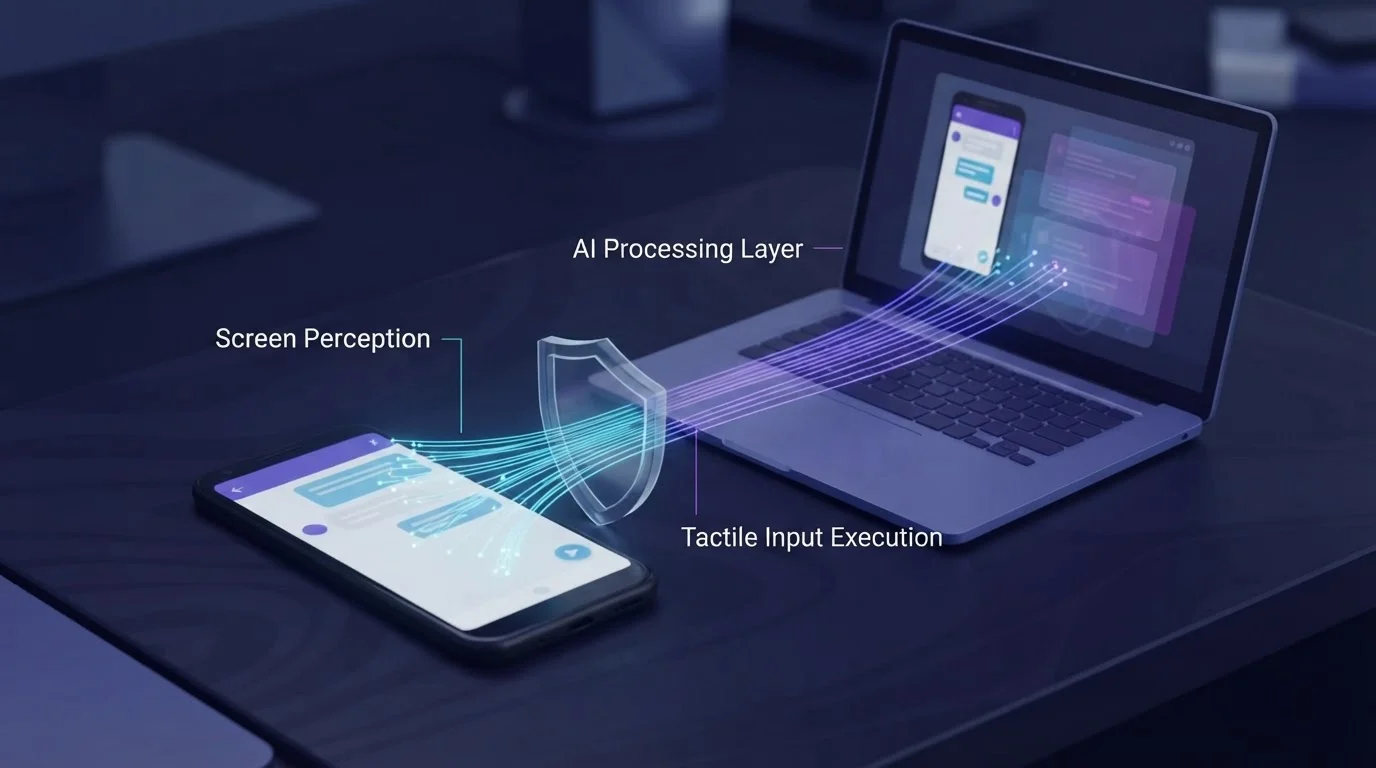
Controlling an unrooted Android phone with AI means enabling large language models to perceive screen states and execute tactile inputs without altering Android's core system security boundaries. Traditionally, automated device control required either invasive root modifications or complex, fragile testing frameworks that operate inside rigid boundaries.
What It Is and Why It Matters
The Failure of Root-Based Automation
Rooting a device breaks Android's hardware-backed keystore, trips Google Play Protect flags, and renders banking or enterprise applications unusable. For developers and QA engineers, testing against a rooted device introduces artificial environments that fail to reflect real consumer devices. Our no-root approach ensures that your agent tests against unmodified operating system behaviors.
Why Model Context Protocol Changes Mobile Control
Model Context Protocol (MCP) standardizes how external tools, prompts, and resources are declared to AI models. Instead of relying on custom, proprietary wrappers, an MCP-compliant agent uses structured JSON tool calls to interact directly with hardware. You can read our detailed breakdown on how do MCP tools prompts and resources drive Android to understand how client runtimes structure these invocations.
The Developer Advantage for Real Workflows
What this means for you in practice is that a single local agent running in Claude Code or Cursor can inspect logs, check UI hierarchy, tap dynamic elements, and verify backend results without manual human intervention. This enables true end-to-end testing cycles across physical hardware.
How It Works
Our system splits read operations from write operations to achieve high-performance automation without requiring superuser permissions on Android 7.0 or later devices.
Vision Streaming via MediaProjection
ScreenSync MCP captures the display using Android's native MediaProjection API. When you start a session in our Android app, Android requests explicit user permission via a system dialog. Once approved, the app streams frames directly across your local network to the Node.js desktop hub over HTTP (port 3000). This capture path requires zero ADB commands and no elevated privileges. In our tests on a local area network, the live mirror delivers a median latency of about 94 ms.
Command Execution via Local ADB
While visual inspection is handled by the media stream, control tools (control_tap, control_swipe, control_type, launching apps, and opening URLs) execute from the desktop hub through standard ADB. The hub issues shell commands over a physical USB connection or an authenticated wireless debugging session. This separation guarantees that input generation adheres strictly to standard Android developer interfaces.
Tool Exposure Through Local Stdio
The ScreenSync MCP hub runs locally via Node.js 18+ and connects to your MCP client over stdio. The hub registers 226 MCP tools in total: 29 phone and desktop tools (including 12 control_*, 3 os_*, and 14 capture/hub tools such as get_latest_screenshot, get_ui_hierarchy, and get_logcat) along with 197 web_* browser tools. Because the integration runs over stdio, clients like Claude Desktop and Claude Code communicate with sub-millisecond local process overhead.
| Architecture Layer | Non-Root MCP Approach | Traditional Root Approaches |
|---|---|---|
| Screen Capture | MediaProjection API | Direct framebuffer scraping |
| Input Relay | Standard ADB commands | Kernel-level event injection |
| Safety Boundary | User-consented session prompt | Unrestricted system-level access |
| Compatibility | Android 7.0 or later | Specific kernels and bootloaders |
| App Support | All standard store apps | Many apps block execution |
Step-by-Step Walkthrough
Setting up non-root control requires pairing our Android app with the desktop hub and connecting the hub to your preferred MCP client.
Step 1: Install and Launch the Hub
Ensure your development machine has Node.js 18 or higher installed on Windows, macOS, or Linux. Download and extract the hub package, then launch it from your terminal:
bash
On Windows
start-hub.bat
On macOS or Linux
chmod +x start-hub.sh
./start-hub.sh
The hub binds its local HTTP server to port 3000 and outputs a terminal pairing QR code alongside your SCREEN_SYNC_TOKEN.
Step 2: Connect the Android Device
Install the ScreenSync MCP Android app (version 2.5.7) from Google Play. Enable Developer Options on your phone and toggle on either USB Debugging or Wireless Debugging. Open the app and connect to the hub by scanning the terminal QR code or relying on automatic mDNS discovery across your local network. Tap Start Capture and approve the native MediaProjection screen record prompt.
If you prefer a cable-free setup, review our technical guide on can you pair Android wireless debugging to MCP without USB to configure pairing ports reliably.
Step 3: Register the MCP Client
Add the hub to your local agent client. For Claude Code, run the registration command pointing to your hub unpack path:
bash
claude mcp add screensync node "/path/to/hub/screensync-hub.js"
For Claude Desktop, add the server to your claude_desktop_config.json (accessible via Settings > Developer):
{
"mcpServers": {
"screensync": {
"command": "node",
"args": ["/path/to/hub/screensync-hub.js"],
"env": {
"SCREEN_SYNC_TOKEN": "your_bearer_token_here"
}
}
}
}
For other clients like Cursor or VS Code, check that client's MCP documentation to register a standard stdio server.
| Component | Distribution Channel | Pricing |
|---|---|---|
| ScreenSync MCP Android app | Google Play (com.screensync.mcp) |
Free |
| ScreenSync MCP desktop hub | Website download | Free |
| ScreenSync MCP browser extension | Chrome/Edge Store | Free |
Example Prompts and Tool Calls
Once connected, your agent autonomously selects tools based on your conversational instructions.
Inspecting Device State and UI Elements
When you ask an agent to inspect the current view, it requests screen data and semantic layouts:
text
Prompt: "Check what is currently displayed on the phone, extract the UI hierarchy, and tell me if the login form is visible."
The agent executes:
get_latest_screenshotto retrieve the visual viewport.get_ui_hierarchyto obtain the accessibility node tree containing element IDs, bounds, and view classes.
Executing Touch and Typing Workflows
To complete multi-step actions across native views, the agent issues sequential control tools:
text
Prompt: "Tap the search bar, type 'Network Settings', and press search."
The agent calls control_tap with the target element coordinates, followed by control_type to inject the input string via ADB shell commands. If a list needs scrolling, the agent calls control_swipe with defined coordinate deltas.
Diagnosing Errors with Device Logs
When diagnosing runtime exceptions during app execution, your agent can pull system diagnostics directly:
text
Prompt: "The app crashed on the profile screen. Capture the recent logs to find the exception."
The agent calls get_logcat to extract recent system log output, parses stack traces, and correlates the crash timestamp with your interaction flow.
Common Mistakes and Troubleshooting
Even without root, mobile automation requires precise network and permission handshakes.
MediaProjection Permission Expiry
Android's MediaProjection framework requires explicit user consent each session. If your agent reports black screens or fails on get_latest_screenshot, check the physical phone screen. The consent dialogue must be approved on the device each time the capture engine restarts.
ADB Authorization Drops
If the agent can see the screen via MediaProjection but fails when calling control_tap or control_type, ADB communication is offline. Ensure you checked 'Always allow from this computer' when the USB debugging prompt appeared. Run adb devices in your desktop terminal to verify the daemon lists the device as authorized.
Port Clashes and Network Isolation
The hub defaults to HTTP port 3000. If another local web service or development server occupies this port, the mobile app cannot stream frames. Ensure port 3000 is open, and verify your phone and computer sit on the same Wi-Fi subnet without client isolation enabled.
Unsupported Web-Based Clients
ScreenSync MCP operates over local stdio to ensure high performance and privacy. Web-based interfaces such as ChatGPT's web app require remote HTTPS MCP endpoints and are not supported. Stick to local runtimes such as Claude Desktop, Claude Code, Cursor, or VS Code.
Privacy and Safety Notes
Automating a physical phone requires strict data visibility boundaries.
Local Network Transmission
All real-time video frames streamed from the ScreenSync MCP Android app travel exclusively over your local area network directly to the desktop hub. Video data is never routed to EpsolDev servers. A Google Drive fallback option is available inside the application settings, but it remains strictly optional.
AI Provider Data Sharing
Be transparent regarding LLM vision pipelines: while video streaming is local, any screenshot an AI agent explicitly requests via get_latest_screenshot is sent directly to that agent's model provider (such as Anthropic) for visual parsing. Do not expose personal credentials or sensitive tokens on your screen during active agent sessions.
Human Approval for Sensitive Actions
Our Chrome/Edge browser extension (Manifest V3) allows agents to interact with your real browser tabs using 197 web_* tools. To prevent unintended modifications during cross-device operations, the extension includes an explicit human approval prompt for potentially destructive or risky actions.
Practical Checklist Before Automating Your Device
- [ ] Physical Android phone running Android 7.0 or later with Developer Options enabled.
- [ ] ScreenSync MCP Android app (version 2.5.7) installed from Google Play.
- [ ] Node.js 18+ installed on your host machine (Windows, macOS, or Linux).
- [ ] ScreenSync MCP hub (version 1.14.4) downloaded and extracted.
- [ ] Phone and computer connected to the same local Wi-Fi network.
- [ ] ADB connected and authorized over USB or wireless debugging.
- [ ] Claude Desktop, Claude Code, or Cursor configured with your
SCREEN_SYNC_TOKEN.
Conclusion
Controlling an Android phone with AI does not require rooting your device or breaking operating system security controls. By combining Android's native MediaProjection API for visual monitoring with standard ADB interfaces for input execution, ScreenSync MCP gives developers and QA teams a powerful, non-invasive automation engine that connects directly to local MCP clients.
Get started by downloading our software across your devices. ScreenSync MCP offers the ScreenSync MCP Android app, ScreenSync MCP hub, and ScreenSync MCP browser extension for users worldwide. Get it on Google Play to begin pairing your physical phone with your favorite AI workflows, visit our website at https://www.screensyncmcp.tech, or contact our team directly at [email protected].
Questions, answered
Can an AI agent control an Android phone without root?
Yes, an AI agent can control an Android phone without root by using Android's native MediaProjection API for screen capture and standard ADB commands for touch and text input.
Do I need ADB enabled to capture the Android phone screen?
No, screen capture runs entirely through Android's standard MediaProjection API after user consent and does not require ADB or root access. ADB is only required when the agent executes control tools such as taps, typing, and swipes.
Does ScreenSync MCP work with the ChatGPT web app?
No, ChatGPT's web application requires remote HTTPS MCP servers. ScreenSync MCP communicates over local stdio and is designed for desktop MCP clients like Claude Desktop, Claude Code, Cursor, and VS Code.
Are my screen frames uploaded to cloud servers during testing?
No, video frames stream directly over your local network between the phone and your desktop hub, never passing through EpsolDev servers. However, specific screenshots requested by your AI agent are transmitted to that agent's model provider.
What tools does the ScreenSync MCP hub provide to an AI agent?
The hub provides 226 MCP tools in total, comprising 29 phone and desktop tools (12 control_*, 3 os_*, and 14 capture/hub tools like get_latest_screenshot) and 197 web_* browser tools.