On this page
ScreenSync MCP provides 226 Model Context Protocol (MCP) tools that let AI agents inspect and drive real Android devices without relying solely on brittle image recognition. Understanding why your AI agent needs the Android UI hierarchy, not just screenshots, is the difference between an agent that reliably taps precise view IDs and one that burns thousands of vision tokens guessing tap coordinates on blurry frames. When an agent reads structured node attributes directly, it executes workflows faster, cheaper, and with determinism that pure vision models cannot match.
Key Takeaways
- Pure screenshot vision models struggle with coordinate drift, high token costs, and invisible element states.
- The Android UI hierarchy gives agents exact text, resource IDs, bounds, and interactive states (
clickable,focusable). - ScreenSync MCP provides tools like
get_ui_hierarchyalongsideget_latest_screenshotfor balanced multimodal control. - Screen capture needs no root and no ADB via MediaProjection, while control actions require ADB via USB or wireless debugging.
- Local stdio MCP clients like Claude Desktop and Claude Code can run mobile actions without exposing screen frames to external servers.
Deterministic Target Selection
Structured trees expose node boundaries and resource IDs directly. Instead of guessing pixel positions from an image grid, an AI agent queries exact node attributes to locate buttons reliably.
Massive Token and Latency Reductions
High-resolution screenshots consume substantial vision context tokens and add multi-second processing overhead. Sending structured, parsed node trees reduces payload size and round-trip execution latency significantly.
Deep Inspection of Dynamic States
Screenshots cannot reliably tell an agent if an input field is disabled, focused, or password-masked. Node hierarchies expose explicit boolean properties for enabled, clickable, and scrollable directly in the tool payload.
What It Is and Why It Matters
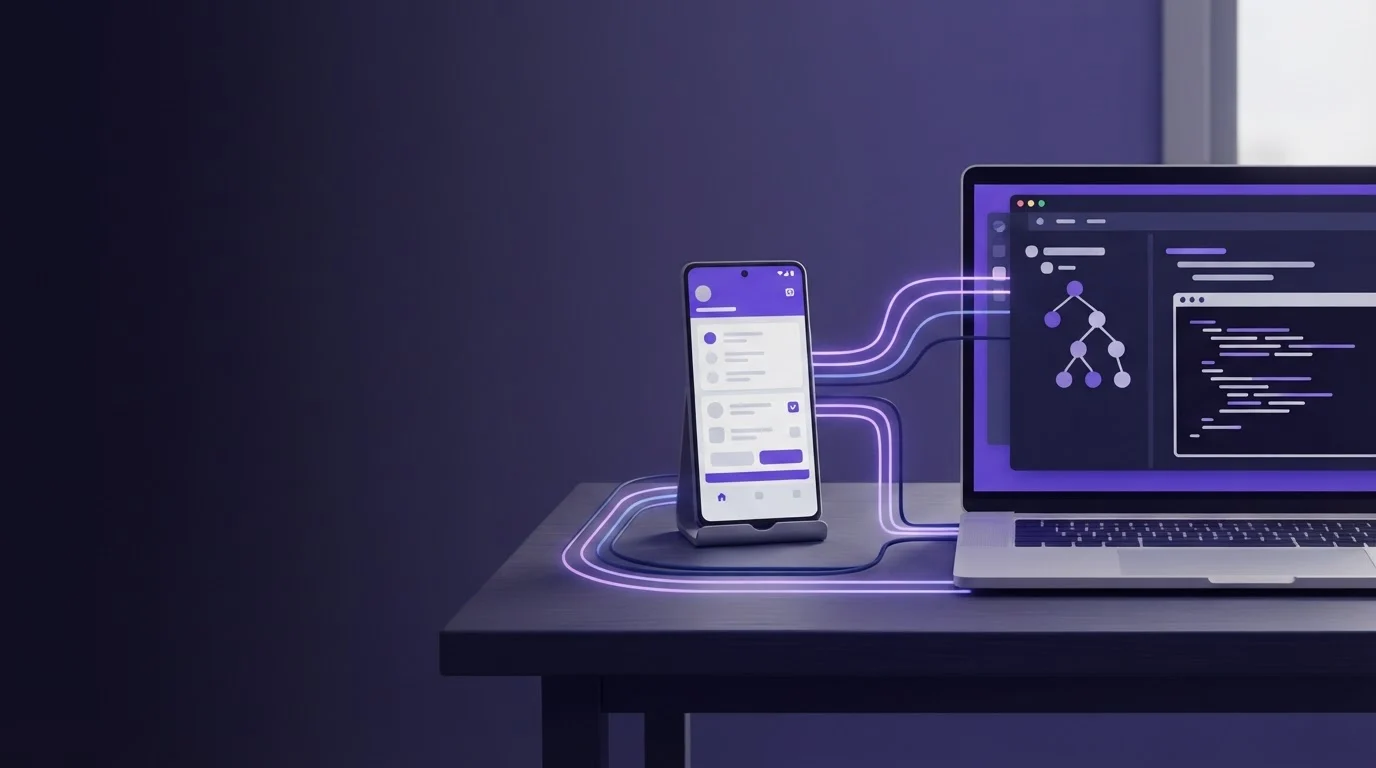
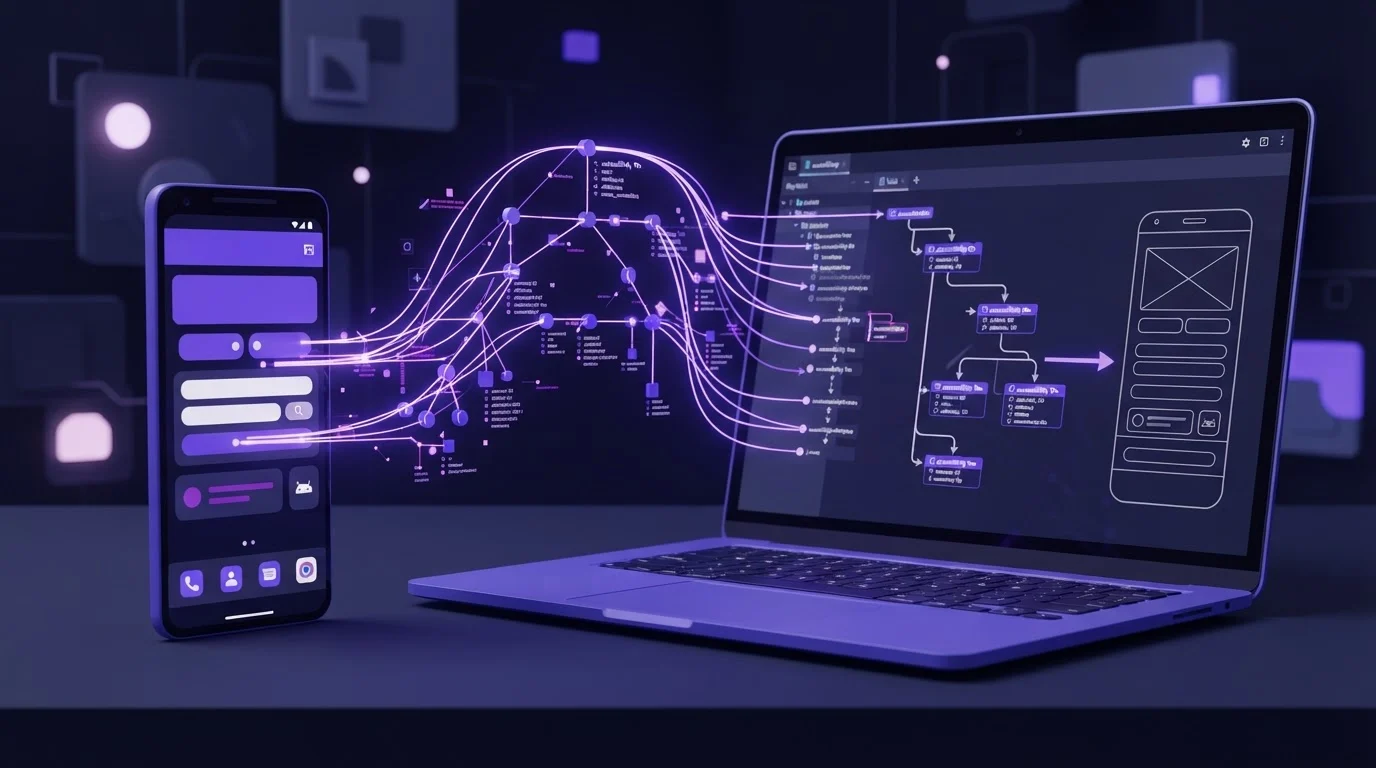
Why your AI agent needs the Android UI hierarchy, not just screenshots, comes down to how large language models ground actions in user interfaces. While a screenshot provides raw visual context, an accessibility tree reveals the functional semantics beneath the screen.
What It Is and Why It Matters
The Failure Modes of Vision-Only Coordinate Guessing
Vision models infer bounding boxes by interpreting pixel grids, which frequently leads to coordinate drift on high-DPI mobile screens. If an agent calculates a tap coordinate slightly off-center on a compact icon, the operating system ignores or misinterprets the touch event. Vision models also struggle with transparent overlays, invisible touch targets, and dynamic animations that alter rendered positions between frame captures.
Semantic Context Beyond Pixels
An Android UI tree exposes resource IDs, element text, accessibility content descriptions, and container hierarchies that raw images cannot convey. What this means for you is that Claude Code or Cursor can target a button by its canonical ID (com.example.app:id/submit_button) rather than attempting visual approximations. This semantic layer also exposes hidden or off-screen elements that are loaded in memory but not currently visible in the active viewport.
Token Economics in Production Agent Loops
Processing full-resolution mobile screenshots inside automated multi-turn reasoning loops quickly exhausts context windows and model budgets. A single high-resolution image consumes significant token allocations, whereas an XML or JSON node hierarchy containing only actionable elements compresses that footprint drastically. Developers running autonomous QA sessions can execute dozens of verification cycles using lightweight text payloads before needing a visual sanity check.
| Inspection Approach | Payload Type | Target Precision | Token Efficiency |
| :--- | :--- | :--- | :--- | :--- | :--- | :--- | :--- |
| UI Hierarchy | Structured JSON/XML | Exact node bounds | Highly efficient |
| Raw Screenshots | Compressed image | Pixel approximation | High token load |
| Hybrid Context | Tree plus image | Verified bounds | Balanced usage |
How It Works
ScreenSync MCP bridges local AI clients and real hardware by decoupling screen capture from device control. The Android app (compatible with Android 7.0 or later) captures screen frames using Android's MediaProjection API after explicit user consent each session, requiring no root and no ADB.
[ Android Device ]
│ (MediaProjection - No Root, No ADB)
▼ Local LAN Stream
[ ScreenSync MCP Hub (Node.js 18+) ] ── stdio ── [ MCP Client: Claude Desktop / Code ]
│
▼ (ADB over USB or Wireless Debugging)
[ Device Control Tools: Tap, Type, Swipe ]
Structural Node Extraction via the Hub
When an agent invokes get_ui_hierarchy, our Node.js hub captures the current device layout using the local bridge. The hub parses the layout into an organized hierarchy of elements, containing actionable properties such as view IDs, class names, bounding rectangles, and boolean flags. This structural representation is passed over stdio directly to your local MCP client.
Separating Screen Capture from Control Execution
Our architecture treats observation and action as distinct pipelines. Screen capture runs entirely within user space via MediaProjection, streaming frames across your local network to the hub (achieving about 94 ms median live mirror latency on a LAN in our tests). Conversely, control tools—including control_tap, control_swipe, and control_type—execute via ADB over USB or wireless debugging to simulate accurate input hardware events.
The Role of Stdio MCP in Local Developer Workflows
Local MCP clients such as Claude Desktop, Claude Code, Cursor, and VS Code communicate with the hub via standard input/output (stdio). Because the ScreenSync MCP hub runs locally on your workstation on port 3000, sensitive UI metadata and phone frames travel strictly across your local network. Web-only interfaces like ChatGPT's web app require remote HTTPS MCP and are not supported.
Step-by-Step Walkthrough
Setting up an environment where AI agents inspect Android UI hierarchies takes only a few minutes. Follow these concrete steps to configure your device, launch the hub, and register the tools with your MCP client.
1. Configure the Android Device
Install the ScreenSync MCP Android app from Google Play (com.screensync.mcp). Enable Developer Options on your device (running Android 7.0 or later) and turn on USB Debugging or Wireless Debugging so ADB control tools can interface with the system. Open the app and grant the MediaProjection screen capture consent when prompted.
2. Launch the ScreenSync MCP Hub
Download the ScreenSync MCP hub archive and extract it on your workstation (Windows, macOS, or Linux). Ensure Node.js 18+ is installed, then launch the hub using start-hub.bat or start-hub.sh. Pair the phone to the hub by scanning the generated QR code in the app or using mDNS auto-discovery on your local network. Authentication is secured using a bearer token (SCREEN_SYNC_TOKEN).
3. Connect Your MCP Client
Add the hub to your client configuration. If you are using Claude Code, run the registration command in your terminal:
bash
claude mcp add screensync node "/path/to/hub/screensync-hub.js"
For Claude Desktop, open Settings > Developer, edit claude_desktop_config.json, and define the stdio server entry:
{
"mcpServers": {
"screensync": {
"command": "node",
"args": ["/path/to/hub/screensync-hub.js"],
"env": {
"SCREEN_SYNC_TOKEN": "your_bearer_token_here"
}
}
}
}
For other clients, check that client's MCP documentation to configure local stdio servers. To understand how these components interact across testing cycles, read our guide on AI mobile QA on Android devices.
Example Prompts and Tool Calls
Once configured, your agent has access to 226 MCP tools: 29 phone and desktop tools (12 control_*, 3 os_*, 14 capture/hub tools such as get_latest_screenshot, get_ui_hierarchy, and get_logcat), plus 197 web_* browser tools. Here is how agents leverage structural data in practice.
Inspecting Node Hierarchy Before Tapping
Instead of ordering the agent to tap blindly based on an image, instruct it to evaluate the layout first:
Prompt: "Inspect the current screen layout, find the login button, and tap it."
Agent Tool Call Sequence:
- The agent calls
get_ui_hierarchyto fetch the active view tree. - The hub returns the structural layout containing node bounds:
bounds="[450,1200][630,1320]"with IDcom.example.app:id/btn_login. - The agent calculates the center point
(540, 1260)and callscontrol_tapwithx=540andy=1260.
Text Extraction and Form Filling
When handling complex forms, prompt your agent to locate input elements by their text labels or view IDs:
Prompt: "Find the input field labeled 'Email Address', tap it, and type '[email protected]'."
Agent Tool Call Sequence:
- Agent calls
get_ui_hierarchy. - Agent locates the node where
text="Email Address"orcontent-desc="Email Address"and identifies its coordinates. - Agent executes
control_tapon the target bounds. - Agent executes
control_typewith the parametertext="[email protected]".
Verifying Errors via Logs and Visual Fallbacks
When an interaction fails or an element does not behave as expected, the agent can cross-reference multiple tools to troubleshoot system state:
Prompt: "Submit the form. If an error dialog appears, capture the error text, check the system logs, and take a screenshot."
Agent Tool Call Sequence:
- Agent executes
control_tapon the submit element. - Agent calls
get_ui_hierarchyto detect dialog windows and extract error text nodes. - Agent calls
get_logcatto retrieve relevant system logs and app runtime errors. - Agent calls
get_latest_screenshotto confirm the visual state for bug reporting.
Common Mistakes and Troubleshooting
Automating mobile workflows with AI agents introduces specific environmental edge cases. Below are common pitfalls and the operational steps to resolve them.
Relying Exclusively on Screenshots for Dynamic Lists
Developers often attempt to drive scrollable lists by issuing tap commands from visual screenshots alone. Because list items re-render and shift dynamically during inertia, pixel coordinates captured two seconds prior may miss the target entirely. What this means for you is that the agent should call get_ui_hierarchy to confirm an item is present, call control_swipe to scroll if it is missing, and re-query get_ui_hierarchy to verify the node bounds before dispatching control_tap.
Permission and Network Configuration Drops
If control_tap or control_type fails with connection errors, ADB authorization has likely lapsed. Ensure USB debugging or wireless debugging remains active in Android Developer Options. If capture freezes, check that the MediaProjection permission was not revoked by the operating system during background switching. If discovery fails, inspect local network isolation between your workstation and phone, or read our tutorial on fixing pairing and mDNS connection issues.
Missing Stdio Environment Variables
When setting up Claude Desktop, omitting SCREEN_SYNC_TOKEN from the claude_desktop_config.json file prevents the stdio client from authorizing requests against the hub. Ensure the bearer token displayed in the hub console matches your configuration file exactly.
Privacy and Safety Notes
Understanding data flow is essential when granting autonomous agents access to physical devices and browser surfaces.
Local Network Transmission
ScreenSync MCP transmits video frames and hierarchy data directly from the phone app to the desktop hub across your local network. None of your screen frames or UI hierarchy structures are routed through EpsolDev servers. A Google Drive fallback mechanism is available as an optional setting, but the core mirror runs entirely over your LAN.
External Model Provider Data Transfer
While our hub and app do not store or transmit your data to remote servers, any tool payload requested by an AI agent—including screenshots from get_latest_screenshot or tree dumps from get_ui_hierarchy—is forwarded by your MCP client to that agent's model provider (such as Anthropic for Claude). Always ensure that confidential credentials or sensitive personal data are obscured before running automated capture loops.
Safe Browser Automation
In addition to mobile tools, ScreenSync MCP includes a Chrome/Edge browser extension (Manifest V3) that lets your agent interact with real browser tabs using 197 web_* tools. To prevent accidental transactions or unauthorized account modifications, the extension incorporates human approval prompts for high-risk actions.
| Tool or Component | Distribution / Price | Operating System / Client Support | Control Requirements |
| :--- | :--- | :--- | :--- | :--- | :--- | :--- |
| Android App (com.screensync.mcp) | Free on Google Play | Android 7.0+ | MediaProjection (No root, no ADB) |
| ScreenSync MCP Hub | Free download | Node.js 18+ (Win, Mac, Linux) | ADB (USB/Wireless debugging) for control |
| Browser Extension | Free download | Chrome, Edge (MV3) | Human approval prompt for risky actions |
Pre-Flight Automation Checklist
- [ ] Android device runs Android 7.0 or higher with Developer Options enabled.
- [ ] USB debugging or Wireless Debugging is active and authorized for ADB control.
- [ ] MediaProjection screen capture consent granted inside the app session.
- [ ] Workstation has Node.js 18+ installed and hub is listening on HTTP port 3000.
- [ ] Phone and workstation paired on the LAN via QR code or mDNS discovery.
- [ ] MCP client configured with valid stdio path and
SCREEN_SYNC_TOKENvariable. - [ ] Target app view hierarchy inspected using
get_ui_hierarchybefore running control loops.
Conclusion
For developers, QA engineers, and power users running Claude Desktop or Claude Code, automating Android requires the deterministic precision of the UI hierarchy rather than the visual guesswork of pure screenshot coordinates. Combining get_ui_hierarchy for layout parsing with get_latest_screenshot for visual confirmation gives your agent the fastest, most reliable control across mobile interfaces.
To begin automating your devices, download our components and connect your client. ScreenSync MCP offers the ScreenSync MCP Android app (free on Google Play), the ScreenSync MCP hub (free download), and the ScreenSync MCP browser extension (free download) to support your development workflows worldwide. Get it on Google Play or visit our website at https://www.screensyncmcp.tech. For technical inquiries, reach out to our team at [email protected].
Questions, answered
Why does an AI agent need the Android UI hierarchy instead of just screenshots?
An Android UI hierarchy provides exact node bounds, resource IDs, text, and interactive states that prevent coordinate guessing errors. It also dramatically reduces token consumption compared to passing full-resolution visual frames on every interaction.
Does ScreenSync MCP require root access or ADB for screen capture?
Screen capture uses Android's MediaProjection API after the user's consent each session and needs no root and no ADB. However, control tools like control_tap and control_swipe require ADB via USB or wireless debugging.
Which desktop MCP clients work with ScreenSync MCP?
ScreenSync MCP works with MCP clients that run local stdio servers, such as Claude Desktop, Claude Code, Cursor, and VS Code. ChatGPT's web app requires remote HTTPS MCP and is not supported.
Are my screen frames and data sent to ScreenSync MCP servers?
No, frames and hierarchy data travel strictly between your phone and hub over your local network and never go to EpsolDev servers. However, any screenshots or UI data that an agent explicitly requests will be sent to that agent's model provider.
What tools are included with ScreenSync MCP?
ScreenSync MCP provides 226 MCP tools in total, comprising 29 phone and desktop tools (12 control_*, 3 os_*, and 14 capture/hub tools like get_latest_screenshot, get_ui_hierarchy, and get_logcat) along with 197 web_* browser tools, 17 prompts, and 3 resources.