On this page
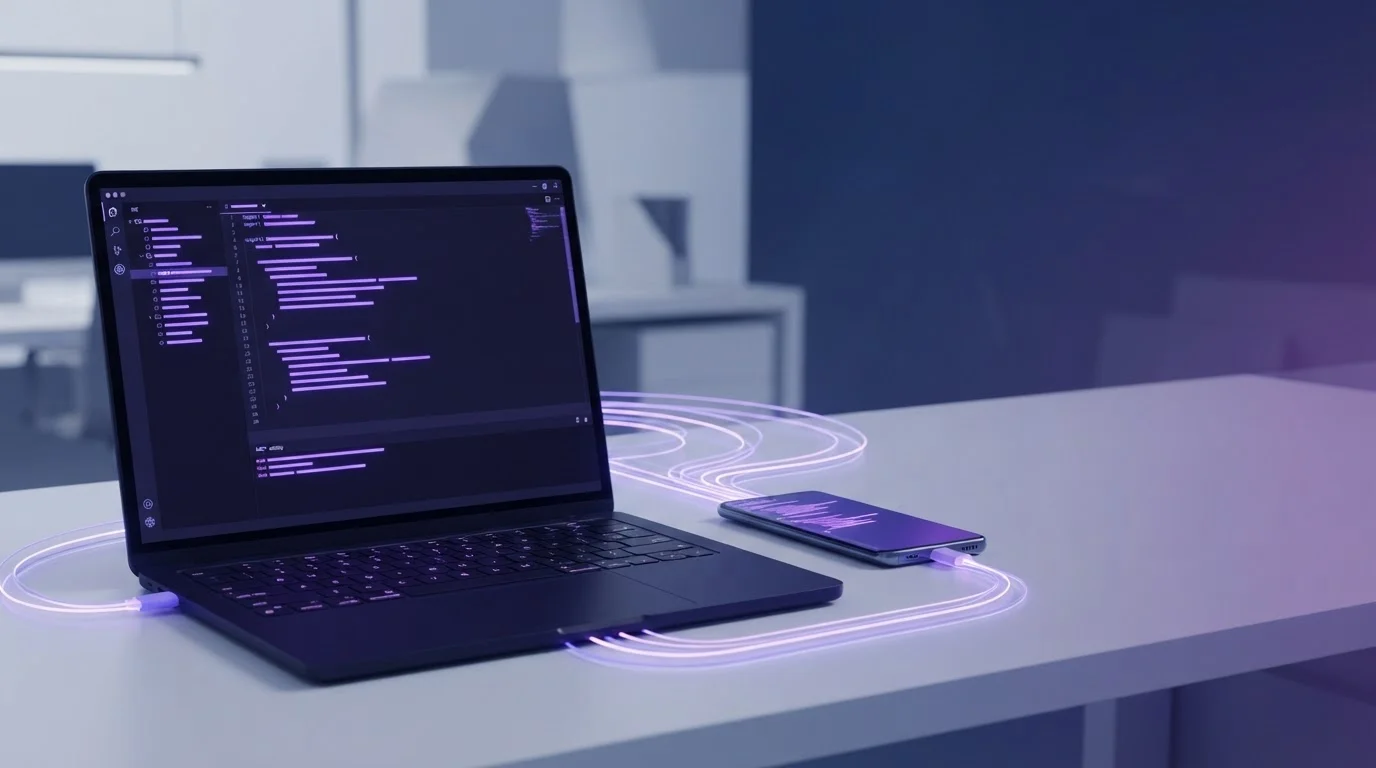
Configuring your developer workflow for using Cursor with an Android screen MCP server lets you give AI agents full visual context and interactive control over a physical mobile device. By connecting Cursor to ScreenSync MCP through a local stdio connection, your agent gains access to 226 MCP tools—spanning 29 phone and desktop tools and 197 browser tools—to inspect views, issue gestures, and debug interfaces in real time.
Key Takeaways
- Connect Cursor directly to your local Node.js hub running over stdio to grant your agent vision and interaction capabilities on mobile.
- Screen capture relies strictly on Android's native MediaProjection API, meaning real-time capture requires no root access and no ADB.
- Controlling the device through touch, swipe, and text input executes via ADB, supported across standard USB cables or wireless debugging.
- ScreenSync MCP provides 226 MCP tools, comprising 29 phone and desktop tools and 197 browser tools, alongside 17 prompts and 3 resources.
- Local frames stream entirely across your local network directly between the phone and your hub, preserving local privacy.
What It Is and Why It Matters
Using Cursor with an Android screen MCP server enables your code editor's internal agent to run, inspect, and verify Android applications directly on target hardware. Connecting Cursor to the Model Context Protocol (MCP) bridges the gap between static repository code and dynamic application runtime states.
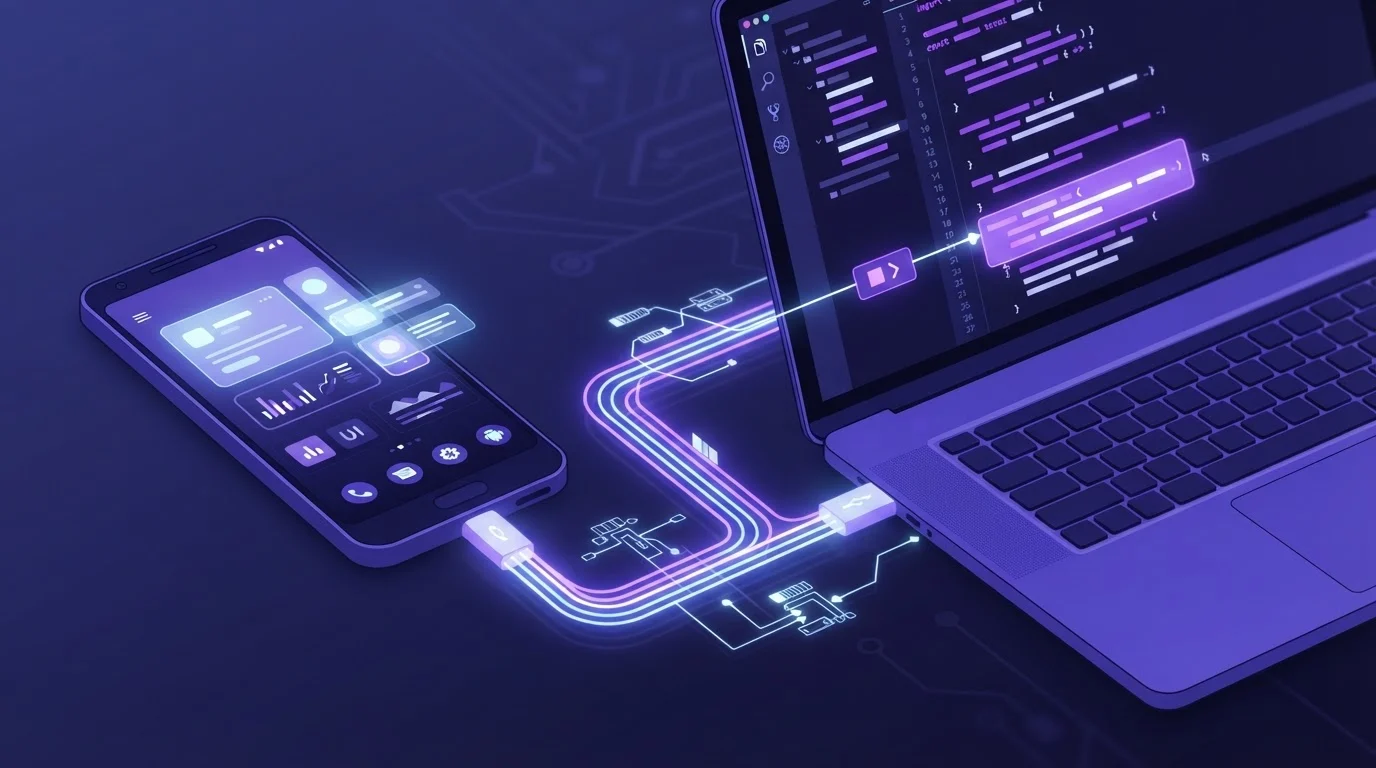
What It Is and Why It Matters
The Shift to Multimodal IDE Agents
Traditional mobile development workflows force engineers to write code in an IDE, deploy an APK using a terminal, and manually click through screen flows to inspect states. When you configure Cursor with an Android screen MCP server, the AI agent inside your editor views the live screen directly. The agent can verify whether an asset loaded, check text alignment, and inspect edge-case errors without requiring human context switching.
Moving Beyond Static Code Context
Language models restricted to repository text often hallucinate layout behavior or misjudge dynamic view hierarchies. By feeding actual display data through tools like get_latest_screenshot and get_ui_hierarchy, Cursor reasons over live user interfaces. This gives developers working on mobile apps a feedback loop that unifies source code, visual design, and real-time layout structures.
Unified Browser and Mobile Control
Modern applications rarely live in isolation; authentication, backends, and dashboards frequently involve web interfaces. ScreenSync MCP pairs its 29 phone and desktop capabilities with 197 browser tools via a Chrome/Edge extension. This unified suite allows an agent in Cursor to coordinate end-to-end integration tasks—such as completing an onboarding flow in a mobile client and confirming user registration in an internal browser-based web dashboard.
How It Works
ScreenSync MCP separates display capture from hardware input control to deliver low-latency visual data while retaining system stability across local networks. Understanding how these layers communicate ensures that you configure your network, ADB daemons, and client settings accurately.
Screen Capture Architecture
Our Android app runs on Android 7.0 or later and uses Android's native MediaProjection API to capture display frames. Because this subsystem operates at the platform display level, screen capture requires no root access and no ADB configuration. Once you grant screen recording consent in the app for that session, frames stream over your local network to the desktop hub, achieving a median mirror latency of about 94 ms in our LAN tests.
Device Interaction and Control
While visual capture operates independently, control commands must simulate physical user hardware events. Control tools like control_tap, control_swipe, and control_type run directly through ADB from the hub over a USB cable or wireless debugging. If you want to dive deeper into this input separation, read our breakdown on how to control an Android phone with AI without root.
MCP Stdio Communication with Cursor
The ScreenSync MCP hub runs locally on Node.js 18+ across Windows, macOS, or Linux, hosting an HTTP service on port 3000 while serving MCP over standard input/output (stdio). When Cursor launches its agent process, it spawns the hub script directly over stdio. This design provides immediate tool access without exposing the MCP communication channel to external web infrastructure.
| Control & Vision Stack | Root Required? | Connection Channel | Permissions Needed |
|---|---|---|---|
| MediaProjection Video | No | Local LAN (HTTP / WebSocket) | Per-session user consent |
| Touch & Input Control | No | ADB (USB or Wireless) | Developer Options & USB Debugging |
| MCP Protocol Server | No | Local Stdio | Node.js runtime execution |
Step-by-Step Walkthrough
Setting up Cursor to interact with your physical Android device takes only a few minutes when following the proper sequence. Make sure your desktop environment has Node.js 18 or higher installed and that your mobile device is on the same local network.
1. Download and Install Components
First, obtain the verified components for your workstation and mobile device:
- Download and install the ScreenSync MCP Android app (free on Google Play, package
com.screensync.mcp). - Download the ScreenSync MCP hub (free download) to your computer and unpack the archive to a permanent folder.
- Optionally download the ScreenSync MCP browser extension (free download) for Google Chrome or Microsoft Edge if your workflow involves web verification.
2. Launch the Hub and Connect Your Device
Start the local hub process on your computer by running start-hub.bat (on Windows) or start-hub.sh (on macOS or Linux). The hub exposes an HTTP dashboard on port 3000.
Open the ScreenSync MCP app on your Android device (Android 7.0+). Connect the phone to the hub by either scanning the QR code displayed on the desktop hub interface or using mDNS auto-discovery on your local area network. When prompted on the device, grant MediaProjection consent so screen streaming can begin.
For device input automation, ensure your device has USB debugging or wireless debugging enabled in its Developer Options. Connect ADB over USB or establish a wireless debugging session so the hub can send tap and swipe events.
3. Configure Cursor to Run the MCP Server
Cursor supports MCP clients that run local stdio servers. To hook Cursor into your running environment, check Cursor's MCP documentation to locate the MCP configuration settings file or panel in the IDE. Add the ScreenSync MCP server entry pointing to the location where you unpacked the hub zip archive.
For reference, local stdio configurations follow this structure:
{
"mcpServers": {
"screensync": {
"command": "node",
"args": ["/path/to/hub/screensync-hub.js"],
"env": {
"SCREEN_SYNC_TOKEN": "your_bearer_token_here"
}
}
}
}
Replace /path/to/hub/screensync-hub.js with the absolute path to your unpacked hub script, and set SCREEN_SYNC_TOKEN to match the bearer token configured in your hub instance. Save your configuration and restart the MCP connection in Cursor to make the 226 tools available to your agent.
Example Prompts and Tool Calls
Once Cursor connects to the hub, you can command the AI agent using natural language instructions. The model selects the appropriate tools from the 29 phone/desktop and 197 browser capabilities to carry out testing workflows.
Visual State Inspection
You can direct Cursor to verify visual layouts after building an app. For example, give Cursor this prompt:
"Inspect the current mobile screen, check if the login button is visible, and tell me if the error banner is displayed."
In response, Cursor calls get_latest_screenshot to inspect the visual rendering. If the agent needs to verify accessibility nodes or raw text content without relying solely on pixels, it invokes get_ui_hierarchy to examine the live view tree directly.
Automated Touch and Navigation Workflows
You can prompt Cursor to drive end-to-end interactions across native apps:
"Tap the email input field, type '[email protected]', swipe up to view the terms checkbox, and record the screen during this action."
The model coordinates input by calling control_tap with the target screen coordinates, sends the text payload with control_type, executes scrolling via control_swipe, and logs the visual interaction via record_screen.
System Logcat Debugging
When troubleshooting mobile crashes or runtime exceptions directly from the editor, prompt Cursor:
"Check device system logs for the last 50 lines to find why our activity threw an uncaught exception."
The agent executes get_logcat through the hub to pull Android system buffers, letting Cursor correlate Java or Kotlin stack traces directly with the source files open in your editor.
Common Mistakes and Troubleshooting
Setting up multi-process environments can occasionally introduce connection failures. Review these common pitfalls to resolve them quickly.
Control Tools Failing While Screen Streaming Works
A frequent issue occurs when the user sees the screen streaming smoothly, but the agent cannot tap or type. Screen capture uses Android's MediaProjection API and needs no root and no ADB. However, all control tools (control_tap, control_swipe, control_type) run through ADB. Ensure that USB debugging or wireless debugging is active, your computer is authorized in the device prompt, and ADB recognizes the device on your workstation.
MediaProjection Permission Dropped
Android requires explicit user consent for each MediaProjection session to prevent unauthorized background monitoring. If Cursor reports that screenshots are blank or visual tools return an error, check your physical phone screen. If the session disconnected or the app was closed, re-open the ScreenSync MCP app and confirm the projection dialog.
Network Discovery and Token Authentication
If the hub and mobile app fail to pair via mDNS auto-discovery, verify that both devices are connected to the same subnet and that client isolation is disabled on your local router. Alternatively, pair instantly by scanning the hub's QR code within the app. In addition, ensure the SCREEN_SYNC_TOKEN defined in your Cursor configuration matches the bearer token configured on the hub; requests without a valid token will be rejected.
Stdio Path and Node Version Errors
The hub requires Node.js version 18 or later on Windows, macOS, or Linux. If Cursor fails to spawn the server, verify your system's Node runtime by running node -v in your terminal. Ensure that the path configured in Cursor points directly to screensync-hub.js inside the directory where the hub zip was unpacked.
Privacy and Safety Notes
Using AI agents to observe and interact with live hardware requires clear data boundaries. ScreenSync MCP enforces strict local communication pipelines across all components.
Local Network Transmission
Video frames captured via MediaProjection stream directly from your phone to the desktop hub across your local network. Your video frames and device interaction data are never sent to EpsolDev servers. While an optional Google Drive fallback exists for specific storage configurations, your primary streaming path remains fully contained on your LAN.
Upstream Model Provider Visibility
While your video stream stays local between the phone and the desktop hub, keep in mind how MCP visual tools work: any screenshots an agent requests (such as outputs from get_latest_screenshot) are sent directly to that agent's model provider to enable visual reasoning. Developers should avoid displaying sensitive user credentials or production secrets on screen while active vision tools are executing.
Dual-Layer Browser Safety
When leveraging the included Chrome/Edge extension (MV3) to bridge desktop web sessions with mobile tasks, the system protects against accidental destructive actions. The browser extension includes a human approval prompt for risky actions, ensuring that agents cannot execute sensitive financial or account-deletion calls without explicit user confirmation.
| Tool Category | Tools Available | Core Functions | Operational Dependency |
|---|---|---|---|
| Phone & Desktop Control | 12 control_* tools |
Taps, gestures, text input, app launches | ADB over USB or Wireless Debugging |
| Phone & Hub Capture | 14 capture/hub tools | get_latest_screenshot, get_ui_hierarchy, get_logcat |
MediaProjection API & ADB |
| Desktop System Operations | 3 os_* tools |
Host OS level inspection and coordination | Local Node.js Hub Environment |
| Web Browser Automation | 197 web_* tools |
Real browser tab interaction, form handling | MV3 Chrome/Edge Browser Extension |
Setup and Readiness Checklist
Before executing autonomous testing workflows in Cursor, ensure your environment meets these operational requirements:
- Android phone running Android 7.0 or later with the ScreenSync MCP app installed.
- Workstation running Windows, macOS, or Linux with Node.js 18+ installed.
- Phone and desktop connected to the same local area network subnet.
- Developer Options enabled on Android with USB debugging or wireless debugging turned on.
- Hub running via
start-hub.batorstart-hub.sh, accessible locally on port 3000. - MediaProjection permission explicitly confirmed on the device for the current session.
- Cursor configured with the local stdio path to
screensync-hub.jsand validSCREEN_SYNC_TOKEN.
Conclusion
Connecting Cursor to an Android screen MCP server bridges code development and real device execution, making it the ideal setup for developers, QA engineers, and power users who need autonomous visual testing on physical hardware. By running ScreenSync MCP locally over stdio, your agent gains 226 tools to inspect view hierarchies, simulate user gestures, and debug runtime exceptions with low-latency responsiveness.
ScreenSync MCP is available worldwide to elevate your mobile agent development workflows. Download the free ScreenSync MCP hub and the ScreenSync MCP browser extension directly from our website at https://www.screensyncmcp.tech, install the ScreenSync MCP Android app by choosing Get it on Google Play, or reach our team at [email protected] for technical inquiries.
Questions, answered
Do I need to root my Android phone to use ScreenSync MCP with Cursor?
No, root access is not required. Screen capture uses Android's standard MediaProjection API after user consent, and input control runs via standard ADB over USB or wireless debugging.
Why does screen capture work but my agent cannot tap or type on the screen?
Screen capture operates via MediaProjection and requires no ADB, but all control tools rely strictly on ADB. You must enable USB debugging or wireless debugging in Developer Options and authorize your computer to allow input simulation.
Does ScreenSync MCP send my phone's screen stream to external servers?
No, video frames stream locally from your phone to the hub across your local network and are never transmitted to EpsolDev servers. However, specific screenshots requested by an AI agent are sent to that agent's underlying model provider for visual processing.
Can I use ScreenSync MCP with ChatGPT's web application?
No, ScreenSync MCP does not support the ChatGPT web app because ChatGPT requires remote HTTPS MCP endpoints, whereas ScreenSync MCP uses local stdio servers designed for tools like Cursor, Claude Desktop, and Claude Code.
What are the pricing tiers and tool limits for ScreenSync MCP?
ScreenSync MCP is entirely free. The Android app is free on Google Play, the hub is a free download, and the browser extension is a free download, providing access to all 226 MCP tools without licensing tiers.