On this page
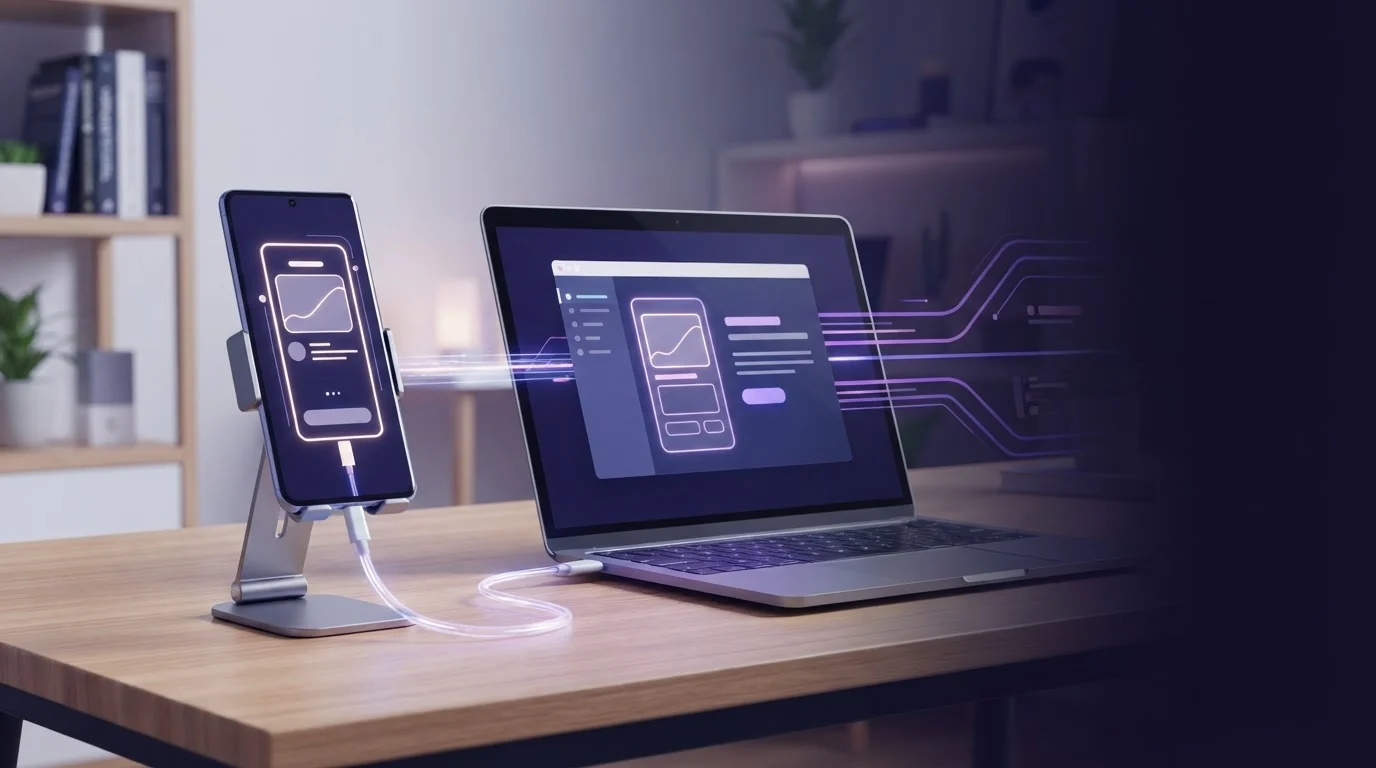
ScreenSync MCP captures your Android display by streaming frames locally over your network using the MediaProjection API, while executing device inputs separately via Android Debug Bridge (ADB). In our testing on a local area network, this pipeline achieves a median live mirror latency of about 94 ms without requiring root access. Understanding how a screen MCP server captures your phone screen: MediaProjection vs ADB vs Accessibility allows developers to balance visual feed latency, permission overhead, and agent token costs.
Key Takeaways
- Screen capture in ScreenSync MCP uses Android's native MediaProjection API, requiring explicit user consent per session but zero root and zero ADB permissions.
- Device control actions like taps, swipes, and text entry require ADB enabled over either USB or wireless debugging.
- Accessibility services extract semantic UI node trees rather than raw visual pixels, making them ideal companions to visual frames.
- ScreenSync MCP provides 226 total MCP tools: 29 phone and desktop tools alongside 197 browser tools.
- Captured screen frames travel directly between your phone and your local hub on your private network, never through EpsolDev servers.
What It Is and Why It Matters
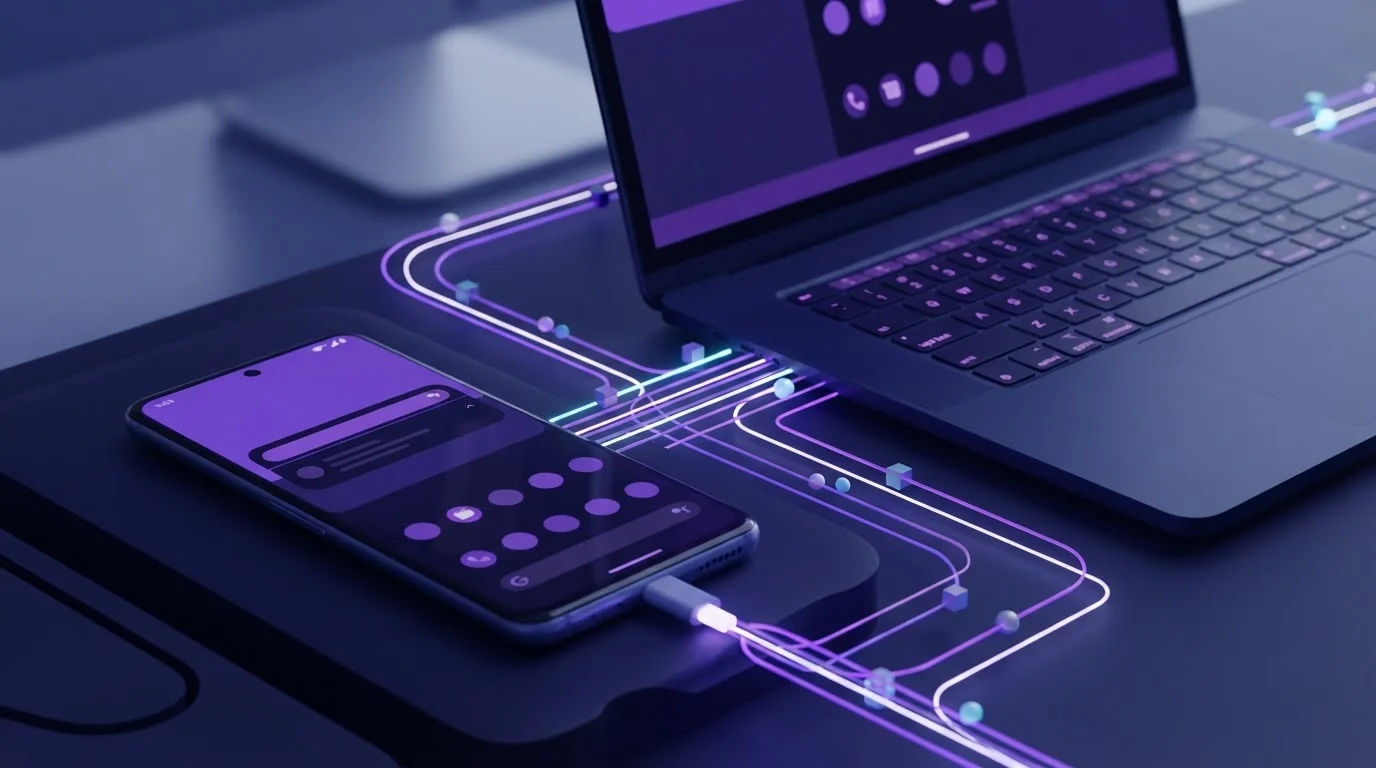
When connecting an AI agent to an Android device using the Model Context Protocol (MCP), the agent requires a mechanism to perceive the visual state of the display before determining the next action. How an MCP server handles this screen retrieval dictates response latency, setup friction, and client token consumption.
What It Is and Why It Matters
Architectural Options for Mobile Agents
Developers building or deploying mobile MCP agents encounter three primary capture methods on Android: raw ADB frame buffers (screencap), Accessibility service hierarchy dumps, and MediaProjection streaming. ADB screencap reads the display buffer via shell commands, which incurs file serialization overhead. MediaProjection establishes a dedicated capture surface directly within Android's graphics compositor. Accessibility services bypass pixels entirely, inspecting the active view hierarchy to return layout nodes, text strings, and resource IDs.
Why Hybrid Pipelines Outperform Single Protocols
Single-protocol architectures force compromises between speed and semantic awareness. Pure ADB capture is slow for high-frequency visual updates, while pure Accessibility dumps fail when dealing with Canvas-rendered games, WebViews, or non-standard visual components. ScreenSync MCP pairs low-latency MediaProjection screen capture with ADB input execution and structured UI dumping via dedicated tools. What this means for you is that an agent can see high-speed video frames while also querying structural element IDs to make informed decisions.
The Impact on Agent Latency and Token Usage
Agents relying solely on base64 visual frames consume significant multimodal context tokens on every turn. By exposing both visual capture via get_latest_screenshot and layout parsing via get_ui_hierarchy, the server lets the agent decide whether it needs an image or a compact text representation. You can learn more about this structural balance in our guide on why your AI agent needs the Android UI hierarchy.
| Capture Architecture | Ideal User Base | Defining Characteristic |
|---|---|---|
| MediaProjection | QA engineers needing real-time visual inspection | Sub-100ms hardware-accelerated local network frame streaming |
| Pure ADB Screencap | Developers running headless command-line CI scripts | Simple CLI setup requiring no on-device app installation |
| Accessibility Inspection | Engineers building screen readers and accessibility parsers | Pure text metadata extraction without visual image buffers |
How It Works
An MCP server bridges client requests from platforms like Claude Desktop or Claude Code to the underlying Android operating system using standardized JSON-RPC schemas over local stdio.
MediaProjection Pipeline
Android's MediaProjection API allows an installed application to record or stream the device display. When you launch the ScreenSync MCP Android app (compatible with Android 7.0 or later), the operating system displays a native prompt asking for your explicit consent to project the screen. Once granted, the app encodes display frames and streams them directly over your local network to the ScreenSync MCP hub running on your desktop. Because MediaProjection runs in user-space graphics memory, it requires neither root access nor an active ADB bridge to capture images.
ADB Shell Capture and Control Bridge
While MediaProjection handles screen delivery, control tools execute through ADB from the desktop hub over USB or wireless debugging. When an agent invokes actions like control_tap, control_swipe, or control_type, the hub dispatches shell events directly to the target device. This design enforces strict separation of concerns: screen ingestion is handled with high throughput via local network sockets, while input commands run deterministically via ADB.
Accessibility Service Semantic Extraction
Visual pixels tell an LLM what the screen looks like, but layout dumps reveal exact element boundaries. Through the get_ui_hierarchy tool, the agent retrieves the current window's active node tree. This enables the LLM to locate exact clickable coordinates without hallucinating touch targets from visual compression artifacts, saving time and tokens during complex automation tasks.
Step-by-Step Walkthrough
Setting up ScreenSync MCP on your workstation takes only a few minutes and connects directly to local MCP clients.
Workstation and Device Prerequisites
Before configuring your client, confirm your environment meets these exact requirements:
- Install Node.js 18+ on your host computer (Windows, macOS, or Linux).
- Download the ScreenSync MCP hub and run
start-hub.bat(Windows) orstart-hub.sh(macOS/Linux). The hub opens an HTTP listener on port 3000. - Install the ScreenSync MCP Android app from Google Play (package
com.screensync.mcp, Android 7.0+). - Enable Developer Options and USB Debugging (or Wireless Debugging) on your phone.
If you prefer a cable-free workstation setup, follow our complete guide to Android wireless debugging for MCP servers.
Pairing the Phone to the Hub
Launch the Android app on your phone. The app will detect your running hub automatically via mDNS auto-discovery on your local network. Alternatively, you can scan the pairing QR code presented in the hub terminal. Once paired, the app prompts for screen recording permission via MediaProjection. Tap allow to begin streaming. All communication between the app and hub utilizes a local bearer token (SCREEN_SYNC_TOKEN).
Configuring Claude Desktop and Claude Code
For Claude Desktop, open your claude_desktop_config.json file (accessible via Settings > Developer) and add the hub stdio configuration:
{
"mcpServers": {
"screensync": {
"command": "node",
"args": ["/path/to/hub/screensync-hub.js"],
"env": {
"SCREEN_SYNC_TOKEN": "your_bearer_token_here"
}
}
}
}
For Claude Code, open your terminal and register the server using the local folder where your hub zip was unpacked:
bash
claude mcp add screensync node "/path/to/hub/screensync-hub.js"
Note that ChatGPT's web client requires remote HTTPS MCP endpoints and is not supported. For Cursor or VS Code, consult your specific client's MCP documentation for adding local stdio Node.js servers.
| Offering Component | Pricing (USD) | Included Capabilities |
|---|---|---|
| Android App | Free on Google Play | Android 7.0+ MediaProjection streaming, mDNS discovery |
| Desktop Hub | Free download | 29 phone/desktop MCP tools, Node.js 18+ stdio server |
| Browser Extension | Free download | 197 Chrome/Edge MV3 tools with human approval prompt |
Example Prompts and Tool Calls
ScreenSync MCP provides 226 total MCP tools. The breakdown includes 29 phone and desktop tools (12 control_*, 3 os_*, and 14 capture/hub tools including get_latest_screenshot, get_ui_hierarchy, get_logcat, and record_screen), along with 197 web_* browser tools.
Inspecting Visual Display and UI State
When asking your agent to inspect an app, prompt:
"Check the current screen of my Android device, verify whether the settings page is open, and list the visible toggles."
The agent executes get_latest_screenshot to retrieve the current MediaProjection buffer. To confirm element IDs, it calls get_ui_hierarchy, receiving the structured XML/JSON node tree.
{
"name": "get_latest_screenshot",
"arguments": {}
}
Executing Touch and Text Inputs via ADB
To interact with an input field, prompt:
"Tap the search bar at the top of the screen and type 'Developer Options'."
The agent translates this into coordinate-based ADB input tools managed by the hub:
{
"name": "control_tap",
"arguments": {
"x": 540,
"y": 220
}
}
Followed by:
{
"name": "control_type",
"arguments": {
"text": "Developer Options"
}
}
Investigating Application Crashes
For troubleshooting, prompt:
"The app crashed after launching. Read the recent logs to find the stack trace."
The agent calls the log retrieval tool:
{
"name": "get_logcat",
"arguments": {
"lines": 100
}
}
Common Mistakes and Troubleshooting
When deploying local MCP servers, configuration mismatches between local network interfaces and ADB daemons are the most common points of failure.
Screen Capture Stream Disconnections
If the agent fails to receive frames, verify that your phone and desktop hub are connected to the same local Wi-Fi subnet. While MediaProjection does not require ADB, it does require network reachability on port 3000. If discovery fails, inspect your local firewall settings or pair manually using the QR code. Ensure your session consent has not expired on the Android device.
Control Tools Failing While Capture Works
Because capture relies on MediaProjection and control relies on ADB, it is entirely possible to view the display while input commands fail. If control_tap or control_swipe return errors, check your workstation terminal. Run adb devices to ensure your device is authorized. Re-plug your USB cable or toggle Wireless Debugging if the ADB daemon shows the device as unauthorized or offline.
Claude Desktop Stdio Hub Crashes
If Claude Desktop shows the server as disconnected, ensure that your path to screensync-hub.js in claude_desktop_config.json is absolute and matches the unpacked directory. Verify that you have Node.js 18 or higher installed on your path, and ensure SCREEN_SYNC_TOKEN is passed accurately in the env block.
Privacy and Safety Notes
Integrating AI with mobile device hardware requires complete clarity regarding where your data flows.
Local Network Data Isolation
All video frames generated by the ScreenSync MCP Android app stream directly to your local workstation hub over your own network. No media or control packets are routed through EpsolDev servers. While a Google Drive fallback option exists within the architecture, real-time local streaming remains strictly on your local area network.
External AI Model Ingestion
When an AI agent invokes get_latest_screenshot, that image buffer is passed via the Model Context Protocol stdio transport to your MCP client (such as Claude Desktop or Claude Code). Consequently, any screenshot requested by the agent is transmitted directly to that agent's model provider (such as Anthropic) for visual inference. Avoid running agent visual capture on screens displaying sensitive passwords or credentials.
Browser Safety and Human-in-the-Loop Controls
ScreenSync MCP includes a Chrome and Edge browser extension (Manifest V3) exposing 197 web_* tools. To prevent unintended browser automation, the extension includes a built-in human approval prompt for risky browser actions, ensuring agent actions remain monitored.
Pre-Deployment Checklist
- Android phone running Android 7.0+ with USB or Wireless Debugging enabled.
- Workstation equipped with Node.js 18+ and ScreenSync MCP hub unpacked.
- Hub running via
start-hub.batorstart-hub.shlistening on port 3000. - Phone and workstation connected to the same local subnet for mDNS pairing.
- MediaProjection permission approved on the phone screen prompt.
claude_desktop_config.jsonupdated with absolute paths andSCREEN_SYNC_TOKEN.
Conclusion
For developers and QA engineers who want an AI agent to see and control a real Android phone, the ideal architecture combines MediaProjection for low-latency visual frames with ADB for reliable control execution. ScreenSync MCP implements this exact separation of concerns, providing 29 mobile and desktop tools alongside 197 browser tools completely free of charge.
ScreenSync MCP provides developer tools for AI agents and the Model Context Protocol worldwide. Our software suite includes the ScreenSync MCP Android app, ScreenSync MCP hub, and ScreenSync MCP browser extension. Get it on Google Play to start automating your physical device testing, or visit our website at https://www.screensyncmcp.tech and contact us at [email protected] for technical inquiries.
Questions, answered
Does ScreenSync MCP require root access on my Android phone?
No, ScreenSync MCP requires zero root access. Screen capture runs through Android's standard MediaProjection API, and control inputs run through standard ADB debugging.
Why does screen capture work when ADB input controls fail?
Screen capture and control use separate pathways: capture uses the MediaProjection API over your local network, while control commands require an active, authorized ADB connection over USB or wireless debugging.
Can I use ScreenSync MCP with the ChatGPT web app?
No, ScreenSync MCP operates as a local stdio server designed for desktop clients like Claude Desktop, Claude Code, Cursor, and VS Code. ChatGPT's web app requires remote HTTPS MCP endpoints and is not supported.
Are my phone screen frames stored or processed on EpsolDev servers?
No, all visual frames stream directly across your local network from your phone to your local desktop hub. However, any screenshot explicitly requested by your AI agent is sent to that agent's model provider.
How fast is the screen streaming latency over a local network?
In our tests on a local area network, the live mirror achieves a median latency of about 94 ms using the MediaProjection streaming pipeline.