On this page
When connecting Claude to a screen server, a local screen tool should use stdio for client communication and local HTTP for device ingest. In ScreenSync MCP, our Node.js hub runs Model Context Protocol (MCP) over stdio for clients like Claude Desktop while serving an internal HTTP endpoint on port 3000 to ingest live device frames, achieving about 94 ms median live mirror latency across a local area network in our tests. Understanding the differences between stdio vs HTTP/SSE: how a screen MCP server talks to Claude helps developers and QA engineers avoid broken sessions, dropped frames, and security misconfigurations.
Key Takeaways
- Stdio provides process isolation: Running MCP over standard input/output (stdio) allows clients like Claude Desktop and Claude Code to spawn the hub directly, eliminating exposed public ports.
- Screen payloads require balanced transports: High-frequency visual data flows best from an Android device to a local hub over a dedicated local network route, while tool responses return to the agent via stdio.
- Distinct tool surfaces: ScreenSync MCP exposes 226 MCP tools across surfaces—29 phone and desktop tools plus 197 browser tools.
- Zero root requirements for visual feedback: Screen capture operates via Android's MediaProjection API with user consent and requires no root or ADB, whereas execution tools run through ADB.
Transport Architecture at a Glance
The fundamental architectural question is how agents consume heavy visual data without introducing lag or network vulnerabilities. Stdio operates strictly across child process pipes, ensuring that only the local client invokes tools. Meanwhile, HTTP/SSE transports require network interfaces, transport-layer authentication, and explicit connection lifecycles.
The Hybrid Model
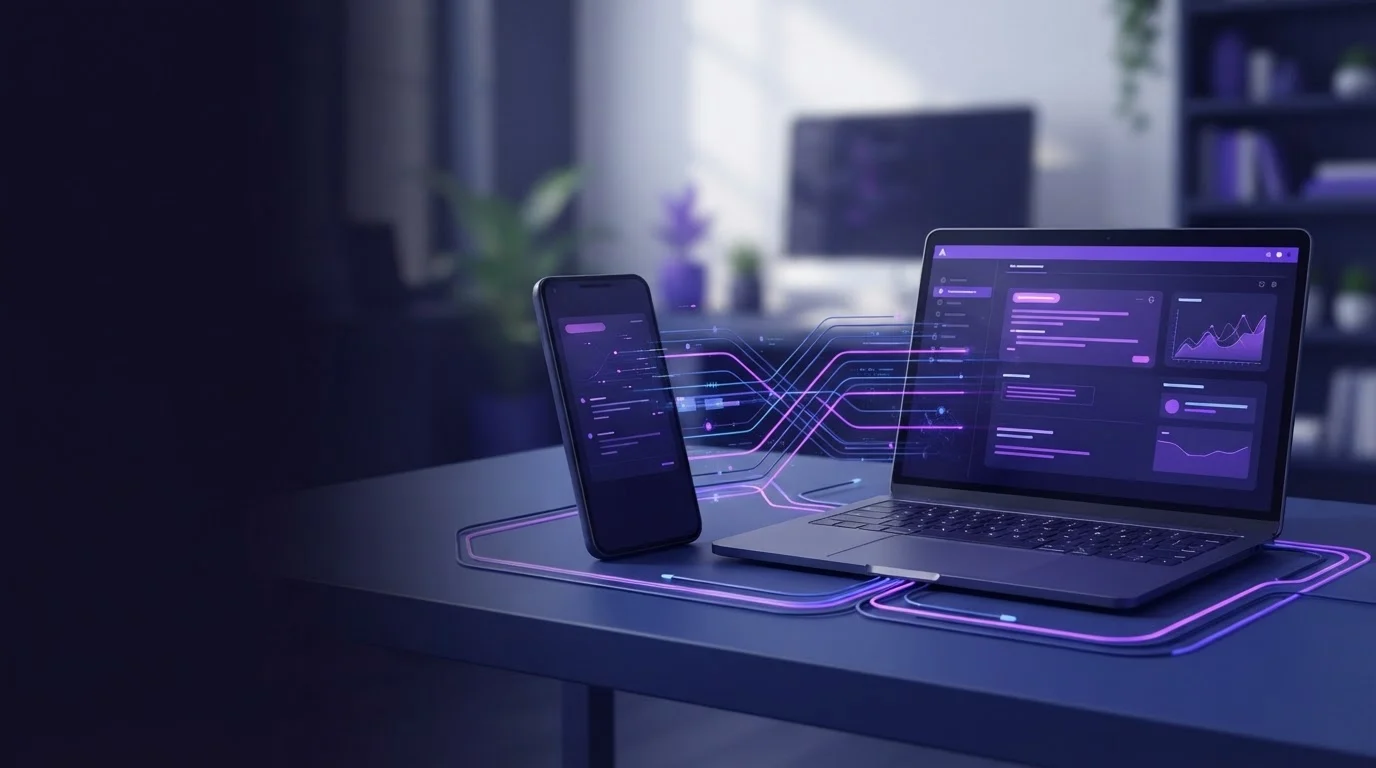
Rather than forcing a single transport across everything, our approach pairs an MCP stdio interface for the AI model with an internal HTTP server on port 3000. This design allows external devices, such as an Android phone running our app or a desktop browser tab, to stream frames independently of Claude's conversational loop.
What It Is and Why It Matters
Choosing the right transport protocol dictates whether an AI agent can reliably inspect, interact with, and verify user interfaces in real time. If a transport adds friction to image transfer or input execution, the entire automation loop stalls.
What It Is and Why It Matters
Defining Stdio and HTTP/SSE in MCP
In the Model Context Protocol (MCP), stdio uses the standard input and output streams of an OS process to pass JSON-RPC messages. HTTP with Server-Sent Events (SSE) runs over a network connection where clients maintain a persistent stream for server messages while sending commands over standard HTTP POST requests. Clients like Claude Desktop, Claude Code, Cursor, and VS Code support stdio natively for local tools. Conversely, web-only clients like ChatGPT's web app require remote HTTPS MCP, meaning they cannot access local stdio processes.
The Impact on Mobile and Browser Automation
For mobile QA engineers, latency determines whether an agent can detect UI changes before acting. Capturing screenshots and UI hierarchies across external hardware requires reliable data throughput. Transports that add heavy handshake latency or dropped SSE streams cause agent tool calls like get_latest_screenshot to fail or return stale views.
Transport Comparison
| Transport | Best suited for | Core difference |
|---|---|---|
| Local stdio | Desktop AI clients | Spawns local child processes directly |
| HTTP / SSE | Distributed remote architectures | Runs across network sockets continuously |
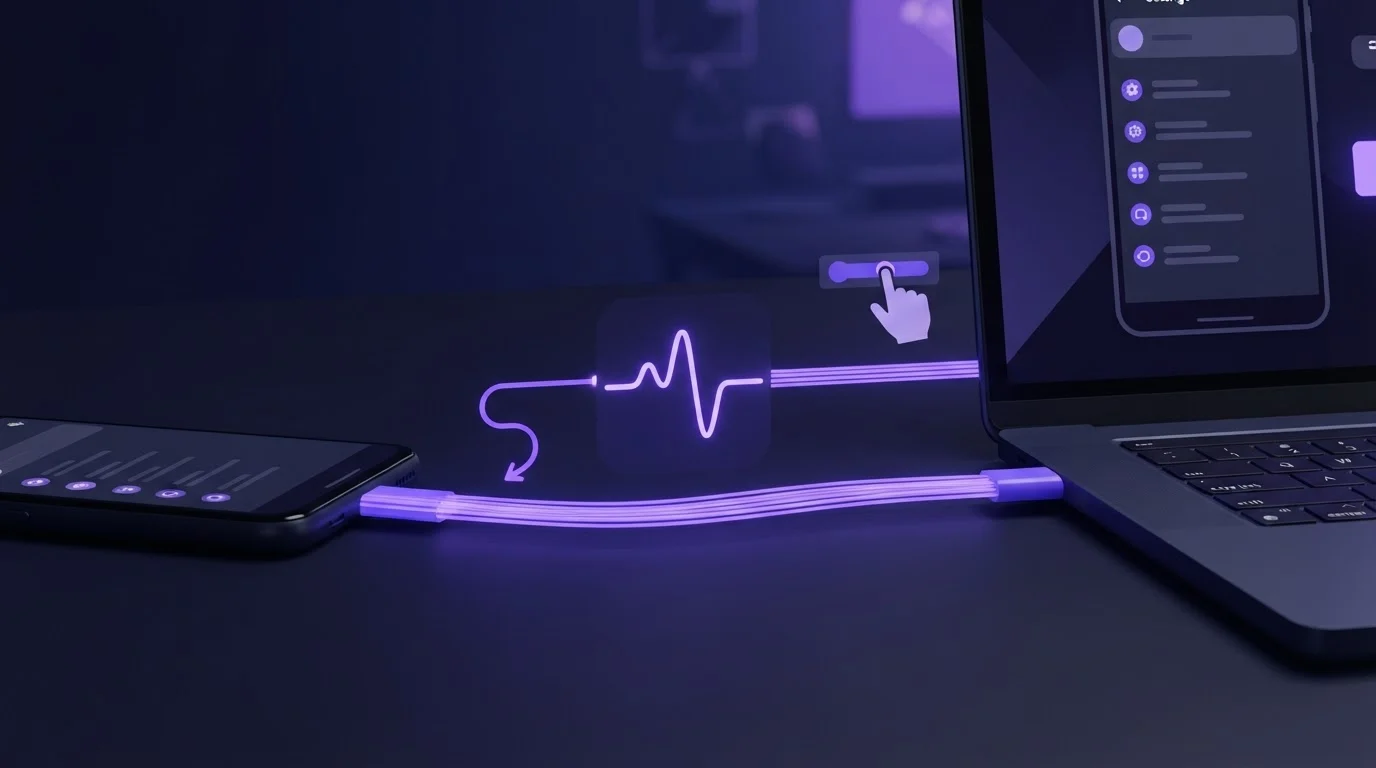
| ScreenSync hybrid | Android and browser QA | Stdio for agents, LAN HTTP for devices |
How It Works
Our system bridges the model, the operating system, and the external Android device using a two-tier communication path. The AI client controls the hub, while the hub coordinates device screen capture and ADB command execution.
MediaProjection and Frame Ingestion
The ScreenSync MCP Android app runs on Android 7.0 or later. It uses Android's native MediaProjection API to capture screen contents after the user grants explicit consent each session. Because this API operates at the OS level, capturing the screen needs no root access and no ADB configuration. Frames stream across the user's local network directly to the hub's HTTP server on port 3000.
Agent Communication Over Stdio
When Claude Desktop or Claude Code starts, it boots the hub script using Node.js 18+ on Windows, macOS, or Linux. The agent interacts with the hub via JSON-RPC over stdio. When Claude asks to view the screen, it executes get_latest_screenshot. The hub retrieves the latest buffer delivered by the Android app and immediately returns it across stdio as base64-encoded visual context. You can read more in our guide on how an MCP server captures phone screens using ADB.
Command Execution via ADB
While visual capture avoids ADB, executing interactions requires an instrumentation bridge. Control tools—such as control_tap, control_swipe, control_type, launching apps, or opening URLs—run through ADB directly from the hub over USB or wireless debugging. When the agent issues a tap coordinate, the hub translates that MCP command into an ADB shell input dispatch.
Browser Extension Layer
Beyond mobile devices, the ScreenSync MCP browser extension (Manifest V3) connects Chrome or Edge directly to the same hub. This architecture exposes 197 web_* browser tools to Claude, allowing the agent to view and interact with real browser tabs alongside the mobile automation pipeline.
Step-by-Step Walkthrough
Setting up ScreenSync MCP involves launching the local hub, configuring your chosen MCP client over stdio, and pairing your Android device over the LAN.
1. Launching the Hub
Ensure you have Node.js 18+ installed on your computer. Download the hub package, unpack the files, and start the local server via your platform's startup script (start-hub.bat on Windows or start-hub.sh on macOS/Linux). The hub initializes its HTTP receiver on port 3000 and prepares its stdio interface.
2. Configuring Claude Desktop
To link Claude Desktop to the hub, open your claude_desktop_config.json file (found under Settings > Developer) and add the server entry under mcpServers:
{
"mcpServers": {
"screensync": {
"command": "node",
"args": ["/path/to/hub/screensync-hub.js"],
"env": {
"SCREEN_SYNC_TOKEN": "your_secret_token_here"
}
}
}
}
Make sure to replace /path/to/hub/screensync-hub.js with the actual path where you unpacked the hub zip file.
3. Configuring Claude Code
If you prefer the command-line interface using Claude Code, register the hub directly in your terminal using the built-in CLI command:
bash
claude mcp add screensync node "/path/to/hub/screensync-hub.js"
For other clients like Cursor or VS Code, consult each client's specific MCP configuration documentation for registering a local Node.js stdio process.
4. Pairing the Android App
Install the ScreenSync MCP Android app from Google Play (com.screensync.mcp). Open the app and pair it with your computer by scanning the QR code displayed in the hub console, or allow the app to discover the hub automatically using mDNS auto-discovery on your local network. Once paired, communication authenticates using your SCREEN_SYNC_TOKEN bearer token.
Product Components and Pricing
| Component | Price (USD) | What is included |
|---|---|---|
| Android app | Free on Google Play | MediaProjection screen capture, pairing |
| Hub software | Free download | Stdio server, port 3000 HTTP, ADB bridge |
| Browser extension | Free download | MV3 real-tab automation, security prompts |
Example Prompts and Tool Calls
Once configured, Claude can use the 29 phone and desktop tools alongside the 197 browser tools to inspect interfaces, review logs, and execute precise actions.
Inspecting Phone Layouts and Hierarchy
When verifying an Android layout, Claude combines visual inspection with structural node scanning. Understanding why your AI agent needs the Android UI hierarchy helps teams debug complex view trees.
User Prompt:
"Please take a screenshot of the connected Android phone, inspect the current view tree, and tell me if the Login button is visible."
Agent Execution Flow:
{
"tool": "get_latest_screenshot",
"arguments": {}
}
{
"tool": "get_ui_hierarchy",
"arguments": {}
}
Claude analyzes the returned screenshot image alongside the XML node hierarchy to confirm whether elements are obscured or off-screen.
Automated UI Navigation
To interact with elements, Claude triggers control tools that run via the hub's ADB interface.
User Prompt:
"Tap the email input field at coordinates x=350, y=620, type '[email protected]', and hide the keyboard."
Agent Execution Flow:
{
"tool": "control_tap",
"arguments": {
"x": 350,
"y": 620
}
}
{
"tool": "control_type",
"arguments": {
"text": "[email protected]"
}
}
If the agent needs to scroll down to reveal more controls, it issues a control_swipe call with the appropriate coordinates.
Diagnostic Log Collection
During QA sessions, an engineer may ask the agent to catch application errors directly from the system logs.
User Prompt:
"The app crashed when I tapped submit. Check the system logcat for fatal exceptions."
Agent Execution Flow:
{
"tool": "get_logcat",
"arguments": {
"lines": 100
}
}
Claude inspects the resulting log buffer to isolate stack traces and unhandled exceptions.
Common Mistakes and Troubleshooting
Configuring dual-transport systems occasionally presents environmental or permission hurdles. Here is how to fix the most frequent issues.
Stdio Path and Environment Errors
A common issue when configuring claude_desktop_config.json is supplying an invalid relative path to screensync-hub.js. Always supply absolute paths. In addition, ensure that the SCREEN_SYNC_TOKEN environment variable in the JSON matches the bearer token configured inside the hub.
Android Capture vs. ADB Control Confusion
Users often expect ADB to handle screen mirroring, or conversely expect the Android app to execute tap commands without ADB. Remember the clear operational boundary: screen capture uses the MediaProjection API via our app and requires no root and no ADB. However, control tools (control_tap, control_swipe, control_type) require an active ADB connection over USB or wireless debugging.
Network Discovery and Firewall Blocks
If the Android app cannot find the hub via mDNS auto-discovery, verify that your computer and phone are connected to the same local Wi-Fi subnet. Firewalls on Windows or macOS can block inbound traffic on port 3000. Ensure Node.js is allowed to accept incoming connections on your LAN.
Unsupported Web MCP Clients
Attempting to connect ChatGPT's web app to ScreenSync MCP will fail. ChatGPT's web interface requires a remote HTTPS MCP endpoint. ScreenSync MCP uses local stdio processes for agent communication, which is supported by Claude Desktop, Claude Code, Cursor, and VS Code.
Privacy and Safety Notes
Running mobile and browser automation involves sensitive personal and diagnostic data. Our design isolates data movement strictly to the user's infrastructure.
Local Network Isolation
Video frames travel directly from your Android phone to the hub over your local network. They are never transmitted to EpsolDev servers. A Google Drive fallback is available as an optional setting if direct network streaming is unavailable, but local LAN transmission remains the primary pathway.
Model Provider Data Sharing
While raw video streams stay local, you should be fully aware of how screenshots reach your AI model. When an AI agent invokes get_latest_screenshot, that specific frame is returned to the agent and subsequently transmitted to that agent's model provider (such as Anthropic for Claude) as part of the conversation context.
Browser Action Approvals
When using the Chrome/Edge extension to manage real browser tabs, automated actions can interact with sensitive accounts. The extension incorporates a human approval prompt for risky actions, ensuring that an agent cannot submit forms, execute scripts, or alter settings without explicit user confirmation.
Pre-Automation Setup Checklist
- Ensure Node.js 18+ is installed on your workstation.
- Verify that the Android phone runs Android 7.0 or later.
- Download the ScreenSync MCP app from Google Play.
- Enable USB debugging or wireless debugging on Android for control tools.
- Configure absolute paths and
SCREEN_SYNC_TOKENin your client config. - Confirm port 3000 is open on your host firewall for LAN device traffic.
Conclusion
Screen MCP tools should use stdio for the AI agent client connection while relying on a local HTTP transport to ingest device data. This hybrid architecture gives Claude Desktop and Claude Code zero-overhead, isolated tool execution over standard input/output without exposing agent interfaces to the network. At the same time, it maintains a responsive, low-latency visual stream from your Android device and browser extension.
ScreenSync MCP provides the ScreenSync MCP Android app, ScreenSync MCP hub, and ScreenSync MCP browser extension. For questions, reach our team at [email protected] or visit our website at https://www.screensyncmcp.tech. Get it on Google Play to start automating with Claude today.
Questions, answered
Does ScreenSync MCP require root access on Android?
Screen capture uses Android's native MediaProjection API after user consent each session and needs no root and no ADB. However, interaction control tools such as taps and swipes execute through ADB over USB or wireless debugging.
Can I use ScreenSync MCP with the ChatGPT web app?
No, ChatGPT's web app requires remote HTTPS MCP endpoints. ScreenSync MCP operates as a local stdio server designed for desktop clients like Claude Desktop, Claude Code, Cursor, and VS Code.
How does the Android phone connect to the desktop hub?
The Android app pairs by scanning the QR code generated by the hub or through mDNS auto-discovery on your local network, authenticating via a bearer token.
Are my screen recordings sent to EpsolDev servers?
No, frames stream directly from your phone to the hub across your local network and never reach EpsolDev servers. Note that individual screenshots requested by an AI agent are sent to that agent's model provider.
What tools are included in the ScreenSync MCP hub?
The hub exposes 226 MCP tools: 29 phone and desktop tools (including 12 control tools, 3 OS tools, and 14 capture and hub tools like get_latest_screenshot and get_ui_hierarchy) plus 197 browser tools.