On this page
Yes, letting an AI agent navigate apps and fill forms on Android safely is entirely practical when using ScreenSync MCP to enforce strict local boundaries, session-based screen capture consent, and explicit ADB control controls across 226 MCP tools. By separating display capture from input injection, you maintain total oversight of what the agent sees and what it submits.
What this means for you is that an agent running in Claude Desktop or Claude Code can parse fields, enter test inputs, and inspect application state without exposing raw frames to third-party servers outside of your chosen model provider.
Key Takeaways
- Screen capture uses Android's native MediaProjection API, requiring your explicit consent on the phone each session without requiring root or ADB.
- Control actions (like tap, swipe, and type) run strictly through ADB via USB or wireless debugging from your desktop hub.
- Screen frames stream strictly over your local network between the mobile device and hub, never passing through EpsolDev servers.
- The ecosystem provides 226 MCP tools: 29 phone and desktop tools plus 197 browser tools to give agents fine-grained inspection capabilities.
- Sensitive form fields benefit from structural inspection through UI hierarchies rather than relying entirely on visual screenshots.
What It Is and Why It Matters
What AI Android Navigation Means
Allowing an AI agent to operate mobile software means connecting a Model Context Protocol (MCP) client to real device inputs. Instead of manually clicking through complex user onboarding flows, QA engineers and developers can prompt an agent to examine application screens, inspect UI components, and input text dynamically. This shifts routine regression testing and exploratory data entry into automated, conversational commands.
Why Safe Boundaries Are Mandatory
Giving an autonomous model uncontrolled access to mobile interfaces can introduce risks, such as accidental data deletion or unintended form submissions. Safe navigation requires granular boundaries where capture cannot occur silently and control actions cannot execute without authorized channels. By isolating visual inspection permissions from input injection mechanisms, you prevent rogue loops from compromising mobile applications.
Bridging Mobile and Web Environments
Modern workflows rarely end on a single device screen. Developers frequently need to verify that actions taken in a mobile application correctly reflect in a backend dashboard or web interface. Having access to a unified system that handles mobile screens alongside browser tabs means you can validate an end-to-end user journey across platforms within a single agent session.
| Option | Who It Suits | What Makes It Different |
|---|---|---|
| ScreenSync MCP | Developers wanting mobile and browser automation | Combines 29 mobile tools and 197 browser tools |
| mobile-mcp | Developers needing basic Android hooks | Mobile-focused without integrated browser tools |
| scrcpy-mcp | Users wanting video mirrors | Focuses on display streaming rather than MCP toolsets |
| Android-MCP | Engineers testing command scripts | Relies on standalone ADB script wrappers |
How It Works
MediaProjection vs Input Injection
ScreenSync MCP splits visual observation from physical manipulation. The ScreenSync MCP Android app captures display data using Android's standard MediaProjection API. This capture requires no root access and no ADB configuration; you simply tap to grant permission on your phone at the start of each session. In contrast, action tools like control_tap and control_type execute via an ADB connection handled by the desktop hub.
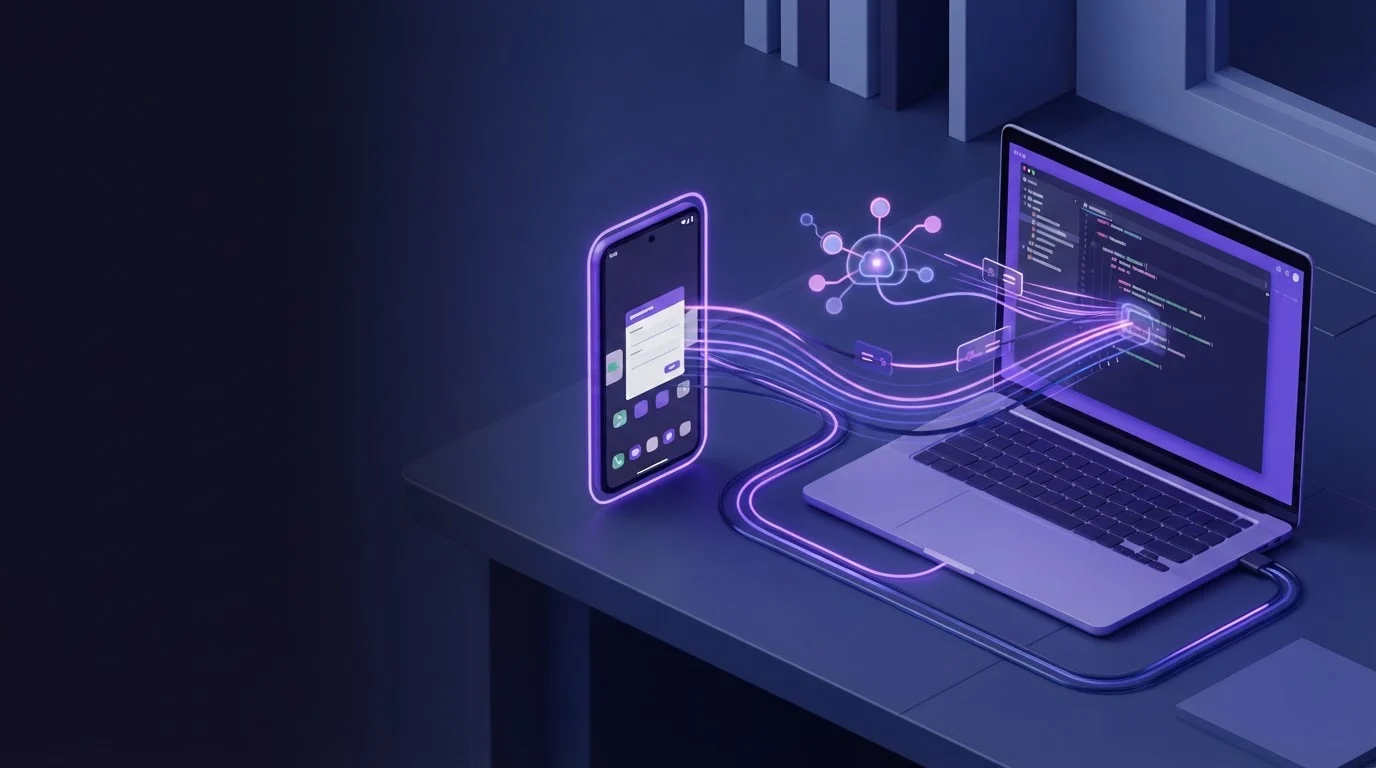
[ Android Phone ] --(MediaProjection / LAN)--> [ ScreenSync Hub (Node.js 18+) ]
^ |
|---(ADB over USB / Wireless Debugging)-------|---(stdio)---> [ Claude / MCP Client ]
Local Network Frame Streaming
Display frames captured by the app are transmitted across your local network directly to the ScreenSync MCP hub running on your desktop. In our tests, the live mirror achieves about 94 ms median latency on a LAN. None of your raw video frames are sent to EpsolDev servers; they remain on your local network. When an AI agent specifically calls an inspection tool, the hub forwards that static capture directly to the agent's configured model provider.
Tool Gating and the Bearer Token
The ScreenSync MCP hub runs on Node.js 18+ and provides an HTTP interface on port 3000 alongside a standard MCP stdio connection. Communication between your Android phone and the desktop hub is authenticated using a pairing QR code or mDNS auto-discovery and secured by a SCREEN_SYNC_TOKEN. This token ensures that arbitrary devices on your network cannot send control signals or intercept device streams without explicit authorization.
| Component | Pricing | Included Features |
|---|---|---|
| ScreenSync MCP Android App | Free on Google Play | MediaProjection streaming, QR pairing, Android 7.0+ support |
| ScreenSync MCP Hub | Free download | 226 MCP tools, Node.js stdio engine, local port 3000 |
| ScreenSync MCP Browser Extension | Free download | 197 MV3 browser tools, real tab control, approval prompt |
Step-by-Step Walkthrough
1. Install Device and Hub Software
First, install the ScreenSync MCP Android app (version 2.5.7) from Google Play onto a device running Android 7.0 or later. Download and unpack the ScreenSync MCP hub (version 1.14.4) on your computer, ensuring you have Node.js 18+ installed. Launch the hub using start-hub.bat on Windows or start-hub.sh on macOS and Linux to initialize HTTP services on port 3000.
2. Pair Over LAN and Enable ADB
Open the Android app and pair it with your hub by scanning the on-screen QR code or using automatic mDNS discovery on your local network. Connect your phone to your computer via USB or set up wireless debugging to enable ADB controls. You can learn more about configuring wireless commands in our guide on how to control an Android phone with AI without root.
3. Connect to Claude Code or Claude Desktop
To register the MCP server with Claude Code, run the command:
bash
claude mcp add screensync node "/path/to/hub/screensync-hub.js"
For Claude Desktop, configure your claude_desktop_config.json under Settings > Developer:
{
"mcpServers": {
"screensync": {
"command": "node",
"args": ["/path/to/hub/screensync-hub.js"],
"env": {
"SCREEN_SYNC_TOKEN": "your_token_here"
}
}
}
}
For other MCP clients like Cursor or VS Code, check that client's MCP documentation to connect via stdio.
Example Prompts and Tool Calls
Form Inspection Prompt
When auditing registration views, you can instruct your agent to read field layouts before submitting any data. This ensures high accuracy and prevents field misplacement.
Prompt: Inspect the current registration form on the phone. Check every input field, outline what information is requested, and wait for my confirmation before typing anything.
Accurate Targeting via Structural Trees
Instead of guessing pixel coordinates from visual images, the agent can call get_ui_hierarchy to locate concrete resource IDs and view boundaries. Understanding how AI agents use Android UI trees not screenshots shows how reading accessibility node data prevents inaccurate touches on misaligned elements.
{
"name": "get_ui_hierarchy",
"arguments": {}
}
Form Data Entry Tool Calls
Once fields are confirmed, the agent calls control_tap to focus the target input and control_type to inject string data safely via ADB. If the agent needs to move between form steps, it calls control_swipe to scroll the view smoothly.
{
"name": "control_tap",
"arguments": {
"x": 450,
"y": 820
}
}
{
"name": "control_type",
"arguments": {
"text": "Jane Doe"
}
}
Common Mistakes and Troubleshooting
Missing MediaProjection Approvals
Screen streaming cannot start silently in the background. A frequent mistake is forgetting to tap the consent dialog on the Android display when opening the app. If the hub shows a blank feed or cannot retrieve visual frames, check the physical device and grant the MediaProjection screen capture request for that session.
Control Failure Due to Inactive ADB
While visual capture requires no ADB, control tools like control_tap, control_swipe, and control_type will fail if ADB is disconnected. Verify that your device shows up in your terminal using standard ADB status checks. Ensure USB debugging or wireless debugging remains active throughout your testing run.
Stale Coordinates and Changing Views
Form elements often shift position when virtual keyboards open or validation messages appear. If an agent calls control_tap based on an older screenshot, it might click an unintended button. Instruct the agent to call get_latest_screenshot or get_ui_hierarchy immediately before each critical input step to ensure coordinate accuracy.
Privacy and Safety Notes
Local Streaming Privacy
ScreenSync MCP keeps screen frames within your local network. Video stream data travels directly from the Android app over your LAN to the local Node.js hub; it is never routed to EpsolDev servers. A Google Drive fallback is optionally available if LAN streaming is unavailable, but standard operations remain strictly local.
AI Provider Data Handling
Be aware of where screenshots go once requested. When an MCP client invokes get_latest_screenshot, the local hub captures the frame and passes it via stdio to your agent client. That image is then transmitted directly to that agent's model provider (such as Anthropic for Claude) according to their platform terms.
Chrome/Edge Extension Safety Prompts
When testing workflows that span both a phone and a web browser, the ScreenSync MCP browser extension (MV3) includes an integrated human approval prompt for risky actions. This keeps dangerous browser operations gated behind explicit user confirmation while letting the agent read real browser tabs alongside mobile tasks.
Pre-Automation Safety Checklist
- Confirm your phone is paired via QR code or mDNS and authenticated with
SCREEN_SYNC_TOKEN. - Verify ADB connectivity over USB or wireless debugging before running control prompts.
- Accept the Android MediaProjection consent prompt on the physical handset.
- Review form contents using
get_ui_hierarchybefore allowing automated submissions.
Conclusion
Letting an AI agent navigate apps and fill forms on Android safely is fully achievable by combining local network streaming with ADB-mediated input tools. For developers, QA engineers, and Claude Desktop or Claude Code users, ScreenSync MCP provides the necessary structural visibility and explicit session consents to automate mobile tasks securely.
ScreenSync MCP offers the ScreenSync MCP Android app, ScreenSync MCP hub, and ScreenSync MCP browser extension to streamline cross-platform AI agent workflows worldwide. Get it on Google Play or learn more at https://www.screensyncmcp.tech, and contact our team at [email protected] for technical inquiries.
Questions, answered
Does ScreenSync MCP require root access to fill forms on Android?
No, ScreenSync MCP requires no root access. Screen capture runs via Android's native MediaProjection API, and automated input actions run through standard ADB controls.
Can ScreenSync MCP run on iOS devices?
No, ScreenSync MCP is Android only. It supports physical devices and environments running Android 7.0 or later.
Do control tools work without an active ADB connection?
No, control tools such as control_tap, control_type, and control_swipe require an ADB connection over USB or wireless debugging. Capture tools require neither root nor ADB.
Does ScreenSync MCP send my screen data to EpsolDev servers?
No, frames stream directly from your phone to your local hub over your LAN and never pass through EpsolDev servers. When an AI agent requests a capture, that screenshot is sent directly to that agent's model provider.
Can I use ScreenSync MCP with the ChatGPT web app?
No, the ChatGPT web app requires a remote HTTPS MCP endpoint, which is not supported. ScreenSync MCP operates locally over stdio and works with clients like Claude Desktop, Claude Code, Cursor, and VS Code.