On this page
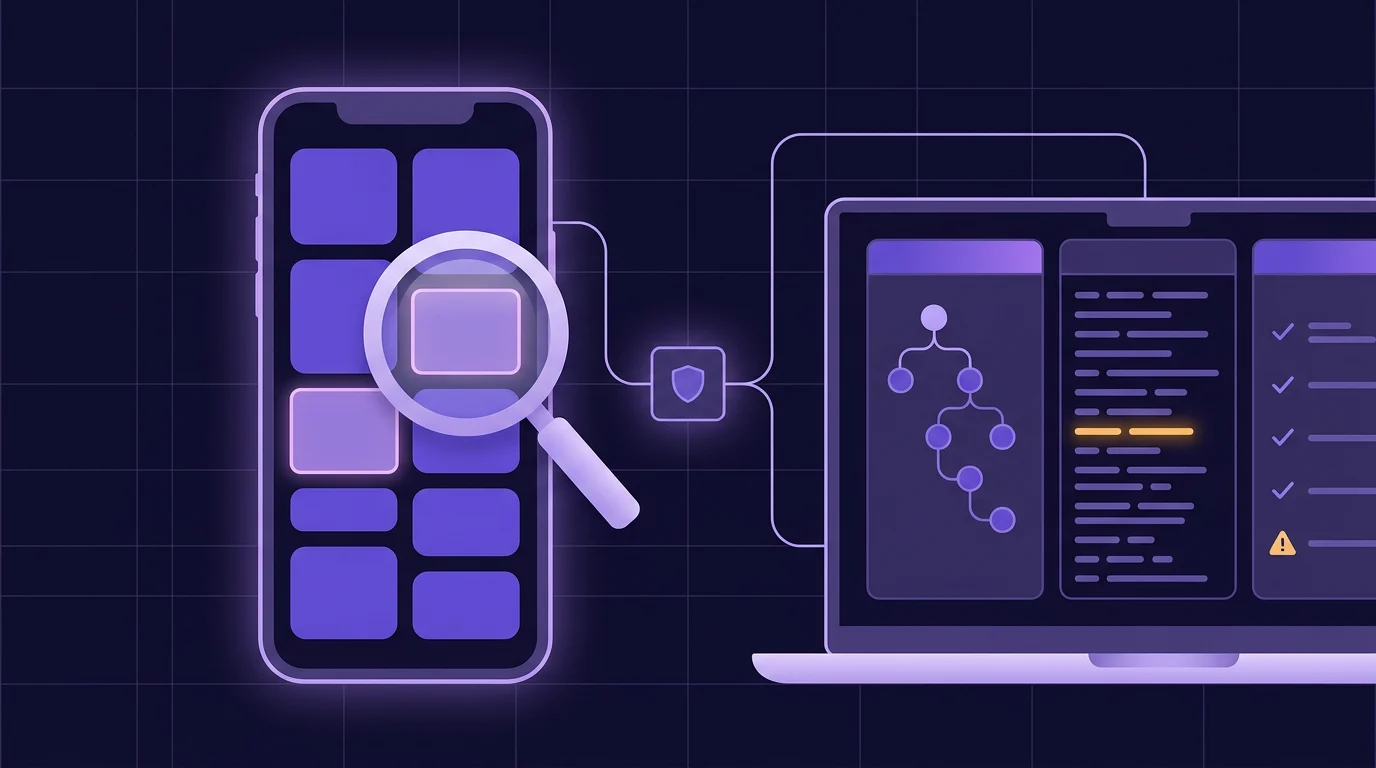
AI mobile QA on Android works best on a real phone: an agent that can see the screen, read the UI hierarchy and logcat, and tap through your app finds layout, interaction and accessibility bugs that an emulator or a pasted screenshot can miss. A free Android Model Context Protocol (MCP) server, ScreenSync MCP, lets Claude Code, Claude Desktop, Cursor or VS Code run that loop on your own device, over your own network, and report each bug with screenshots and log lines as evidence.
How AI mobile QA works on a real Android device
A human tester runs a simple loop: look at the screen, do something, look again, decide whether the result is right. AI-assisted QA hands the mechanical parts of that loop to an agent through MCP tools:
- See: a screenshot of the real screen, plus the UI element tree with text, content descriptions, resource IDs, clickable flags and pixel bounds.
- Act: tap, long-press, swipe, scroll, type, press keys, launch an app or open a URL.
- Verify: wait for a new frame, compare two frames, read recent logcat lines, record a short clip.
ScreenSync MCP splits that work across two paths. The Android app captures the screen with MediaProjection, Android's official screen-capture API, after you consent each session, so capture needs no root and no ADB. The desktop hub (Node.js 18+, port 3000) speaks MCP to your client over stdio and sends control actions through ADB, over USB or wireless debugging. For a closer look at each capture route, read what a screen MCP server is and how it captures Android.
Why a real device? Because many bugs only show up there: an OEM font that renders wider than the emulator's, a display cutout over your toolbar, a keyboard that covers the submit button, an OEM system dialog the emulator never shows. The agent tests what your users will actually see.
What you need before the first run
| Part | What to set up | Why it matters |
|---|---|---|
| Phone | ScreenSync MCP app (Android 7.0+), paired with the hub | Live frames for get_latest_screenshot and wait_for_frame |
| Computer | Hub started with start-hub.bat or sh start-hub.sh |
Serves the MCP tools to your client |
| ADB | USB or wireless debugging on, phone listed by adb devices |
Needed by every control_* tool plus get_ui_hierarchy, get_logcat, compare_frames and record_screen |
| Client | Claude Code, Claude Desktop, Cursor or VS Code | Runs the hub as a local stdio server |
The ScreenSync MCP setup guide has copy-ready configs for each client. In Claude Code, one command registers the hub:
claude mcp add screensync node "<HUB_DIR>/screensync-hub.js"If you would rather not keep a cable plugged in during a long session, set up Android wireless debugging for the MCP server first. Without ADB the agent can still look at frames and report, but it cannot navigate.
Before each run, ask the agent to call get_device_status and control_status. The first confirms frames are arriving (state should read streaming). The second confirms ADB can reach the phone and reports its model, Android version and screen size.
Which tools catch which bugs
| Bug type | Tools the agent uses | What it checks |
|---|---|---|
| Overflow, clipping, overlap | control_screenshot, get_latest_screenshot |
Cut-off text, overlapping widgets, broken images |
| Dead or wrong taps | control_tap_text, compare_frames |
Whether the screen changed after the tap |
| Crashes and exceptions | get_logcat with pkg and grep |
Stack traces from your app's process |
| Unreachable elements | get_ui_hierarchy, control_swipe_until |
Whether a label exists and can be scrolled to |
| Flicker and timing glitches | record_screen, compare_frames with delayMs |
Transitions too quick for one screenshot |
| Accessibility gaps | get_ui_hierarchy |
Small tap targets, missing content descriptions |
The UI tree is what turns a guessing agent into a reliable one. control_tap_text with query: "Checkout" finds the matching element in the uiautomator dump, prefers clickable and most specific matches, and taps its center, so the agent never has to estimate coordinates from pixels. The trade-offs are covered in why your AI agent needs the Android UI hierarchy, not just screenshots.
Three QA runs to start with
ScreenSync MCP ships 17 MCP prompts: ready-made instructions your client inserts into the conversation. Three of them map directly onto QA work. In Claude Code, server prompts appear in the / menu as /screensync:<prompt> (MCP), and typing /mcp__screensync__<prompt> also runs them. Claude Code splits arguments on whitespace, so each one has to be a single token (Claude Code docs on MCP prompts).
Exploratory test: autonomous_ui_test
Pass a package name or URL as the target:
/mcp__screensync__autonomous_ui_test com.example.shopThe prompt tells the agent to open the target with control_launch_app (or control_open_url for a site), take a control_screenshot, read get_ui_hierarchy, and inspect each screen for overflow, clipping, contrast, spacing and broken images. It navigates with control_tap_text and control_swipe_until rather than guessed coordinates, calls compare_frames after each action, and greps get_logcat for "exception" or "error" after risky steps. It stops when the goal is met or no new screens remain, then lists findings with severity and evidence. The optional goal argument, such as "complete checkout", is easier to add in a follow-up message than as a slash-command token.
Bug reproduction: reproduce_bug
The reproduce_bug prompt takes a list of steps and an optional expected result. Because those are sentences, the simplest route is a normal message that follows the same procedure:
Reproduce this on the phone. For each step: control_screenshot,
act with control_tap_text, then compare_frames. After the last step,
call get_logcat with pkg "com.example.shop" and grep "exception".
Steps: 1. Open Cart  2. Tap Checkout  3. Tap Apply with an empty coupon field
Expected: an inline error under the coupon field.
Report the step where it diverged, with screenshots and log lines.
Add record_screen (1 to 15 seconds, returned as an mp4 clip) when the glitch is a transition rather than a final state. The result is a bug report with the exact step where behavior diverged, before and after frames, and the stack trace.
Accessibility pass: accessibility_audit
Run /mcp__screensync__accessibility_audit on any screen; it checks against WCAG AA unless you name another standard. The agent reads node bounds from get_ui_hierarchy to flag tap targets smaller than 48x48dp, in line with Android's accessibility guidance on touch targets and content descriptions. Those bounds are in pixels, and control_status reports screen size but not density, so give the agent your device's density (from adb shell wm density) for exact dp numbers. It also flags interactive elements with neither text nor a content description, low contrast it can see in the image, and text likely to clip at larger font sizes. Contrast and font-scaling findings come from the screenshot, so treat them as leads to confirm, not measurements. The prompt then asks the agent to overlay each issue on the phone, which is the next step.
Send findings back to the phone
Most AI QA output ends up as a long chat reply. ScreenSync MCP adds a second channel: publish_inspection sends bug regions to the phone, where the app's Diagnose screen draws them as a heatmap over the frame (if you don't see Diagnose, turn off Simple mode in Settings). Coordinates are normalized from 0 to 1, so they hold at any resolution:
{
  "summary": "Checkout: total clipped, coupon button too small",
  "bugs": [
    { "id": "b1", "label": "Order total truncated on narrow screens",
      "x": 0.62, "y": 0.81, "w": 0.34, "h": 0.05, "severity": "error" },
    { "id": "b2", "label": "Apply button below 48dp tap target",
      "x": 0.71, "y": 0.44, "w": 0.18, "h": 0.04, "severity": "warning" }
  ]
}
Severity is error, warning or info, and the summary is capped at 500 characters. If the agent also has your source code, publish_patch sends a unified diff you can copy from the same screen. The hub pushes both over its live event stream, so the phone updates without a manual refresh. After you ship a fix, capture the screen again, select the old and new captures in the Gallery, and tap Compare before/after to see them with a slider wipe or side by side.
Limits and good habits
AI QA on a real device saves time, but it has limits worth planning around:
- Control needs ADB. On MIUI-class phones, also enable "USB debugging (Security settings)" in Developer options, or input injection fails.
- The UI tree can be thin. Canvas-drawn screens, games and Flutter widgets without semantics labels expose few nodes, so the agent falls back to coordinates from the screenshot. Labels help the agent and screen-reader users alike.
compare_framesis a heuristic. It samples compressed PNG bytes from two ADB screenshots and reportschangedabove a ratio of 0.02. That answers "did something move?", not "does this match the design?".- Screenshots reach your model provider. Frames travel from phone to hub on your network with a bearer token (or through your own Google Drive, if you turn on the optional fallback) and never touch EpsolDev servers, but any screenshot the agent reads goes to its model provider. Use test accounts and seeded data, change the default
SCREEN_SYNC_TOKENon shared networks, and read the data policy. - Android only. There is no iOS support, and your client must run local stdio servers. ChatGPT's web app connects only to remote HTTPS MCP servers, so it cannot use the hub.
- Keep a human on judgment calls. The agent is good at clipped text and dead buttons, and weaker at whether a flow feels right. Review findings before you file them.
Next steps
- Install the app and hub, then confirm
get_device_statusreportsstreaming. - Turn on USB or wireless debugging and check
control_status. - Run
autonomous_ui_testagainst one screen of your app and compare its findings with your last manual pass. - Add
accessibility_auditto your pre-release checklist.
Still choosing a tool? See how ScreenSync MCP compares with other Android MCP servers.
Next steps
Questions, answered
Can an AI agent run mobile QA on a real Android phone without root?
Yes. ScreenSync MCP captures the screen with MediaProjection after you approve Android's consent prompt, so capture needs no root and no ADB. Navigation is different: taps, swipes, typing, the UI tree and logcat all run through ADB from the hub, so you turn on USB or wireless debugging in Developer options. Root is never required.
Which AI clients can run the ScreenSync QA prompts?
Any MCP client that launches local stdio servers can use the ScreenSync hub, including Claude Code, Claude Desktop, Cursor and VS Code. How prompts appear depends on the client; Claude Code lists them as slash commands. ChatGPT's web app only connects to remote HTTPS MCP servers, so it cannot reach a hub running on your computer.
Does AI-assisted QA replace Espresso or other scripted UI tests?
No. Scripted suites such as Espresso or UI Automator are repeatable and fast, and they should keep guarding your critical flows. An agent is stronger at exploratory passes, reproducing vague bug reports and spotting visual problems that no assertion checks for. Use it to find bugs, then turn the important ones into scripted regression tests.
Will the agent see private data on my test phone?
It sees whatever is on screen when it reads a frame, and those screenshots go to your model provider as part of the conversation. Otherwise frames stay between phone and hub on your network, or in your own Google Drive if you enable the optional fallback, with no EpsolDev server involved. Test with dedicated accounts and seeded data, and close messaging or banking apps before a session.
Does ScreenSync MCP work for QA on Flutter apps?
Yes. Capture is pixel-based, so the agent sees a Flutter screen exactly as rendered, and get_logcat surfaces Dart exceptions from your app's process. The UI tree depends on the semantics your widgets expose: labeled widgets work with control_tap_text, while unlabeled custom painting gives the agent fewer nodes and pushes it toward coordinate taps.