On this page
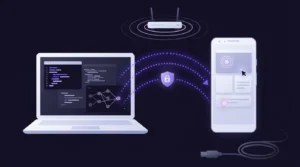
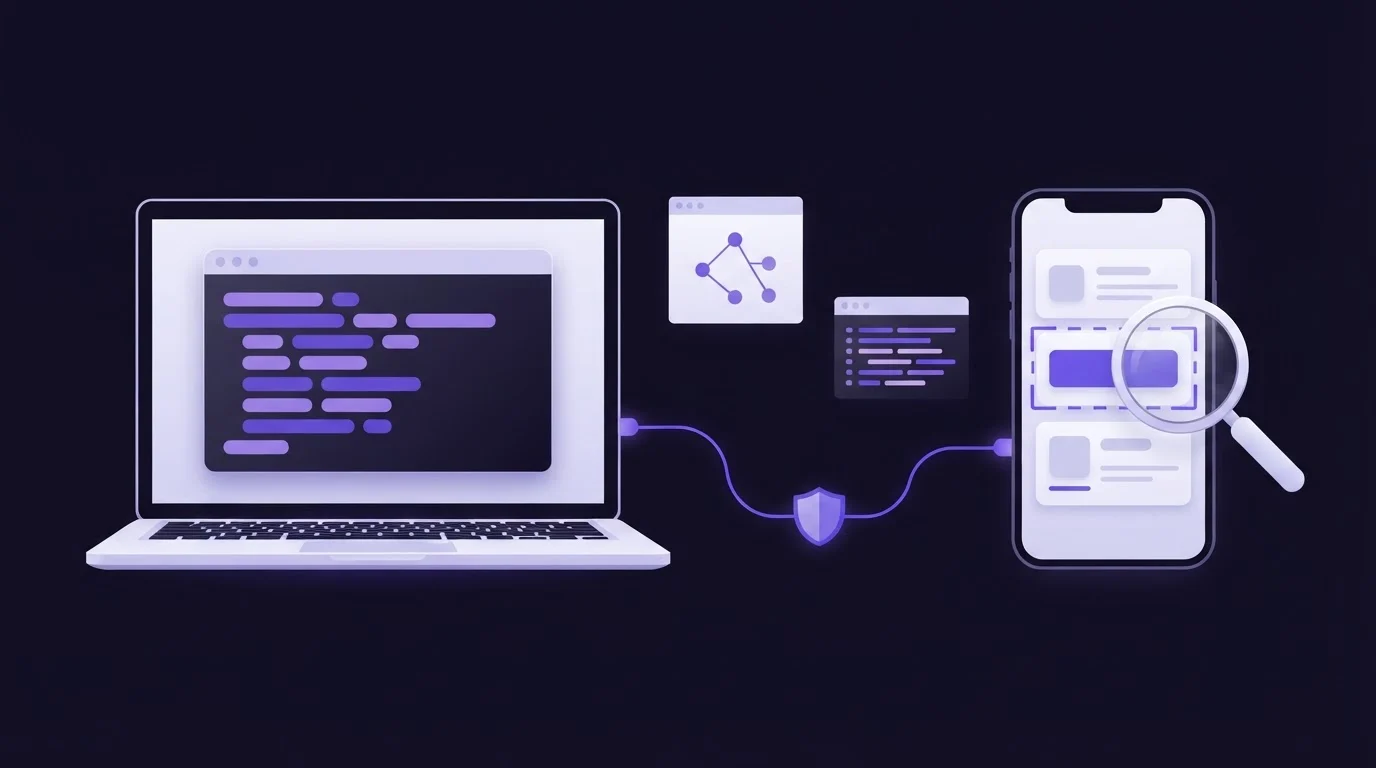
Claude Code Android testing on a real device works by giving Claude Code a local Model Context Protocol (MCP) server that can see your phone's screen and send input to it. With ScreenSync MCP, a hub on your computer receives frames from the phone and drives it over ADB, so Claude Code can open your app, tap through a flow by label, read logcat when a step fails, and then fix the code in the same session.
Why a real device, and why Claude Code
Emulators handle most logic bugs well, but some failures show up only on hardware: OEM skins that kill background work, vendor battery optimization, permission dialogs that differ by manufacturer, and the real speed of a mid-range chip. A real phone is where your users are.
Claude Code's advantage is that it already sits in your repository. The same session that watches the phone can open the widget or activity behind a broken screen, edit it, run your build command and test again.
For background on how a server gets pixels off a phone, read what a screen MCP server is and how it works.
What you need
| Part | Requirement | Used for |
|---|---|---|
| Phone | Android 7.0+, ScreenSync MCP app 2.5.7 | Screen frames over your LAN |
| Computer | Node.js 18+, hub 1.14.4 (Windows, macOS, Linux) | Hub and MCP server |
| ADB | Platform-tools, USB or wireless debugging on | Taps, typing, UI tree, logcat |
| Client | Claude Code | Runs the hub as a stdio server |
Screen capture needs no root and no ADB: the app uses Android's MediaProjection API and asks for your consent each session. Testing, though, means acting on the app, and every tap, hierarchy dump and log read goes through Android Debug Bridge (ADB). Plan on turning on developer options.
Connect Claude Code to your phone
- Download the hub zip from the extension page of the ScreenSync website, unzip it, and run
start-hub.bat(Windows) orsh start-hub.sh(macOS or Linux). The terminal prints a pairing QR code and serves on port 3000. Leave it running. - Open the ScreenSync MCP app, scan the QR code (or paste the pairing link), and accept the screen-capture prompt.
- On the phone, turn on USB debugging or wireless debugging, connect it, accept the debugging prompt, and check that
adb deviceslists it. No spare cable? Follow the wireless debugging setup for an MCP server. - Register the server with Claude Code and check that it connected:
claude mcp add --env SCREEN_SYNC_TOKEN=screensync-local-dev --transport stdio screensync -- node "<HUB_DIR>/screensync-hub.js"
claude mcp get screensync
Replace <HUB_DIR> with the folder you unzipped. Use your own token if you changed the default, which you should on any shared network; the app, the hub and this config must all agree.
Add --scope project to write the entry to .mcp.json so teammates get it from version control. Before you commit that file, swap the path and token for ${VAR} references such as ${SCREEN_SYNC_TOKEN}, which Claude Code expands from each developer's environment, so no token lands in the repo. The Claude Code MCP documentation covers scopes, variable expansion and how project servers are approved.
You will not end up with two hubs. When Claude Code starts screensync-hub.js and a ScreenSync hub is already answering on port 3000, the new process detects it and runs in MCP-only mode instead of failing on the busy port.
Start a session and ask Claude to call get_device_status and control_status. The first should report the state streaming. The second should return the device model, Android version and screen size. If control_status reports no device, fix ADB before you go further, because every testing tool below depends on it.
The tools that matter for testing
ScreenSync exposes 226 tools, but a test loop on the phone uses about a dozen:
| Tool | What it does | ADB |
|---|---|---|
get_latest_screenshot, wait_for_frame |
Newest MediaProjection frame, or wait for a fresh one | No |
control_screenshot |
Grabs the screen right now via screencap |
Yes |
get_ui_hierarchy |
uiautomator tree: text, content-desc, resource-id, bounds | Yes |
control_tap_text, control_swipe_until |
Tap, or scroll to, an element by its label | Yes |
control_type, control_key, control_launch_app |
Type, press back or enter, launch a package | Yes |
compare_frames |
Two screenshots delayMs apart, plus a coarse changedRatio |
Yes |
get_logcat |
Recent log lines, filtered by pkg and grep |
Yes |
record_screen |
A 1 to 15 second mp4 clip, for human review | Yes |
The hierarchy is what makes runs repeatable. control_tap_text finds the element whose visible text or content description matches your query, prefers clickable and smaller elements, and taps its center. A step that says "tap Checkout" keeps working when the layout shifts by a few pixels; coordinates guessed from a screenshot do not. For more on this, see why your AI agent needs the Android UI hierarchy.
A worked example: reproduce a checkout bug
Say a tester reports that "Place order" does nothing on a mid-range phone. In Claude Code, from your app's repository, send something like this:
Use the screensync tools. Launch com.example.shop with control_launch_app.
Use get_ui_hierarchy and control_tap_text (no guessed coordinates) to add
the first product to the cart, open Checkout and tap "Place order".
Take control_screenshot before and after each tap. If a tap changes nothing,
call get_logcat with grep "exception" and lines 500. Then find the cause
in this repo and propose a fix.
A run might go like this:
control_statusconfirms the device, thencontrol_launch_appopens the package.get_ui_hierarchylists the product cards, andcontrol_tap_texttaps "Add to cart", then "Checkout".control_swipe_untilscrolls the checkout screen until "Place order" is visible, and Claude taps it.- The after screenshot matches the before screenshot, so Claude calls
get_logcatand finds, in this hypothetical case, an unhandled exception thrown by a form validator. - Claude opens the file named in the stack trace, explains the cause and edits it.
- You approve the build command Claude proposes, such as
./gradlew installDebugorflutter install, and Claude replays the same steps to confirm the order screen now opens.
The prompt is plain English, so it doubles as a repro script. It will not replace your instrumented tests, and an agent run is not deterministic, but saving it in your repo lets you paste it back after the next change.
ScreenSync also ships MCP prompts for common jobs, among them reproduce_bug, autonomous_ui_test, accessibility_audit and inspect_latest_mobile_screen. Claude Code lists them in the / menu as /screensync:reproduce_bug (MCP) and so on. It splits prompt arguments on whitespace, so single-token arguments work best, for example /mcp__screensync__autonomous_ui_test com.example.shop. For multi-step repro instructions, a normal message like the one above is easier.
Reading failures: logcat, frames and clips
Three details save time when a run goes wrong.
Logcat after a crash. The pkg filter looks up the app's current process ID. Once the app has crashed there is no process, so the tool falls back to the recent unfiltered buffer. After a crash, filter with grep instead (for example FATAL EXCEPTION or your package name) and raise lines, which goes up to 2,000.
What compare_frames measures. It does not perform an action. It takes two ADB screenshots delayMs apart (1,200 ms by default) and returns both images with a changedRatio from 0 to 1, a cheap byte-level heuristic rather than a pixel diff. Call it right after an action with a delayed effect, such as a spinner or a page transition, to see whether the screen is still changing or has settled. To prove that a tap did anything, compare a control_screenshot from before the tap with one from after.
Clips are for people. record_screen returns an mp4 inside the tool result. Claude's vision input accepts still images (JPEG, PNG, GIF and WebP), not video, so Claude cannot watch the clip. To catch a flicker during navigation, ask for several control_screenshot calls in a row, or a compare_frames call with a short delayMs.
Large outputs cost context. Claude Code warns when an MCP tool returns more than 10,000 tokens and caps output at 25,000 by default. You can raise MAX_MCP_OUTPUT_TOKENS, but a tighter grep is usually the better fix.
Limits and safety
- Android only. ScreenSync MCP does not support iOS.
- Labels decide what can be tapped by text. An icon-only button with no content description cannot be matched by
control_tap_text. Treat that as an accessibility bug as well as a test problem, and fall back tocontrol_tapwith bounds fromget_ui_hierarchy. - Typing strips shell characters.
control_typeremoves quotes, backticks,$,;,&,|,<,>, parentheses, braces and backslashes before it sends text, so a test password that contains them will not type correctly. Use test credentials without those characters. - Keys are allow-listed.
control_keyaccepts named keys such asback,home,enterandtab, not arbitrary keycodes. - Device targeting. With several devices attached, set
SCREEN_SYNC_ADB_TARGETto the right serial. On MIUI-class phones, also enable "USB debugging (Security settings)" in developer options, or input injection fails. - Privacy. Frames go from the phone to the hub over your own network and never to EpsolDev servers. Every screenshot and log line Claude reads is sent to Claude Code's model provider as part of the conversation, so use a test device and test accounts. The ScreenSync data policy explains what is stored and where.
ADB input can do anything a user can do with their thumb. Keep Claude Code's permission prompts on for tool calls you have not reviewed, and do not point it at a phone signed in to your bank.
Next steps
- Install the hub and pair your phone with the ScreenSync setup guide, which also has configs for Cursor and VS Code.
- Pick the flow your testers complain about most, write its repro prompt and save it next to your tests.
- Weighing your options first? Read the comparison of Android MCP servers.
Next steps
Questions, answered
Do I need root to test Android apps with Claude Code?
No. ScreenSync MCP captures the screen through Android's MediaProjection API after you approve a consent prompt each session, and it sends taps, text and key presses through ADB, which only needs developer options with USB or wireless debugging switched on. Neither path modifies the system, so a stock retail phone works as a test device.
Can Claude Code test iOS apps the same way?
Not with ScreenSync MCP. The app, the capture pipeline and the ADB-based control tools are Android only, and there is no iOS version. If you ship on both platforms, you can still use Claude Code with ScreenSync for the Android build and keep your existing iOS test setup for the other half.
Which command adds ScreenSync to Claude Code?
Run claude mcp add with the stdio transport, SCREEN_SYNC_TOKEN passed through --env, the server name screensync, and then node plus the full path to screensync-hub.js after the double dash. Follow it with claude mcp get screensync to confirm the connection. For a team setup, add --scope project and replace the token with a ${SCREEN_SYNC_TOKEN} reference before committing .mcp.json.
Why can't Claude tap a button by its text?
control_tap_text only sees what the uiautomator hierarchy reports: visible text and content descriptions. Icon-only buttons without a label, screens that are still animating and elements scrolled out of view all cause misses. Ask Claude to call get_ui_hierarchy to list what is visible, use control_swipe_until for off-screen items, and label the controls that have no description.
Does my app's data leave my network during a test?
Frames travel from the phone to the hub on your own network and never reach EpsolDev servers. Anything Claude actually reads, such as a screenshot, the UI tree or logcat lines, becomes part of the conversation and goes to Claude Code's model provider. Use a test device, test accounts and dummy data when you exercise sensitive flows.