On this page
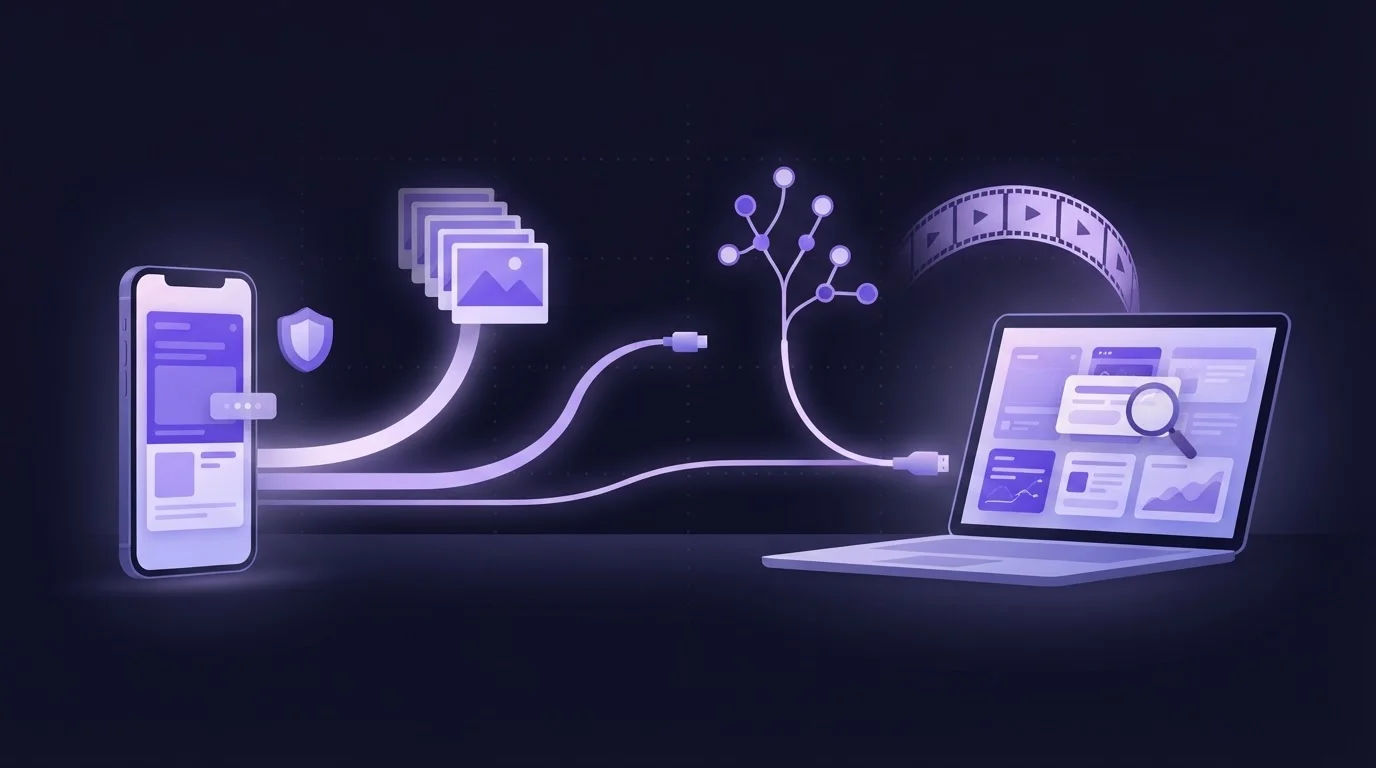
On Android, a Model Context Protocol (MCP) server that lets an AI agent see your phone, usually called a screen MCP server, gets its pixels in one of four ways: MediaProjection inside an app on the phone, adb exec-out screencap run from a computer, an AccessibilityService screenshot, or a scrcpy video stream over ADB. The routes differ in who must consent, what setup they need, how fresh the frames are and what else comes with them, such as a UI tree or input. ScreenSync MCP combines the first two: the app captures with MediaProjection, and the hub uses ADB for on-demand screenshots and control.
What capture means for an agent
An MCP server answers tool calls from a client such as Claude Code or Claude Desktop. For a screen server, the result that matters is an image: the tool returns it as image content, and the client passes it to the model, which reads the pixels directly. The MCP architecture overview describes tool results as an array of content objects that can carry text, images and other types.
So the capture route decides three things the agent cares about:
- Freshness. Is the frame from now, or from the last time someone tapped a button?
- Fidelity. A full-resolution PNG for spotting a clipped label, or a small JPEG for speed?
- Reach. Does the route need a cable, developer options or a sensitive permission?
If the idea is new to you, our explainer on what a screen MCP server is covers the perception, action and verification tools these servers expose.
The four routes at a glance
| Route | Where it runs | Setup | What the agent gets |
|---|---|---|---|
| MediaProjection | An app on the phone | Consent dialog each session | Screenshots or a frame stream |
ADB screencap |
Your computer, over ADB | USB or wireless debugging | One PNG per call, plus UI tree and logs |
| AccessibilityService | An app on the phone | Enable the service in Settings | UI tree, gestures, screenshots on Android 11+ |
| scrcpy | Your computer, over ADB | USB or wireless debugging | Low-latency video and input forwarding |
None of them needs root. The trade-offs are in the details.
MediaProjection: the app captures what you see
MediaProjection is Android's official screen-capture API, the one screen recorders and casting apps use. The app asks for permission with a system dialog, and the Android media projection guide is explicit that an app must ask for consent before each session. The capture also runs in a foreground service, so a notification stays visible for as long as it is live.
Under the hood, the system mirrors the display onto a virtual display that renders into a surface the app owns. ScreenSync's capture service points that virtual display at an ImageReader, takes the newest image when a capture is requested, and encodes it.
What you get:
- No ADB for capture. No cable and no developer options; frames reach the hub over your own network.
- What you actually see, including apps that expose no accessibility labels, such as games and canvas-drawn screens.
- A session, not a one-off. Once granted, the app can grab frames until you stop it or Android ends the session.
What you do not get is input: MediaProjection only watches. Two newer behaviors matter too. On Android 14 and later a consent grant covers one session, so an app that loses its session has to ask again. And Android 14 and later let the user share a single app instead of the whole screen, in which case the agent sees only that app.
ScreenSync builds its capture styles on this. A floating bubble takes a screenshot when you tap it, and the capture notification has Snap, MCP and Pause actions. Each capture uses a preset: Inspection (full-resolution PNG, best for visual analysis), Fast (JPEG up to 720 px) or Stream (JPEG up to 480 px). The live mirror, switched on in the app's Settings, pushes a 480p frame to the hub every few seconds (every 4 seconds by default) for as long as capture is granted. It is a phone-only switch: no MCP tool can turn it on, so an agent cannot start watching your screen by itself.
ADB screencap: a screenshot on demand from the computer
ADB, the Android Debug Bridge, connects a computer to a phone that has USB debugging or wireless debugging turned on. The shell it opens on the phone is allowed to read the screen, so one command returns a PNG with no app installed. The adb documentation covers screencap and screenrecord, and uiautomator dump is the standard shell command for the UI tree. These are the commands a screen server wraps:
# One full-resolution PNG, streamed straight to the computer
adb exec-out screencap -p > screen.png

# The on-screen UI tree as XML
adb shell uiautomator dump /sdcard/ui.xml
adb shell cat /sdcard/ui.xml

# A short screen recording (adb allows up to 180 seconds)
adb shell screenrecord --time-limit 5 /sdcard/clip.mp4
The strength of this route is that it works whenever ADB does: no consent dialog, no app session to keep alive, and the same connection also carries taps, swipes, text, key events and logcat. The costs are setup (developer options, then a cable or a wireless-debugging pairing) and the fact that every call captures and encodes a new full-resolution PNG. That suits one screenshot per agent step. It is not a live view.
Wireless debugging removes the cable on Android 11 and later. Our guide to Android wireless debugging for an MCP server walks through the pairing.
AccessibilityService: read and act without a computer
An accessibility service is an app component built for assistive tools. After you enable it in Settings, it can inspect the UI hierarchy when it declares canRetrieveWindowContent, and it can perform taps and swipes through dispatchGesture(), as the accessibility service guide explains. From Android 11 it can also take screenshots.
Reading, acting and capturing all on the phone is why some servers that work through a relay are built on this route: nothing has to talk to ADB, so the phone can be on another network. The cost is trust. An accessibility service can read and act across every app, so Android and Google Play treat it as a sensitive permission, and you should know who built any service you enable.
ScreenSync MCP does not include an accessibility service. It reads the UI tree with uiautomator dump over ADB instead, which gives the agent text, content descriptions, resource IDs, clickable flags and pixel bounds without a standing permission on the phone. For why that tree matters as much as the picture, see why your agent needs the Android UI hierarchy.
scrcpy: a video stream over ADB
scrcpy is a desktop tool that mirrors an Android screen with low latency. It uses ADB to start a small server on the phone, which encodes the display as video and streams it back to the computer, where it is decoded and shown in a window. Keyboard and mouse input travel the other way. Nothing is installed from an app store and no root is needed, but ADB is.
For a person watching, video is ideal. For an agent, a server built on scrcpy has to pull a still frame out of the stream first, because an MCP tool hands the model images, not a video feed. scrcpy is a strong choice when you already work in ADB and want the smoothest view; it does not remove the developer setup.
How ScreenSync MCP combines the routes
ScreenSync MCP uses MediaProjection for the frames the app sends and ADB for everything the hub does on its own. Each tool reads from one path:
| Tool | Capture path | Needs ADB? |
|---|---|---|
get_latest_screenshot |
Newest app frame (MediaProjection) | No |
get_recent_screenshots |
Up to 6 recent app frames | No |
wait_for_frame |
The next new app frame, or a timeout | No |
control_screenshot |
adb exec-out screencap -p |
Yes |
compare_frames |
Two ADB screenshots, delayMs apart |
Yes |
get_ui_hierarchy |
uiautomator dump |
Yes |
record_screen |
screenrecord, 1 to 15 seconds |
Yes |
A practical loop for an agent:
- Call
get_device_status. Itsstatefield readsstreaming,linked_no_framesorno_phone, so the agent knows whether app frames exist. - If the app is streaming, call
get_latest_screenshotto inspect the current screen. - To act, call
control_status, thenget_ui_hierarchyfor exact element bounds, then tap withcontrol_tap_textorcontrol_tap. - Confirm the change with
compare_frames, or withwait_for_framewhen you asked a person to tap the bubble.
Frames travel from phone to hub over your own network with a bearer token, and on our LAN tests they arrive in about 94 ms median with the Stream preset. Nothing goes to EpsolDev servers. Screenshots your agent requests do go to that agent's model provider, as with any server; the ScreenSync data policy explains where frames are stored and how they move.
Limits to plan for
- Secure windows. Apps that set
FLAG_SECURE, such as many banking and streaming apps, are kept out of screenshots, so expect black areas with MediaProjection,screencapand scrcpy alike. - Consent ends. A MediaProjection session stops when you stop it, when Android revokes it, or when the app process restarts. If the live mirror is on, its Settings tile then shows a "Grant screen capture" button instead of pretending frames are flowing.
- Single-app sharing. If you pick one app in the Android 14+ consent dialog, the agent sees only that app.
- Stale coordinates. A screenshot is a moment. After a scroll, old coordinates are wrong, so re-read the UI tree before tapping.
- Android only. These are Android APIs, and ScreenSync MCP does not support iOS.
Which route fits your setup
- Capture with no developer setup: MediaProjection. Install the app, accept the consent dialog, and frames flow.
- Testing your own app at a desk: ADB
screencapplusuiautomator, which also unlock input and logcat. - Control from another network without ADB: an accessibility-service design with a relay, accepting its broader permission.
- A smooth live view for yourself: scrcpy.
Our Android MCP servers comparison shows which projects use which route, drawn from each project's own documentation.
Next steps
- Follow the ScreenSync MCP setup guide to start the hub (Node.js 18+,
start-hub.batorstart-hub.sh) and pair the app by QR code. - Grant screen capture in the app, then ask your agent to call
get_latest_screenshot. - Turn on USB or wireless debugging when you want
control_screenshot,get_ui_hierarchyand thecontrol_*tools.
Next steps
Questions, answered
Does a screen MCP server need root to capture an Android screen?
No. None of the four common routes needs root. MediaProjection asks for consent in a system dialog, ADB screencap and scrcpy use the debugging shell once you turn on USB or wireless debugging, and an accessibility service is switched on in Settings. ScreenSync MCP captures with MediaProjection, so capture works on a stock phone running Android 7.0 or later.
Why does my AI agent see a black screenshot for some apps?
The app has most likely marked its window as secure with FLAG_SECURE, which apps use to keep banking screens, streaming video and similar content out of screenshots and recordings. MediaProjection, adb screencap and scrcpy all honor it, so that area comes back black. It is a platform protection rather than a fault in the server, and there is no supported way around it.
Is scrcpy better than MediaProjection for an AI agent?
It depends on what you need. scrcpy gives a smooth, low-latency video view with input forwarding, but it requires ADB, and an agent still needs single frames pulled from the stream. MediaProjection needs no developer setup and delivers still images directly. For agent work, a fresh still frame plus the UI tree usually matters more than smooth video.
Can an AI agent turn on ScreenSync's live mirror by itself?
No. The live mirror is a phone-only switch in the app's Settings, and no MCP tool can turn it on. Turning it on asks for Android's screen-capture consent when no capture session is active. An agent can read the frames the mirror pushes and wait for new ones with wait_for_frame, but starting the stream is always the phone owner's decision.
Do I need ADB to use ScreenSync MCP?
Not for capture. The Android app sends MediaProjection frames to the hub, and tools such as get_latest_screenshot and wait_for_frame read them without ADB. You need ADB, over USB or wireless debugging, for control_screenshot, compare_frames, get_ui_hierarchy, record_screen and the control tools that tap, swipe and type. Phone, hub and ADB traffic stay on your own network.