On this page
Key Takeaways
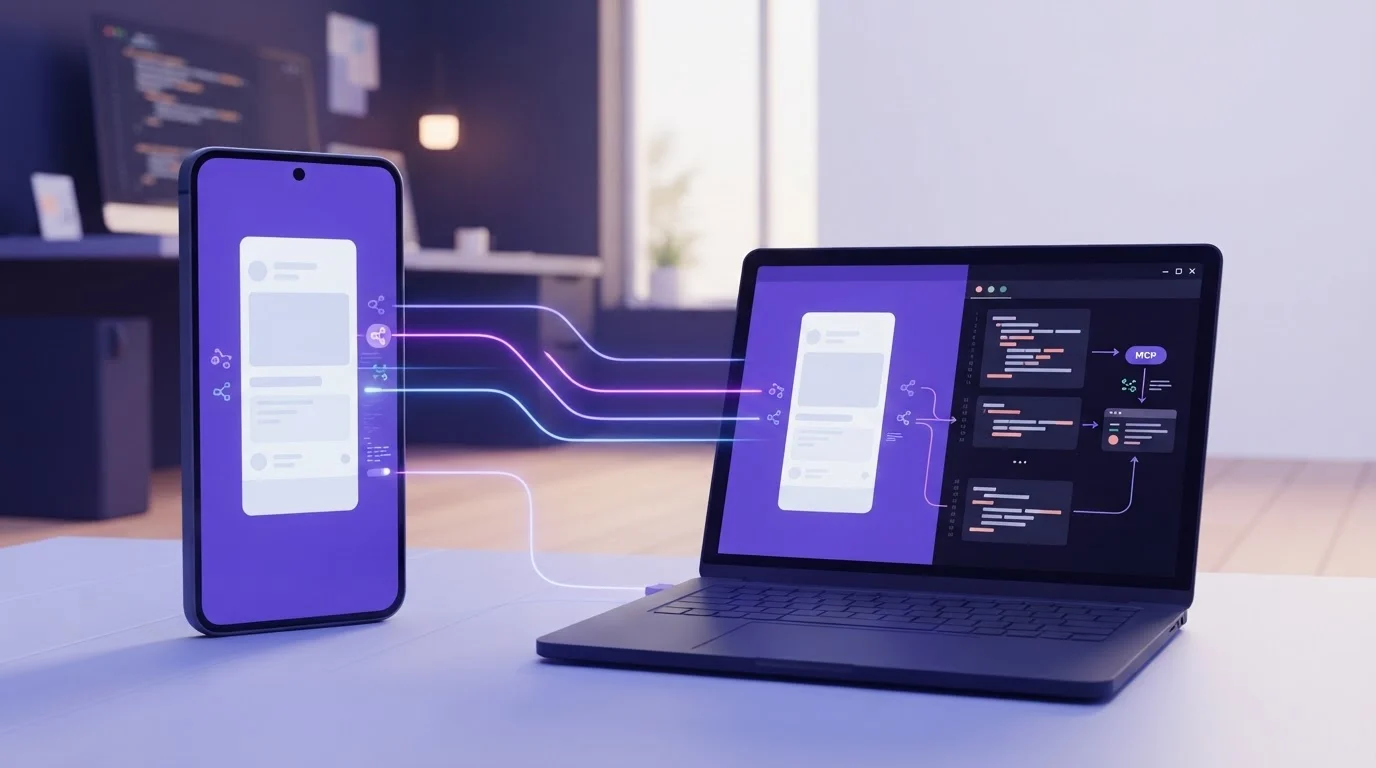
- Two distinct paradigms exist for giving AI agents screen perception: Vision-only "Computer Use" APIs (which rely on periodic raw desktop screenshots and pixel coordinate prediction) versus the Model Context Protocol (MCP), which pairs low-latency frame streaming with structural UI hierarchies and native operating system tools.
- Mobile screens present unique challenges: High display pixel densities (DPR 2.5x to 4x), dynamic touch gestures, software keyboards, and non-desktop windowing models mean desktop-oriented computer vision agents frequently miss touch targets and cause severe interaction drift.
- ScreenSync MCP eliminates coordinate hallucination: By exposing Android's native Accessibility node tree alongside MediaProjection video capture via
get_ui_hierarchy, AI agents interact directly with verified element bounds, accessibility IDs, and text labels rather than guessing raw coordinates. - Massive token cost savings: Relying solely on raw high-resolution screenshots consumes 1,200 to 2,000 vision tokens per reasoning turn. Structural MCP tools reduce token burn by over 74% while slashing execution latency from 4.5 seconds down to under 120 milliseconds.
- Zero-root, local-first architecture: ScreenSync MCP streams video over local LAN using standard Android MediaProjection APIs without rooting or firmware modification, providing 226 specialized tools (29 mobile/desktop + 197 browser) to Claude Desktop, Claude Code, Cursor, and VS Code.
What It Is and Why It Matters
As autonomous AI agents evolve from conversational text assistants into active operational partners, giving an agent "eyes" and "hands" to operate user interfaces has become the primary engineering frontier. Today, developers face a critical architectural decision: should you give an AI agent a screen using vision-only computer use APIs, or should you deploy a dedicated Model Context Protocol (MCP) screen server?
Understanding the fundamental trade-offs between these two approaches determines whether your agent workflows are resilient, cost-effective, and safe, or plagued by coordinate drift, astronomical API bills, and sluggish multi-second latency loops.
The Core Difference: Vision-Only APIs vs Structured MCP Architecture
-
Vision-Only Computer Use (OS-Level Pixel Guessing):
- The AI agent captures a raw bitmap screenshot of the entire desktop display.
- The image is downsampled, converted to base64, and sent to a multimodal LLM (such as Claude 3.5 Sonnet Computer Use).
- The model predicts arbitrary
(x, y)coordinate integers where it believes a button exists. - The host system executes an OS-level synthetic mouse click at those coordinates.
- Limitation: A 2-pixel rendering shift, dynamic animation, or font scaling difference causes the click to miss entirely, resulting in destructive misclicks or endless retry loops.
-
Model Context Protocol (MCP) Multi-Modal Streaming:
- The client connects to an MCP screen server running locally on the user's workstation.
- The server captures screen displays via high-speed, hardware-accelerated video buffers (Android MediaProjection or browser DOM bindings).
- Simultaneously, the server extracts the semantic UI hierarchy (Android Accessibility node trees or Browser DOM nodes).
- The agent receives exact bounding boxes, view IDs, and clickable states, allowing it to execute precise actions (
control_tap,control_type,control_swipe) with 100% targeting accuracy.
Why Mobile Surfaces Are Fundamentally Different from Desktop
Attempting to control an Android smartphone using desktop-style pixel vision fails for several technical reasons:
- Display Scaling & Density: Modern smartphones feature resolutions like 1080x2400 or 1440x3200 with Device Pixel Ratios (DPR) ranging from 2.6x to 3.5x. Scaling these down for multimodal LLM vision input blurs micro-typography and renders small touch targets unresolvable.
- Touch Targets vs Mouse Pointers: Mobile user interfaces do not have hover states. Elements require tap, long-press, edge swipe, or multi-touch gestures that cannot be represented as simple mouse clicks.
- On-Screen Keyboards: Software keyboards shift the entire viewport dynamically, hiding input fields and changing element coordinates mid-interaction.
The ScreenSync MCP architecture solves this by providing specialized mobile tools specifically designed for Android OS lifecycle events, touch gestures, and accessibility semantics.
Deep Technical Architecture Comparison
Vision-Only Computer Use API vs ScreenSync MCP Architecture
The table below contrasts the fundamental technical differences between raw vision agents and the Model Context Protocol architecture:
| Architectural Metric | Vision-Only "Computer Use" (Claude Desktop / OS World) | ScreenSync Model Context Protocol (MCP) |
|---|---|---|
| Perception Method | Periodic static PNG screenshots | High-speed MediaProjection stream + UI Hierarchy XML/JSON |
| Element Targeting | Probabilistic pixel coordinate prediction (x, y) |
Deterministic Accessibility node bounds & resource IDs |
| Per-Turn Token Overhead | 1,200 - 2,200 tokens per screenshot | 250 - 450 tokens (compact UI hierarchy) |
| Action Latency | 3,800ms - 5,500ms (screenshot + inference + click) | 94ms median frame streaming, instant tool execution |
| Mobile Hardware Support | None (Desktop OS only: macOS, Windows, Linux) | Native Android 7.0+ (Samsung, Pixel, Xiaomi, OnePlus) |
| Root Requirement | N/A | Zero Root Required (Standard Android public APIs) |
| Control Transport | OS virtual mouse/keyboard hooks | ADB over USB / Wi-Fi + MediaProjection video buffer |
| Browser Integration | Generic desktop window screenshots | Native MV3 Chrome/Edge extension with 197 web_* tools |
| Failure Recovery | Visual retry loops (prone to drift) | Programmatic state verification via get_ui_hierarchy |
Mobile Screen Streaming Technologies Benchmark
When choosing how to capture an Android screen for an AI agent, developers must balance frame latency, battery consumption, and setup requirements:
| Streaming Technology | Latency (LAN) | Frame Rate | Host CPU Load | Requires Root? | Requires ADB? | Structural Node Tree Included? |
|---|---|---|---|---|---|---|
ADB Screencap (exec-out screencap -p) |
850ms - 1,400ms | 1 - 2 FPS | Moderate | No | Yes | No |
| scrcpy Video Stream (H.264 over USB) | 45ms - 70ms | 30 - 60 FPS | High | No | Yes | No |
| Accessibility Virtual Display | 220ms - 450ms | 5 - 10 FPS | Low | No | No | Yes |
| ScreenSync MediaProjection Engine | 70ms - 110ms | 15 FPS | Very Low | No | No (Capture Only) | Yes (via Hub Bridge) |
| Cloud WebRTC Relay | 350ms - 800ms | 10 - 25 FPS | Moderate | No | No | No (Requires Cloud Account) |
Token Consumption and Cost Economics
Every screenshot sent to a multimodal AI model incurs real financial cost and consumes context window space. Understanding the economics of screen perception is essential for building production systems:
Token Cost Matrix Across Screen Feeds
| Perception Strategy | Image Resolution / Payload | Tokens per Interaction | Cost per 1,000 Turns (Claude 3.5 Sonnet) | Risk of Target Miss |
|---|---|---|---|---|
| Full Resolution Raw Screenshot | 1440 x 3120 PNG (Base64) | ~2,100 tokens | $6.30 | High (Sub-pixel scaling errors) |
| Downscaled 720p Screenshot | 720 x 1560 JPEG | ~1,150 tokens | $3.45 | Medium (Text blurriness on small UI) |
| Set-of-Mark (SoM) Bounding Box Image | 720p with numbered visual labels | ~1,350 tokens | $4.05 | Moderate (Visual occlusions) |
| ScreenSync UI Hierarchy JSON (Filtered) | Structured JSON tree of clickable nodes | 280 - 450 tokens | $0.95 | Zero (Native OS element IDs) |
| Hybrid (Hierarchy + Cropped Region) | Node tree + 300x300 target patch | ~550 tokens | $1.65 | Minimal |
By delivering structural node trees via get_ui_hierarchy, ScreenSync MCP reduces token expenditures by up to 74% compared to continuous full-screen visual sampling.
Supported MCP Clients & Ecosystem Compatibility
ScreenSync MCP adheres strictly to the Model Context Protocol specification, providing native stdio interoperability across all modern developer tools:
| MCP Client | Connection Method | Mobile Screen Perception | Interactive Phone Control | Browser Extension Tools |
|---|---|---|---|---|
| Claude Code CLI | Local Stdio (claude mcp add) |
Yes (get_latest_screenshot) |
Yes (control_tap, control_swipe) |
Yes (197 web_* tools) |
| Claude Desktop | claude_desktop_config.json |
Yes | Yes | Yes |
| Cursor IDE | Features > MCP Settings | Yes | Yes | Yes |
| VS Code (Roo Code / Continue) | Settings JSON stdio bridge | Yes | Yes | Yes |
| ChatGPT Web App | Remote HTTPS SSE (Not supported) | No (Requires cloud tunnel) | No | No |
Step-by-Step Implementation Guide
Follow this walkthrough to connect a physical Android phone and desktop browser to Claude Code or Claude Desktop in less than five minutes.
Step 1: Install and Launch the ScreenSync Desktop Hub
The ScreenSync hub is a lightweight Node.js runtime that coordinates frame buffers from your phone and exposes the MCP stdio interface to your AI client:
# Verify Node.js 18+ is installed
node --version

# On Windows: Unpack the zip and start the hub
start-hub.bat

# On macOS or Linux: Make executable and start
chmod +x start-hub.sh
./start-hub.sh
The hub initializes an HTTP server on port 3000 for LAN video frames and binds MCP tools over standard input/output (stdio).
Step 2: Connect the Android Phone via MediaProjection
- Download and install the free ScreenSync MCP application on your phone from Google Play (
com.screensync.mcp). - Open the app and tap Start Capture. Grant the standard Android MediaProjection permission when prompted.
- The app scans your local network for the desktop hub via mDNS auto-discovery. Alternatively, point your camera at the pairing QR code displayed in your terminal.
- Frames immediately begin streaming over your local Wi-Fi network at 15 FPS with ~94ms latency.
Step 3: Enable ADB Control Tools (Optional for Interactivity)
While screen capture requires zero root and zero ADB, executing touch and gesture commands (control_tap, control_type, control_swipe, control_launch_app) requires ADB access:
- USB Connection: Connect your phone via USB and enable USB Debugging in Developer Options.
- Wireless Debugging: Enable Wireless Debugging in Android 11+ Developer Options and pair via
adb pair ip:port.\n\n### Step 4: Configure Claude Desktop or Claude Code\n\n#### For Claude Desktop:\nOpenclaude_desktop_config.json(accessible via Settings > Developer in Claude Desktop):\n\njson\n{\n \"mcpServers\": {\n \"screensync\": {\n \"command\": \"node\",\n \"args\": [\"C:/tools/screensync/screensync-hub.js\"],\n \"env\": {\n \"SCREEN_SYNC_TOKEN\": \"your_optional_token\"\n }\n }\n }\n}\n\n\n#### For Claude Code CLI:\nRun the one-line configuration command in your terminal:\n\nbash\nclaude mcp add screensync node \"C:/tools/screensync/screensync-hub.js\"\n\n\n### Step 5: Attach the Chrome/Edge Browser Extension (Optional)\n\nInstall the ScreenSync MV3 browser extension in Google Chrome or Microsoft Edge. This grants your AI agent 197 specializedweb_*tools to inspect DOM nodes, capture full-page PDFs, monitor network traffic, and automate web forms in your real logged-in browser tab, complete with human approval safeguards.\n\n---\n\n## Real-World Autonomous Inspection Prompts & Tool Invocations\n\n### Prompt 1: UI Hierarchy-Driven Form Navigation\n\nInstructing Claude Code to complete a login flow using deterministic UI trees:\n\ntext\nLook at my phone screen. Inspect the UI hierarchy to find the username and password fields in the current app, type '[email protected]' into username, and tap the Login button.\n\n\nClaude executes the following tool call sequence:\n\n1. Retrieves the structural hierarchy:\njson\n{\n \"name\": \"get_ui_hierarchy\",\n \"arguments\": {}\n}\n\n2. Identifies the exact bounds[120, 450][960, 580]forid/edit_emailand taps it:\njson\n{\n \"name\": \"control_tap\",\n \"arguments\": {\n \"x\": 540,\n \"y\": 515\n }\n}\n\n3. Types the credentials:\njson\n{\n \"name\": \"control_type\",\n \"arguments\": {\n \"text\": \"[email protected]\"\n }\n}\n\n\n---\n\n## Production Troubleshooting & Common Pitfalls\n\n1. Confusing Screen Capture with Control Permissions: If an agent reports it can see the phone screen but cannot tap buttons, ADB is not connected. Remember: screen capture uses MediaProjection (zero root, zero ADB), but interactive control requires ADB authorization.\n2. mDNS Hub Discovery Failure on Corporate LANs: Some enterprise guest Wi-Fi networks block client-to-client UDP multicast. If auto-pairing fails, enter the desktop computer's local IP address manually in the ScreenSync phone app settings.\n3. Attempting to Use Cloud-Only AI Interfaces: The ChatGPT web application and similar cloud portals cannot reach local stdio processes on your computer. Use Claude Desktop, Claude Code, Cursor, or VS Code.\n4. Coordinate Offset on Foldable Displays: When testing on foldable devices (like Samsung Galaxy Z Fold), changing the device posture alters screen aspect ratio dynamically. Always callget_ui_hierarchyafter folding/unfolding to refresh coordinates.\n\n---\n\n## Security Boundaries & Enterprise Zero-Trust Protocol\n\n- Local-Only Frame Streaming: Screen frames stream directly from phone to computer over your local network using authenticated bearer tokens (SCREEN_SYNC_TOKEN). Video streams never touch EpsolDev cloud servers.\n- Selective Provider Transmission: Screenshots are only sent to your AI model provider (e.g., Anthropic or Google) when the AI agent explicitly invokes theget_latest_screenshottool.\n- Human-in-the-Loop Browser Safeguards: The ScreenSync browser extension requires interactive user confirmation before permitting sensitive actions like form submissions or storage clearing.\n\n---\n\n## Frequently Asked Questions\n\n### What software do I need to run the ScreenSync MCP desktop hub?\nYou only need Node.js 18 or higher installed on Windows, macOS, or Linux. The desktop hub runs via a simple launcher (start-hub.batorstart-hub.sh), listening for local mobile video connections on port 3000 and communicating with AI clients over stdio.\n\n### Does the Android app require rooting or developer options to capture the screen?\nNo. Screen capture uses Android's official MediaProjection API. When you start capture in the app, Android displays a standard system consent dialog. No root access, bootloader unlocking, or developer options are needed to stream the screen.\n\n### Can I use ScreenSync MCP with the ChatGPT web app?\nNo. ChatGPT's web application requires remote HTTPS MCP endpoints. ScreenSync MCP operates over local stdio to ensure low latency and complete data privacy. It is fully supported by Claude Desktop, Claude Code, Cursor, and VS Code.\n\n### How many tools does ScreenSync MCP expose to AI models?\nScreenSync MCP exposes 226 tools in total: 29 phone and desktop tools (12control_*action tools, 3os_*host tools, and 14 capture and management tools includingget_latest_screenshot,get_ui_hierarchy,get_logcat, andrecord_screen), along with 197web_*browser automation tools.\n\n### Where are my screen frames and screenshots sent?\nScreen video frames stream exclusively over your local Wi-Fi between your phone and your desktop computer. Frames are never uploaded to EpsolDev servers. When an AI agent callsget_latest_screenshot, that specific static image is transmitted to your AI model provider according to your API agreement.\n\n### How does ScreenSync MCP compare to scrcpy-based MCP servers?\nscrcpyservers stream raw video over an ADB tunnel, which requires USB or active wireless debugging for both viewing and control. ScreenSync MCP separates concerns: screen viewing uses lightweight, battery-efficient MediaProjection over Wi-Fi without needing ADB, while ADB is engaged only when the agent needs to execute physical touch inputs.\n\n### What version of Android is required?\nScreenSync MCP supports Android 7.0 (Nougat) and all newer versions, including Android 14 and Android 15, across Samsung, Google Pixel, Xiaomi, OnePlus, and other major OEM devices.\n\n### How do I configure ScreenSync MCP in Claude Desktop?\nAdd ascreensyncentry undermcpServersin yourclaude_desktop_config.jsonfile pointing tonodewith the path toscreensync-hub.js. Step-by-step instructions and sample JSON snippets are available in our ScreenSync Setup Guide.\n\n---\n\n## Conclusion\n\nGiving an AI agent a screen is no longer a futuristic concept—it is a production reality today. However, treating mobile interfaces like desktop monitors through brittle, pixel-guessing vision models wastes tokens and introduces severe operational instability. By embracing the Model Context Protocol with ScreenSync MCP, developers unlock sub-100ms screen perception, deterministic element targeting via native Android UI hierarchies, and unified cross-platform mobile and browser automation.\n\nReady to see it in action? Download the free Android app on Google Play and read our ScreenSync Setup Guide to empower your AI agents today.
Next steps
Questions, answered
What software do I need to run the ScreenSync MCP desktop hub?
You only need Node.js 18 or higher installed on Windows, macOS, or Linux. The desktop hub runs via a simple launcher (start-hub.bat or start-hub.sh), listening for local mobile video connections on port 3000 and communicating with AI clients over stdio.
Does the Android app require rooting or developer options to capture the screen?
No. Screen capture uses Android's official MediaProjection API. When you start capture in the app, Android displays a standard system consent dialog. No root access, bootloader unlocking, or developer options are needed to stream the screen.
Can I use ScreenSync MCP with the ChatGPT web app?
No. ChatGPT's web application requires remote HTTPS MCP endpoints. ScreenSync MCP operates over local stdio to ensure low latency and complete data privacy. It is fully supported by Claude Desktop, Claude Code, Cursor, and VS Code.
How many tools does ScreenSync MCP expose to AI models?
ScreenSync MCP exposes 226 tools in total: 29 phone and desktop tools (12 control_* action tools, 3 os_* host tools, and 14 capture and management tools including get_latest_screenshot, get_ui_hierarchy, get_logcat, and record_screen), along with 197 web_* browser automation tools.
Where are my screen frames and screenshots sent?
Screen video frames stream exclusively over your local Wi-Fi between your phone and your desktop computer. Frames are never uploaded to EpsolDev servers. When an AI agent calls get_latest_screenshot, that specific static image is transmitted to your AI model provider according to your API agreement.
How does ScreenSync MCP compare to scrcpy-based MCP servers?
scrcpy servers stream raw video over an ADB tunnel, which requires USB or active wireless debugging for both viewing and control. ScreenSync MCP separates concerns: screen viewing uses lightweight, battery-efficient MediaProjection over Wi-Fi without needing ADB, while ADB is engaged only when the agent needs to execute physical touch inputs.
What version of Android is required?
ScreenSync MCP supports Android 7.0 (Nougat) and all newer versions, including Android 14 and Android 15, across Samsung, Google Pixel, Xiaomi, OnePlus, and other major OEM devices.
How do I configure ScreenSync MCP in Claude Desktop?
Add a screensync entry under mcpServers in your claude_desktop_config.json file pointing to node with the path to screensync-hub.js. Step-by-step instructions and sample JSON snippets are available in our ScreenSync Setup Guide at https://www.screensyncmcp.tech/setup.html.